Paper Animation
Turn a product photo into a flat 2D paper-cut stop-motion video ad with a PAS storyline and optional custom script.
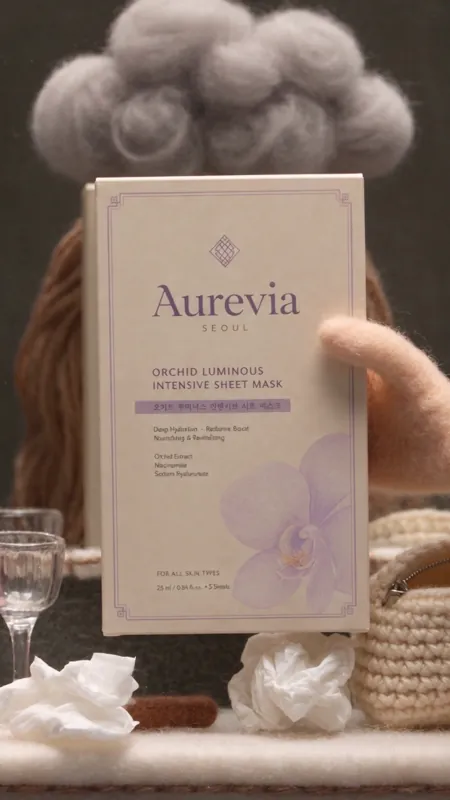
Paper Animation is a video template that reimagines a single product image as a flat, handcrafted paper-cut collage in motion. The visual language is deliberately tactile: torn white edges, watercolor washes, layered paper shadows, and a low frame-rate stop-motion rhythm that feels like classic indie illustration. It works especially well for handheld products such as sportswear, beverages, snacks, or mobile apps shown on a phone screen, where a compact physical object can become the hero of a short narrative scene. The template builds a problem-agitation-solution arc around the product, moving from a muted, moody opening to a warm, colorful resolution and a final product-focused moment. You provide a product image and, optionally, a storyline; the template handles product analysis, persona creation, script drafting, and the paper-cut visual direction. The result is a portrait-format video suited to social feeds where a handmade aesthetic can hold attention without relying on realistic footage.
What this template creates
Flat 2D paper-cut visual direction
The template translates your product image into a completely flat paper collage world. Characters, objects, and backgrounds appear as cut-and-glued paper shapes with irregular white tear-out borders, watercolor texture, and natural shadows between layers. Motion is intentionally jittery and low-frame-rate, evoking pseudo stop-motion rather than smooth CGI. This consistent visual rule gives the video a cohesive, retro-modern feel that is distinct from typical product renders.
PAS-structured storyline generation
The workflow analyzes your product to extract a pain point and a selling point, then drafts a short narrative that follows a problem-agitation-solution structure. The product does not appear in the opening pain point scene; it enters during the solution moment and receives a dedicated hero shot near the end. This sequencing keeps the product reveal purposeful and tied to the emotional shift in the story.
Optional custom storyline input
The Storyline field accepts your own narrative direction. If you provide text, the script generation step prioritizes your story framework and refines it into scene descriptions, character actions, and audio cues. If you leave the field blank, the template falls back to an auto-generated script built from the analyzed product and a persona that fits the product's audience. This makes the template flexible for teams that want control or need a fast first pass.
When to use this format
Snack or beverage brand social ads
A packaged snack like breakfast biscuits or a bottled drink can be shown as the solution to a busy morning or midday slump. The paper-cut style softens the commercial feel, making the ad read more like a short illustrated story than a hard sell, which suits feed-based discovery on social platforms.
Mobile app awareness campaign
When the input is a phone screenshot, the template generates a paper-style device container to display the screen content. This lets an app marketer present a feature or onboarding moment within the same handmade aesthetic, giving a digital product a tactile, approachable presentation that stands apart from standard screen recordings.
Sportswear or personal care product demo
A sunscreen, athletic accessory, or wearable item can anchor a short scene where a paper character experiences a relatable problem—sunburn, discomfort, lack of energy—and then uses the product. The template's persona generation creates a character that matches the product's audience, helping the story feel specific rather than generic.
What you’ll need
- Product ImageRequired
- Choose a clear image from Assets or upload your own.
- StorylineOptional
- Describe your storyline. E.g: Sarah played volleyball on the beach, got sunburned, and used this sunscreen. Leave blank for auto script.
How to use Paper Animation
- 1
Inspect the template and preview framing
Open the Paper Animation template in makespots and review the portrait preview framing. Note that the final video uses a vertical format suited to mobile feeds. Check the default product image and the Storyline field so you understand what the template expects before you replace anything.
- 2
Prepare your product image and optional story
Upload a clear product image in Canvas. For physical products, use a shot where the item is fully visible and not obscured by hands or props. For app screens, use a clean screenshot. If you have a specific narrative in mind, enter it in the Storyline field; otherwise leave it blank to let the template draft one.
- 3
Direct the existing workflow nodes
Review the product analysis and script nodes after generation. The analysis extracts the product type, pain point, selling point, and persona. The script node turns that into scene-by-scene paper-cut directions with audio cues. Adjust the Storyline input or regenerate if the persona or narrative feels off-target for your audience.
- 4
Review the generated video and export
When the video generation step is available in your workspace, review the result for product legibility, paper-cut consistency, and story pacing. Check that the product appears clearly in the solution and hero scenes and that no unwanted text overlays appear. Export the portrait video once the creative matches your intent.
Make the creative yours
Product image replacement
The Product Image field is the primary creative input. Swap the default image with your own product photo or app screenshot. The extraction step isolates the product or screen content and prepares it for the paper-cut scenes, so a clean, unobstructed source image gives the workflow the best material to work with.
Storyline direction
Use the Storyline textarea to shape the narrative. A specific prompt like 'Sarah played volleyball on the beach, got sunburned, and used this sunscreen' gives the script generator a clear arc. Leave it blank to receive an auto-generated PAS story based on the product analysis and a generated persona.
Persona and pain point refinement
The Product Analysis node extracts a pain point, selling point, and persona. You can review and adjust this output in Canvas before the script is finalized. If the generated persona does not match your target audience, modify the analysis result so the script reflects the right character age, appearance, and situation.
Tips for your version
- Use a product image with a simple or neutral background so the extraction step can isolate the item cleanly for the paper-cut scenes.
- If you provide a custom Storyline, keep it to one clear problem and one product solution; the template works best with a single emotional shift rather than multiple plot points.
- After the video generates, check the hero shot at the end: the product should be as close to its original state as possible, with minimal paper-style distortion, so brand details stay recognizable.
Before you generate
Explore first. Sign in to create.
Browse the preview and read this guide without an account. Sign in to upload your product, save a project, and start generation. Your input form stays beside the preview; Canvas is there when you want to edit the workflow.
Review the credit cost before starting
Choose Generate to see the outputs, total credit cost, and your available balance before confirming. The total depends on the workflow and generation settings. See plans and generation credits for the current options.
Check your result before publishing
The preview shows the creative direction. AI results can vary, so inspect product shape, branding, and any generated text, motion, or audio before downloading your ad. The format gives you a starting point; audience response depends on your product, message, and campaign.
Frequently asked questions
Can I use this template for a digital product or app?
Yes. If the input image is a phone or tablet screenshot, the extraction step generates a paper-style device container to display the screen content without altering the text or graphics. The holding method is determined during product analysis, with phones shown in portrait orientation.
What happens if I leave the Storyline field blank?
The template falls back to an auto-generated script. It uses the product analysis to identify a pain point and selling point, creates a persona that fits the product's audience, and drafts a short PAS narrative with paper-cut scene descriptions and audio cues.
Will the product look exactly like my original photo in the final video?
The workflow aims to keep product details, logos, and small print legible, especially in the solution and hero scenes. However, the paper-cut style applies texture and layered edges to everything in the frame. Check the final output to confirm brand elements remain clear enough for your use.
What kind of audio does the generated video include?
The script generation step includes directions for background music, narration, and dialogue that align with the storyline. The video generation node is configured to generate audio. Review the final result to confirm the voice and music fit your brand tone and that no unwanted speech appears in the closing moment.
About the preview
450 × 800 px video example. This is the template preview; your generation settings determine the final output.
You can explore this template and its Canvas without an account. Sign in to save a project and upload your assets.