Felt & Clay Stop-Motion
Create a cozy stop-motion ad with felt and clay characters. Upload your product, outline a storyline, and preview the animated result.
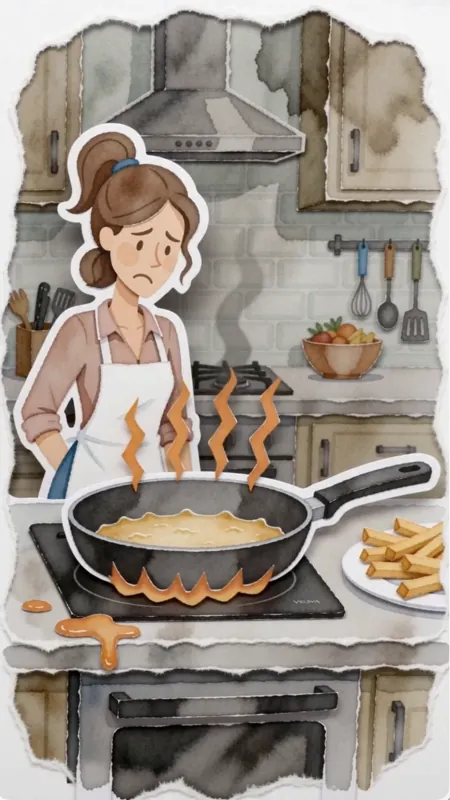
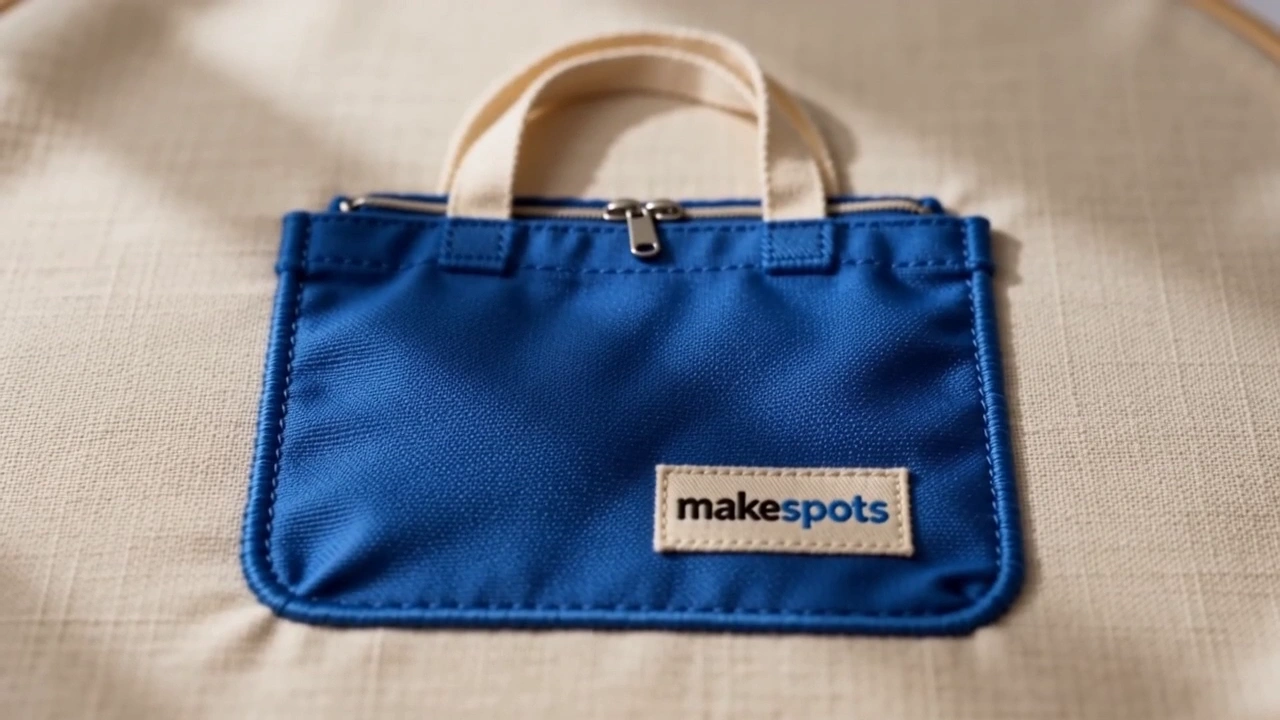
Felt & Clay Stop-Motion is a video template that places your product inside a handcrafted miniature world of yarn, crochet, and soft clay. Instead of live-action polish, it uses tactile textures and playful jitter to make a short ad feel warm and approachable. The format suits products that benefit from a gentle, character-led story: skincare, snacks, home goods, or apps shown on a device. You provide a product image and, optionally, a storyline; the template builds a script, extracts the product, and generates a short animated scene. It is designed for social feeds where a soft, handmade aesthetic can interrupt the usual gloss. The result is a preview you can review and refine in the workspace, not a guaranteed viral asset.
What this template creates
Product extraction for a clean start
An image step isolates your product from its original background and prepares a white-background version. This helps the later animation treat the item as a distinct object. For screenshots, the workflow instead creates a device container to hold your interface. Check that the extracted product keeps its shape, label, and proportions before moving on.
Storyline-to-script adaptation
The optional Storyline field accepts a short narrative, such as a character using your product to solve a problem. The workflow analyzes the product and persona, then writes a shot-by-shot script around your input. If you leave the field blank, it generates a pain-point-to-solution story. The script is editable, so you can adjust pacing or emphasis before generation.
Felt-and-clay visual direction
The master prompt describes a stop-motion look with knitted textures, felted fibers, and hand-stitched details. It also sets camera behavior like quick push-ins and jump cuts, plus a shift from chaotic props to an orderly scene as the product appears. These are creative instructions, not fixed guarantees; the final frames may vary in texture and composition.
When to use this format
Skincare brands with a comfort angle
A sheet mask or moisturizer can be shown in a felt bathroom set, where a character’s dry skin is soothed after use. The handmade style softens the clinical feel of skincare and gives the product a gentle, tactile presence in a short social ad.
Apps demonstrated on a device
If your product is an app screenshot, the extraction step builds a phone or tablet frame to hold the interface. The animation can show a character interacting with the device in a cozy setting, making a software feature feel more human and less technical.
Home and lifestyle goods
Candles, mugs, or small home accessories fit naturally in a miniature knitted room. A brief storyline about a character’s evening routine can place the product in a warm, relatable moment without needing a live-action shoot.
What you’ll need
- Product ImageRequired
- Choose a clear image from Assets or upload your own.
- StorylineOptional
- Describe your storyline. E.g: Sarah played volleyball on the beach, got sunburned, and used this sunscreen. Leave blank for auto script.
How to use Felt & Clay Stop-Motion
- 1
Inspect the template and preview
Open the template to see the input fields, the preview framing, and the workflow nodes. Note that the preview is portrait-oriented. Review the example storyline and product reference to understand the expected level of detail before you prepare your own assets.
- 2
Prepare your product image and storyline
Upload a clear product photo with the item centered and well lit. If you want a specific narrative, write a short storyline in the textarea; otherwise leave it blank for an auto-generated script. For app screenshots, ensure the interface is legible, since the workflow will place it in a device frame.
- 3
Direct the existing workflow
The workflow extracts the product, analyzes it, and writes a master prompt and script. You can edit the storyline field to change the story, but the internal prompt nodes are part of the template’s logic. Review the generated script if it is visible in the workspace before proceeding to video generation.
- 4
Review and export when available
After generation, watch the preview for pacing, product legibility, and character consistency. Check that labels and small text remain readable and that the felt texture looks intentional. If the workspace offers export options, use them once you are satisfied; availability and credits are shown in the interface.
Make the creative yours
Storyline textarea
This field lets you describe a character, a problem, and how the product helps. Keep it concise; the workflow expands it into a script. Leaving it blank triggers a default pain-point story. You can revise the storyline and regenerate to explore different narrative angles.
Product image input
The required product image drives extraction and analysis. A clean, front-facing photo with minimal background works best. For screenshots, the workflow detects the screen type and builds a device container. Replacing the image changes the product and the generated story context.
Canvas-based reference replacement
Canvas exposes the product-analysis, storyline, and master-prompt steps. Adjust their instructions when the story needs a different setting or character direction, while retaining their connections. Review the new text outputs and the final clip to confirm that the product is still central to the miniature story.
Tips for your version
- After generation, zoom in on the product’s label and any small print. Felt textures can soften edges, so confirm that key information is still readable before using the video.
- Keep your storyline to one clear problem and one product moment. The template is built for a short sequence, and a focused input gives the script a better chance of coherent pacing.
- If the character’s face looks too rough, check whether the master prompt’s realism instructions were followed. You can adjust the storyline to describe the character more precisely, but final texture is a creative outcome, not a fixed setting.
Before you generate
Explore first. Sign in to create.
Browse the preview and read this guide without an account. Sign in to upload your product, save a project, and start generation. Your input form stays beside the preview; Canvas is there when you want to edit the workflow.
Review the credit cost before starting
Choose Generate to see the outputs, total credit cost, and your available balance before confirming. The total depends on the workflow and generation settings. See plans and generation credits for the current options.
Check your result before publishing
The preview shows the creative direction. AI results can vary, so inspect product shape, branding, and any generated text, motion, or audio before downloading your ad. The format gives you a starting point; audience response depends on your product, message, and campaign.
Frequently asked questions
Can I use my own product photo instead of the example?
Yes. The Product Image field is required and accepts your own upload. The workflow extracts the item and analyzes it to build the story. For best results, use a clear photo with the product centered and well lit, and avoid cluttered backgrounds that could confuse extraction.
What happens if I leave the Storyline blank?
The workflow generates a default narrative based on the product analysis, typically moving from a pain point to a solution and a final hero shot. You can still edit the storyline later and regenerate if you want a different angle.
Does the template guarantee a specific video length or resolution?
No. The workspace shows the current settings for duration and resolution, but these are not fixed by the template description. Treat the output as a preview and check the final settings in the interface before generating, since availability may vary.
Can I change the felt style or camera moves?
The Storyline field changes the narrative. For a different material treatment or camera direction, edit the Master Prompt instructions in Canvas and review the generated script before continuing. Those changes guide the result; they do not establish an additional style selector in the form.
About the preview
450 × 800 px video example. This is the template preview; your generation settings determine the final output.
You can explore this template and its Canvas without an account. Sign in to save a project and upload your assets.