Mid-Air Commercial Hero
Template guide
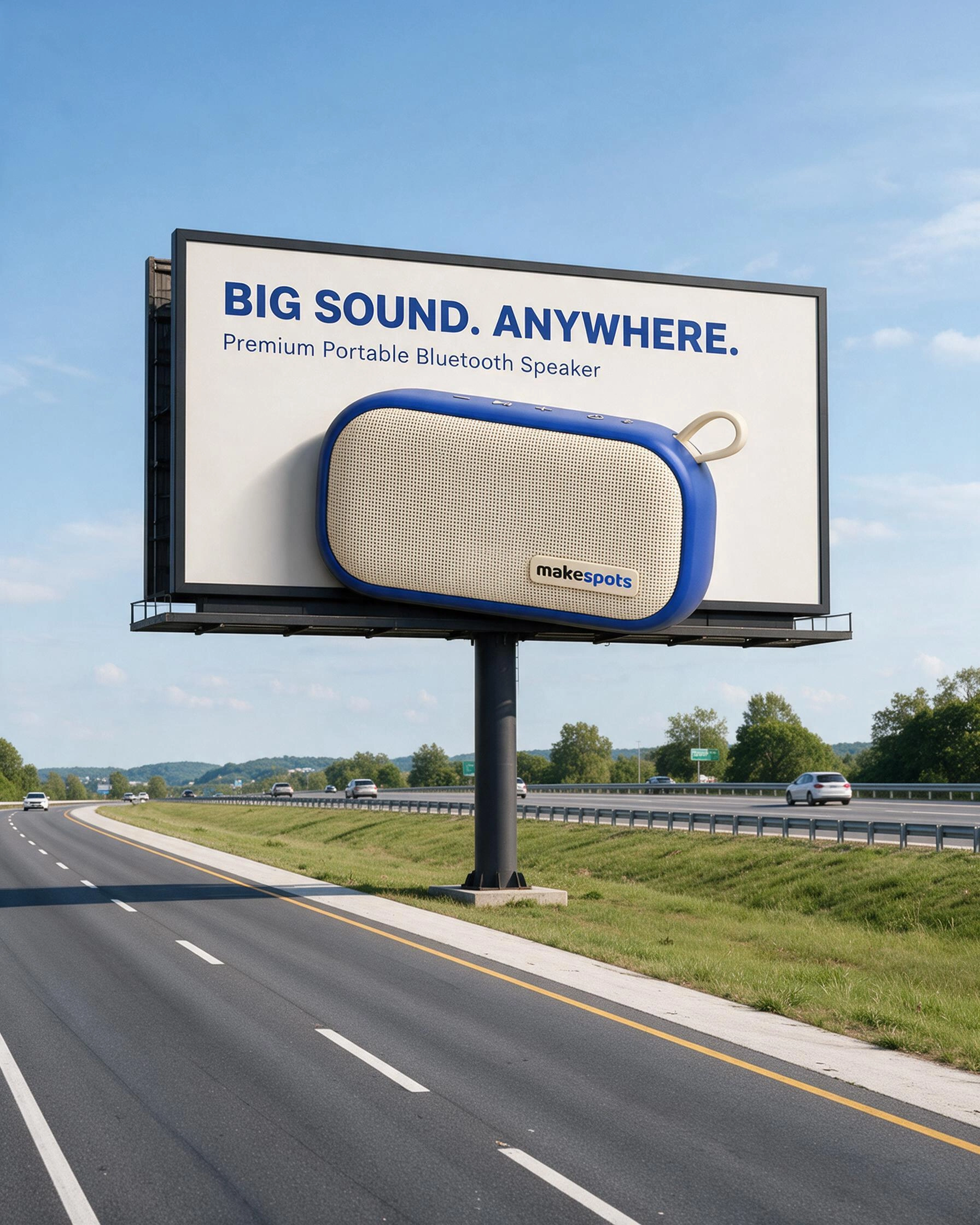
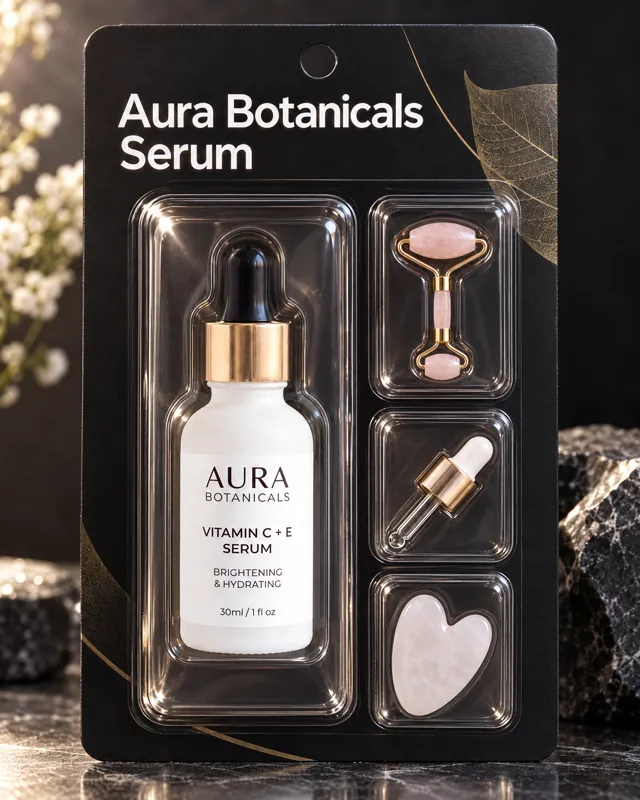
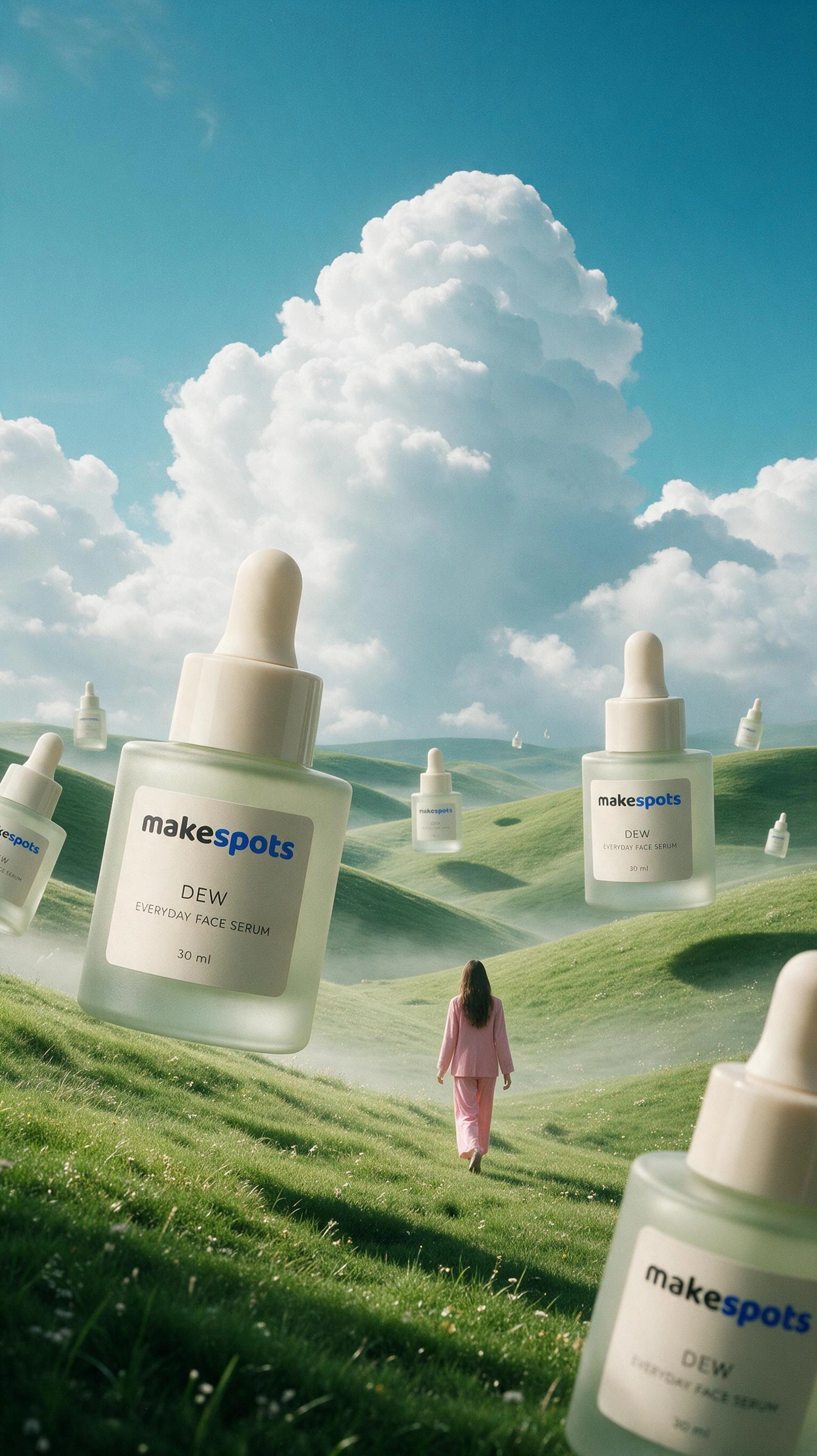
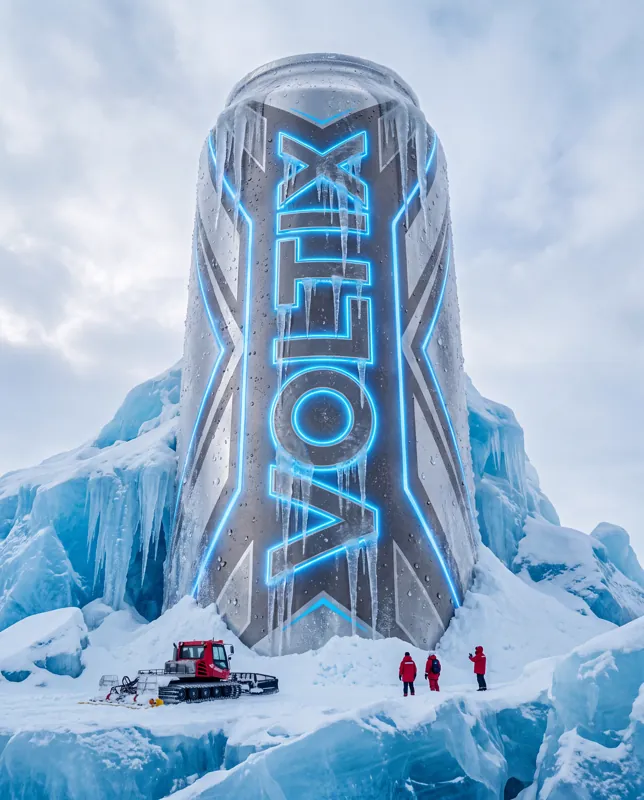
The Mid-Air Commercial Hero template turns a single product photo into a suspended, dynamic advertising visual with the product’s appearance as its visual reference. The source image is extracted cleanly, then re-staged against a color-matched background with product-related elements floating around it. The result is a poster-style image ad that feels like a professional studio shoot, even when the original photo was taken in ordinary conditions. This template is built for marketers who need fast, repeatable hero visuals for campaigns, especially during high-volume seasons like BFCM. It suits product categories where the item can be shown slightly angled in space, surrounded by ingredients, particles, or thematic props. The preview framing is portrait, making it well suited to social image ads and mobile-first placements.
What this template creates
Clean product extraction
The workflow separates the main product from its original background and places it on solid white. This gives the next stage a clean subject to work with. You should check that edges, textures, and small details survive extraction before moving forward, since the final composition depends on this intermediate result.
Color-anchored background design
The creative direction asks for a background based on the product's main color, or another suitable tone, while avoiding dull or flat backdrops. This keeps the final image cohesive and lets the product remain the visual anchor. The background choice is inferred from the product, so results vary by input.
Mid-air product staging
The template composes the product at a slight angle with related elements suspended around it. This creates the commercial hero-shot look associated with premium advertising. The exact arrangement of floating objects is generated, not fixed, so you should review whether the surrounding elements feel relevant to the product category.
When to use this format
BFCM image ads
During high-traffic promotional periods, this template produces portrait image ads that can be tested quickly across social placements. A single clean product photo can be turned into multiple visual directions by regenerating with the same input.
E-commerce product promos
Online stores with simple product photography can use this format to create poster-style promos without a studio setup. It works best for products that benefit from a dramatic, suspended presentation rather than a lifestyle context.
New product launch teasers
A launch campaign can use this hero-shot style to introduce an item with focused visual energy. The floating product-related elements help signal category and use without requiring a full scene build.
What you’ll need
- Product ImageRequired
- Choose a clear image from Assets or upload your own.
How to use Mid-Air Commercial Hero
- 1
Inspect the template structure
Open the template in makespots and review the four workflow nodes: the static prompt, the product image input, the product extraction step, and the final image generation step. Understanding this order helps you predict where adjustments will matter.
- 2
Prepare your product image
Upload the product photo through the mapped input field. Choose an image where the product is clearly visible and not heavily occluded by hands, props, or text, because the extraction step needs a readable subject to work from.
- 3
Direct the existing workflow
The static prompt already sets the commercial photography direction. If you want to influence the floating elements or background mood, edit the final Image Gen prompt in Canvas rather than changing the extraction prompt, which should stay focused on clean product isolation.
- 4
Review and export
After generation, check the product against the original for shape, color, and detail fidelity. Look at the background and floating elements for relevance. When the result is satisfactory and generation is available in your workspace, export the image for your campaign.
Make the creative yours
Swap the product image
The single required input is the product image. Replacing it with a different product photo reruns the same extraction and staging logic, making the template reusable across a catalog without rebuilding the workflow.
Adjust the final image prompt
The Image Gen node accepts prompt edits in Canvas. You can describe different product-related elements, a specific background tone, or a more aggressive angle while keeping the core mid-air commercial direction intact.
Control the visual mood through wording
The static prompt emphasizes sharp, high-quality commercial photography and a non-dull background. You can extend this direction in the final prompt by specifying lighting mood, element density, or color contrast, which changes the feel without altering the product.
Tips for your version
- Use a product photo with a simple or uncluttered background so the extraction step has less to remove.
- Compare the final image side by side with the original product photo to catch any unintended changes to shape, label, or material.
- If floating elements look generic, edit the final Image Gen prompt to name materials or ingredients specific to your product category.
Frequently asked questions
Does this template change my product?
The creative direction explicitly instructs the workflow never to alter product details or properties. In practice, the extraction stage aims to preserve shape, texture, and details. You should still review the final image against the original, because generation is not deterministic.
What kind of product image works best?
A single product, clearly framed and not heavily obscured, gives the extraction node the best chance to isolate the subject cleanly. Avoid images with multiple competing products or heavy shadows that merge into the product edges.
Can I control what floats around the product?
Yes. The final Image Gen node accepts prompt edits in Canvas. You can describe the surrounding elements, such as ingredients, particles, or category props, to steer the composition. The extraction prompt should remain focused on clean product isolation.
Is this template only for portrait ads?
The preview is shown in portrait framing, which suits social image ads and mobile placements. The final composition is generated as a square working image in the workflow, so you should confirm the exported framing in your workspace before using it in a specific placement.
About the preview
450 × 800 px image example. This is the template preview; your generation settings determine the final output.
You can explore this template and its Canvas without an account. Sign in to save a project and upload your assets.