3D Billboard
Template guide
The 3D Billboard template places a product image onto a photorealistic roadside billboard, creating the look of a real U.S. highway installation. The creative intent is a premium outdoor advertisement where the uploaded product becomes the hero visual on a modern standalone structure, set back from the road with proper lane spacing, a painted shoulder, and a wide grass verge or embankment before the pole. This is not a flattened mockup; the workflow builds depth through road layering, structure placement, and environmental context. For marketers and designers, this format is useful when a product needs an outdoor advertising feel without a physical shoot. It suits product launches, seasonal promotions, and brand awareness pieces where scale and roadside visibility communicate confidence. The template works from a single product image and builds the surrounding scene through directed image generation, so the quality of the source photo and the clarity of the product silhouette directly shape how convincing the final billboard appears.
What this template creates
Product-to-billboard placement
The template takes one uploaded product image and uses it as the hero visual on a modern billboard. A separate extraction step isolates the main product onto a clean background, helping the generator place it without accessories or background noise interfering with the billboard face.
Roadside scene construction
The workflow prioritizes realistic highway geometry: active lanes, a painted shoulder, optional guardrail, wide grass verge, then the pole and concrete footing. This layering creates a legal-looking installation with clear distance between traffic and the structure, avoiding the cramped look of a fake road mockup.
Photorealistic outdoor context
The image generation step aims for a premium, photorealistic finish with natural lighting and environmental depth. The billboard stands on the right side of the roadway, well off the pavement, with enough land around the foundation to feel engineered and road-safe rather than pasted into the scene.
When to use this format
Product launch teaser
A brand preparing a new release can place the product on a highway billboard to signal a major announcement. The outdoor scale suggests a public debut, useful for teaser content that builds anticipation before the product page goes live.
Seasonal sale promotion
For BFCM or holiday campaigns, a product image on a 3D billboard gives the promotion an advertising-forward look. The format suits social posts and ad creatives where the product needs to feel like the center of a larger campaign.
Brand awareness visual
Companies without physical outdoor placements can simulate a roadside presence for brand storytelling. The image works as a standalone visual or as part of a series showing the product in different real-world advertising contexts.
What you’ll need
- Product ImageRequired
- Choose a clear image from Assets or upload your own.
How to use 3D Billboard
- 1
Inspect the template structure
Open the 3D Billboard template in makespots and review the four workflow nodes: product image input, prompt generation, image generation, and product extraction. Check the preview framing to understand the portrait-oriented output before adding your own assets.
- 2
Prepare a clean product image
Upload a product photo with a clear silhouette and minimal background clutter. The extraction node isolates the main product, so a well-lit image with defined edges helps the generator preserve shape, texture, and detail when placing it on the billboard.
- 3
Direct the scene generation
Use the prompt node to refine the roadside environment. The existing direction covers road geometry, verge width, and structure placement; you can adjust the time of day, weather, or surrounding landscape to match your campaign's visual tone.
- 4
Review and export
Check the generated image for product accuracy, billboard legibility, and road realism. Look at whether the pole sits on land rather than asphalt and whether the product looks natural on the billboard face. Export when the scene matches your intent.
Make the creative yours
Product image input
The single mapped field accepts your product photo. Choose an image where the product is the clear focal point and occupies a reasonable portion of the frame, so the extraction step can isolate it cleanly for billboard placement.
Scene prompt direction
The prompt node is editable, allowing you to adjust the highway setting, verge width, guardrail presence, and surrounding environment. You can request a specific landscape type, lighting condition, or billboard design style within the roadside structure constraints.
Billboard visual tone
While the template aims for a photorealistic premium look, you can influence the mood through prompt adjustments. Consider whether the billboard should appear at dawn, midday, or dusk, and whether the surrounding area should feel rural, suburban, or industrial.
Tips for your version
- Use a product photo with a simple background so the extraction node can isolate the product without pulling in unwanted elements.
- Review the road-to-billboard spacing in the output; the pole should sit on grass or land, not on asphalt or lane paint.
- Check the product on the billboard face for stretching or distortion, especially if the source image has an unusual aspect ratio.
Frequently asked questions
What kind of product image works best with the 3D Billboard template?
A product photo with a clean background and a well-defined silhouette works best. The extraction step isolates the main product onto a white background, so busy or cluttered source images may cause the generator to include unwanted elements or lose detail on the product edges.
Can I change the highway setting or landscape?
Yes. The prompt node is editable and lets you adjust the environment. You can request a different landscape type, time of day, or weather condition while keeping the core road geometry direction intact. The workflow will interpret your changes during image generation.
Why does the template emphasize road geometry so heavily?
Realistic road layering makes the difference between a convincing billboard scene and a fake-looking mockup. The direction specifies active lanes, a painted shoulder, a wide grass verge, and the pole set back from traffic, which helps the output look like a legal, engineered roadside installation.
Will the product appear exactly as in my uploaded image?
The extraction step aims to preserve shape, texture, and details, but image generation can introduce variations. Review the output for product accuracy and legibility on the billboard face. If the result drifts, try a source image with clearer edges and more even lighting.
About the preview
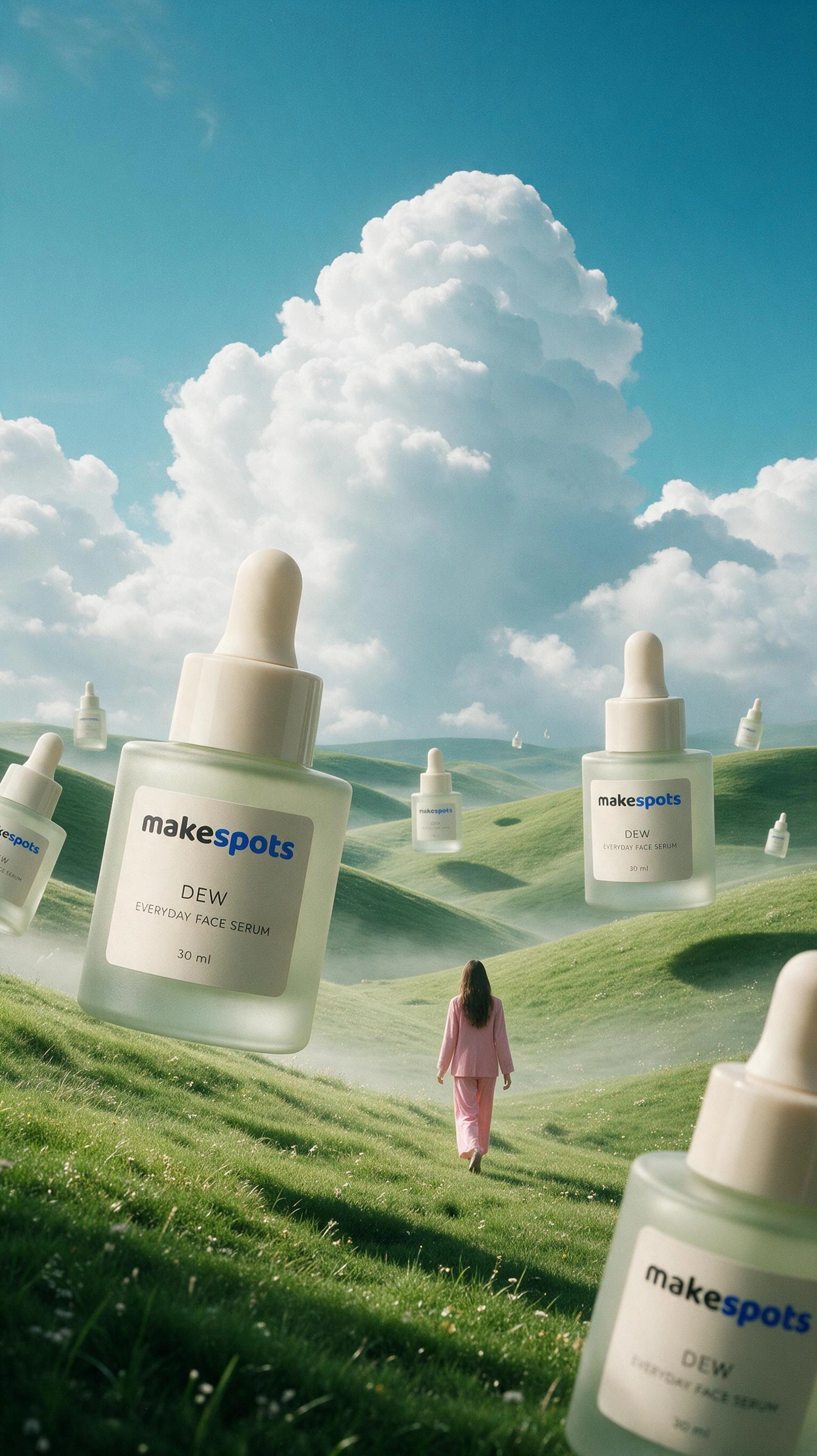
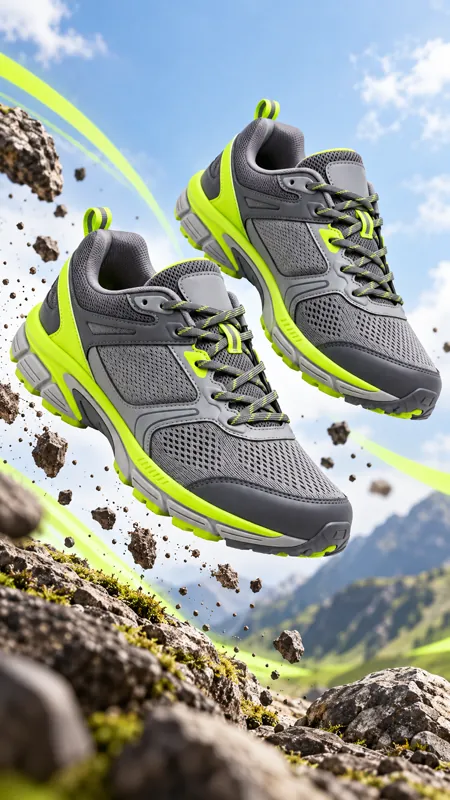
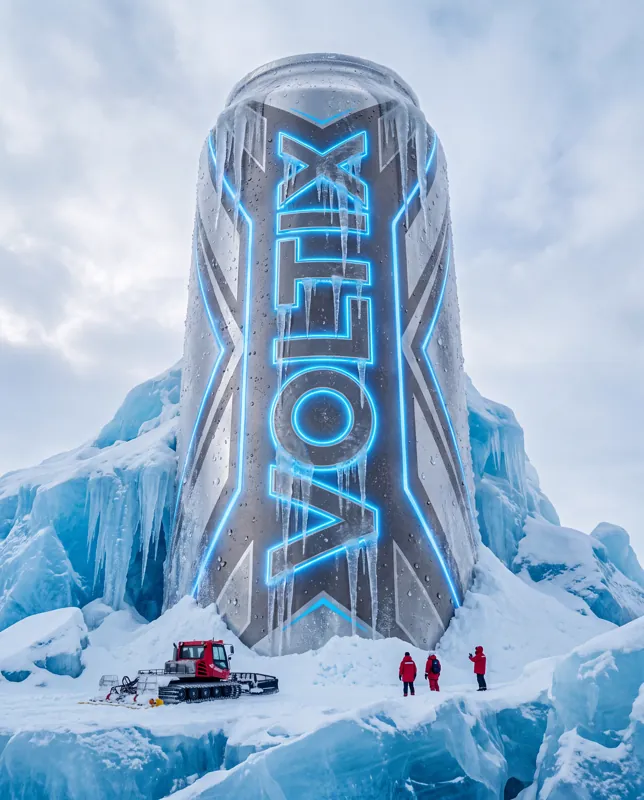
1792 × 2240 px image example. This is the template preview; your generation settings determine the final output.
You can explore this template and its Canvas without an account. Sign in to save a project and upload your assets.