Huge Product on Taxi
Make a giant-product taxi video from one photo. Place your product above city traffic in a surreal outdoor advertising concept.
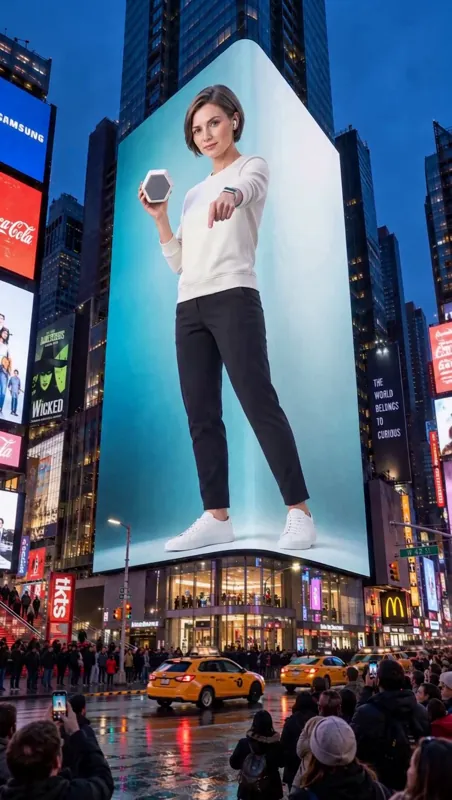
Huge Product on Taxi puts an oversized version of your product on a yellow cab moving through an ordinary city intersection. The contrast is the idea: pedestrians, buildings, and traffic provide familiar scale while the object on the roof is impossibly large. The camera follows from the sidewalk, giving the scene the feeling of an unusual sight noticed in passing. One Product Image field supplies the hero object. The workflow uses that reference with an editable video prompt, and the preview shows a portrait street composition. This format suits a campaign built around a strong product silhouette, such as a bag, bottle, shoe, or distinctive package. The generated scene is an outdoor advertising visualization; it does not represent a booked placement or an actual installation on a vehicle.
What this template creates
Scale creates the visual hook
The taxi acts as a familiar size reference. Keeping the whole product visible above the car helps the unusual scale read immediately. A complicated background or a cropped hero object can make the scene harder to understand even when the rendering looks detailed.
A single reference anchors the product
Your uploaded photo defines the intended outline, materials, and colors. The prompt asks the oversized object to travel with the taxi. Review attachment, perspective, and shadow together, since a floating or sliding product changes the idea of a physical roof-mounted installation.
A street-level moving composition
The scene is directed as a continuous view with a restrained camera follow. Ordinary surrounding movement supports the scale illusion. Canvas lets you refine that direction, while the preview provides a useful reference for how much of the city and vehicle should remain visible.
When to use this format
A recognizable accessory launch
A product with a distinctive outline can remain identifiable before viewers read a caption. Use the taxi scene to introduce the shape or color of a new item, with factual product details supplied by the rest of the campaign.
A surreal outdoor concept
Explore how a product might look as an exaggerated city installation without arranging a physical shoot. Treat the output as a creative visualization, and evaluate the composition before developing other campaign scenes around the same idea.
A playful social reveal
The familiar street scene provides an accessible setting for an unusual product appearance. It can work alongside closer product footage when the campaign needs both a visual surprise and enough detail for people to understand the actual item.
What you’ll need
- Product ImageRequired
- Choose a clear image from Assets or upload your own.
How to use Huge Product on Taxi
- 1
Check the scale in the preview
Watch the entire cab movement and the final product view. Notice how the buildings and pedestrians establish size. Choose this format when your object will still read clearly at that exaggerated scale.
- 2
Upload a complete product photo
Use Product Image to provide the item. Keep its top, bottom, and outer edges visible, with minimal competing objects. A clear front or three-quarter view gives the scene more usable information than a heavily cropped detail photograph.
- 3
Refine the street direction
Open Canvas to review the video prompt. If you change the setting or movement, preserve the relationship between product and vehicle. Save the project once the camera and hero-object direction match the campaign you want to make.
- 4
Review movement and product identity
After checking the credit estimate and generating, inspect the roof contact, reflections, and full silhouette. Watch nearby traffic for distracting changes. Download a version only after the object remains recognizable through the entire passing shot.
Make the creative yours
Choose a stronger silhouette
The photo input changes the oversized object. Try a cleaner angle when handles, straps, or narrow parts disappear in the generated view. The outline matters particularly here because the product is read against buildings, sky, and moving traffic.
Direct the surrounding city
The street setting lives in the editable prompt. You can describe a different visual atmosphere while retaining a believable intersection and a clear vehicle path. Keep background details subordinate to the taxi and the object it carries.
Control the closing view
Refine the prompt to give the final side view enough emphasis for product recognition. Avoid introducing a new action at the end. A stable relationship between the car and object makes the closing composition easier to assess and reuse.
Tips for your version
- Check that the product stays attached to the same point on the roof while the taxi moves.
- Use the full product outline as a review criterion, especially for bags, handles, and tall packaging.
- Inspect a paused frame near the end for unintended text or changed branding before choosing a poster frame.
Before you generate
Explore first. Sign in to create.
Browse the preview and read this guide without an account. Sign in to upload your product, save a project, and start generation. Your input form stays beside the preview; Canvas is there when you want to edit the workflow.
Review the credit cost before starting
Choose Generate to see the outputs, total credit cost, and your available balance before confirming. The total depends on the workflow and generation settings. See plans and generation credits for the current options.
Check your result before publishing
The preview shows the creative direction. AI results can vary, so inspect product shape, branding, and any generated text, motion, or audio before downloading your ad. The format gives you a starting point; audience response depends on your product, message, and campaign.
Frequently asked questions
What sort of product image should I upload?
Choose a single item with a clear outline and visible surface details. A product that is recognizable by shape is a useful starting point. Busy lifestyle photographs can introduce competing subjects that make the oversized hero harder to control.
Does this include a real taxi advertising placement?
No. The output is an AI-generated video concept. The template creates the appearance of an oversized product moving through a city, and does not arrange transport, outdoor media space, or a real-world installation.
Can I change the location?
You can edit the city and lighting direction in Canvas. The existing example is based on a yellow cab in an urban street. Changing that setting can change the visual character of the result, so review the complete composition again.
Why should I check the roof shadow?
Contact shadows and reflections help the giant item appear connected to the vehicle. If these change independently of the car, the product may look pasted onto the scene. Inspect the whole movement rather than relying on one attractive frame.
About the preview
450 × 800 px video example. This is the template preview; your generation settings determine the final output.
You can explore this template and its Canvas without an account. Sign in to save a project and upload your assets.