Anamorphic 3D Billboard
Create a first-person anamorphic 3D billboard video from your product image and a short promo detail.
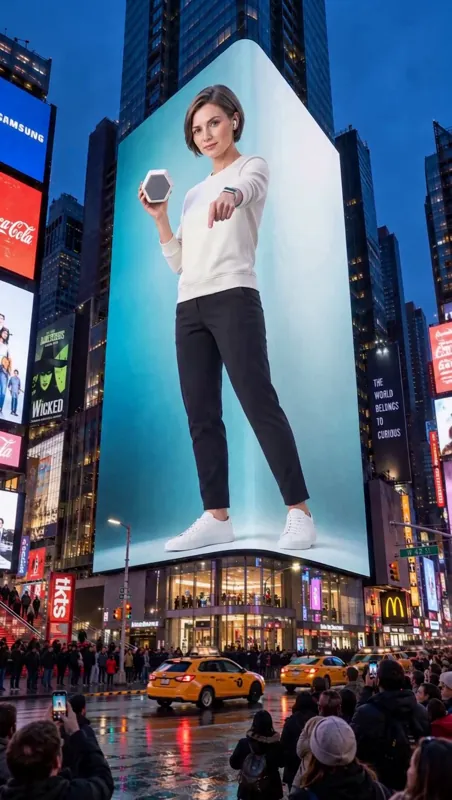
This template builds a pedestrian-perspective video that places your product on a curved-corner anamorphic 3D LED billboard in a busy downtown shopping district. Instead of a polished commercial shot, the footage is framed as a real passerby discovering the display while walking: the camera looks elsewhere first, then finds the billboard already animating. The result is meant to feel like authentic UGC captured on a phone, not a CGI showcase reel. The surrounding city stays ordinary, while the billboard itself carries the visual spectacle. The creative combines product fidelity with anamorphic depth. Your uploaded product image becomes the hero object inside the screen, supported by decorative materials, lighting, and motion that match a chosen visual direction. If you add a short promotional detail such as a discount or seasonal message, the workflow can include readable billboard typography and distant outdoor speaker audio. If you leave that field empty, the template produces a product-focused campaign with no invented slogans or text.
What this template creates
First-person discovery framing
The video opens with the viewpoint looking at pavement, traffic, or nearby pedestrians before turning toward the billboard. This delayed reveal makes the moment feel accidental rather than staged. The billboard animation is already running when the camera finds it, so the discovery feels reactive and grounded in a real walking pace.
Contained anamorphic depth
The billboard creates naked-eye 3D through forced perspective, parallax, layered foreground and background elements, and virtual shadows. Everything stays inside the physical LED screen boundary. Products and typography may appear to approach the viewer, but they never cross into the street or overlap buildings, cars, or pedestrians.
Optional promotional copy and audio
The Additional Details field accepts a short campaign message such as a discount rate or seasonal note. When valid copy is present, the workflow directs dimensional typography animation and distant outdoor speaker audio. If the field is empty or contains unusable text, the template suppresses readable copy and spoken advertising instead of inventing a slogan.
When to use this format
Black Friday or seasonal promotion
A brand can upload a hero product and enter a short discount phrase. The template directs a premium Black Friday visual system with dark materials, metallic accents, and contained typography, giving the promotion a large-format outdoor advertising feel without a physical billboard production.
Product launch teaser
For a new item, leave the Additional Details field empty to keep the focus entirely on the product. The workflow then builds a product-centered anamorphic sequence using decorative motion and material response, avoiding invented slogans or unapproved campaign language.
Social media ad creative
The vertical first-person format suits short-form placements where authentic, street-level footage tends to hold attention. The look-elsewhere-first opening and natural camera movement create a different rhythm from polished studio product shots, useful for testing a more organic ad style.
What you’ll need
- Additional DetailsOptional
- Add your own text, up to 300 characters.
- Product ImageRequired
- Choose a clear image from Assets or upload your own.
How to use Anamorphic 3D Billboard
- 1
Inspect the template format
Open the template in makespots and review the preview framing, available input fields, and workflow nodes. Note that the output is a vertical video with a first-person urban perspective, not a studio product render or logo animation.
- 2
Prepare your product image and message
Upload a clear product image that shows shape, materials, colors, and recognizable design details. If you want promotional copy, write a short, commercially useful phrase in Additional Details. Leave the field empty if you prefer a product-only campaign.
- 3
Direct the existing workflow
Use the Additional Details and Prompt nodes to guide the creative direction. The prompt node translates your inputs into a production brief covering product fidelity, billboard containment, first-person POV, motion hierarchy, and timeline pacing. Adjust the text node only if you need to refine intent.
- 4
Review and export when generation is available
Check the generated preview for product accuracy, billboard boundary containment, readable text if you requested it, and natural walking movement. Confirm the billboard animates independently of camera motion, then save or export from the workspace when generation is available.
Make the creative yours
Product image as the hero reference
The Product Image field is the main visual anchor. Use an image that clearly shows proportions, color, material, and any branding or hardware details. The workflow emphasizes preserving those elements rather than redesigning or stylizing the product.
Additional Details for promotional copy
Enter a concise phrase such as a discount rate, holiday theme, or launch message. The prompt node extracts the shortest usable campaign copy and directs typography animation. Unclear or contradictory text is ignored, so keep the message simple and commercially specific.
Visual direction through the prompt node
The Prompt node adapts a material and color system to your product category and campaign context. You can influence the outcome by describing the product accurately in your image and keeping the Additional Details message aligned with the intended seasonal or promotional mood.
Tips for your version
- Use a product image with a clean, uncluttered background so the workflow can preserve shape and material details without confusing edges.
- Keep the Additional Details message under a short phrase; the prompt node extracts the shortest useful copy, and long paragraphs are more likely to be ignored.
- When reviewing, watch the first two seconds to confirm the camera looks away from the billboard before discovering it, and check that no product or text crosses the screen boundary.
Before you generate
Explore first. Sign in to create.
Browse the preview and read this guide without an account. Sign in to upload your product, save a project, and start generation. Your input form stays beside the preview; Canvas is there when you want to edit the workflow.
Review the credit cost before starting
Choose Generate to see the outputs, total credit cost, and your available balance before confirming. The total depends on the workflow and generation settings. See plans and generation credits for the current options.
Check your result before publishing
The preview shows the creative direction. AI results can vary, so inspect product shape, branding, and any generated text, motion, or audio before downloading your ad. The format gives you a starting point; audience response depends on your product, message, and campaign.
Frequently asked questions
What happens if I leave Additional Details empty?
The workflow generates a product-focused anamorphic campaign without readable billboard text or spoken advertising copy. It will not invent slogans or discounts. Instead, the visual peak comes from decorative motion, materials, and lighting around the product inside the screen.
Will the product look exactly like my uploaded image?
The prompt directs faithful preservation of shape, proportions, colors, materials, and recognizable details, but generation is not deterministic. Review the result for deformation, color shifts, or redesign. If the product looks off, try a clearer reference image or adjust the prompt node.
Does the video show a person holding a phone?
No. The template specifies a true first-person viewpoint with no visible smartphone, hands, or selfie framing. The viewer should feel like the passerby. The camera uses natural walking movement, slight sway, and imperfect framing rather than polished cinematic motion.
Can the product appear to come out of the billboard into the street?
No. The creative direction requires all products, typography, and decorative elements to stay inside the LED screen boundary. They may approach the inner display plane through anamorphic perspective, but they must never cross the physical edge or overlap real-world objects.
About the preview
448 × 800 px video example. This is the template preview; your generation settings determine the final output.
You can explore this template and its Canvas without an account. Sign in to save a project and upload your assets.