Astronaut Holding Sign on Moon
Create an astronaut announcement video with your own sign text. Set a launch message against a lunar landscape and distant Earth.
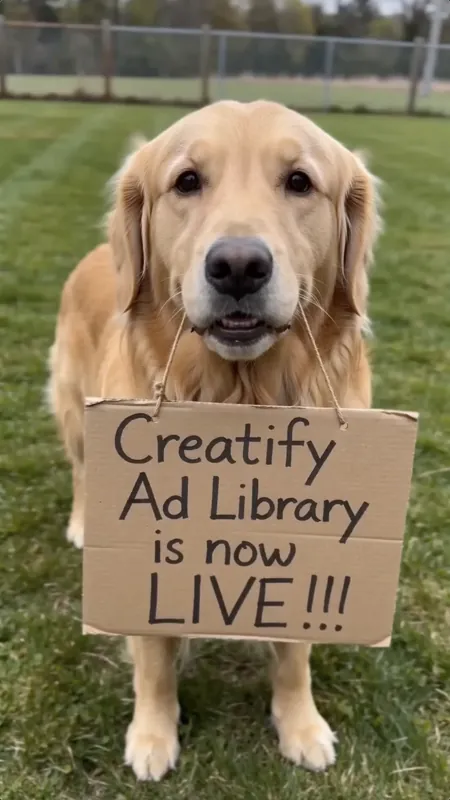
Astronaut Holding Sign on Moon gives a simple handwritten announcement an unlikely setting. A suited astronaut stands on a dusty lunar surface and holds a cardboard sign toward the viewer, with the Earth visible beyond the scene. The contrast between an ordinary handmade message and a space setting is the central visual idea. The only exposed input is Text on Sign. The workflow prepares the astronaut image with your wording, then uses that scene to make a short video. The preview is portrait, with the sign placed prominently in front of the figure. This format can introduce a launch, promotion, or event when a playful space theme fits the campaign. Your message should be short enough to read on the cardboard while the viewer also understands the unusual setting.
What this template creates
The sign carries the message
Your text is generated on the cardboard held by the astronaut. This integrates the announcement into the scene rather than treating it as a conventional overlay. Keep the wording concise, and inspect the letters for spelling changes or awkward line wrapping.
A lunar scene establishes contrast
The spacesuit, ground, and distant Earth provide the setting for an otherwise ordinary sign. The image direction is available in Canvas. Preserve enough of that environment to explain the idea without making the sign too small to read.
An image-to-video workflow
The prepared image establishes the character, sign, and composition before the video stage. Review it as the visual foundation of the result. Problems in lettering or the astronaut pose should be addressed there instead of relying on motion to conceal them.
When to use this format
An unusual launch announcement
A short launch message can use the lunar setting as a playful visual metaphor. State the actual announcement clearly on the sign, and provide practical details in accompanying copy when they will not fit comfortably into the scene.
A promotion with a space theme
The format can suit a campaign already using exploration or space imagery. Connect the message to that theme without inventing product capabilities. The setting is fictional and should be treated as creative staging rather than a real mission.
A brief event reminder
Use the sign to carry one memorable reminder before a more detailed event post or landing page. Keep the important information easy to recognize. A crowded schedule or several different dates will be harder to read as generated handwriting.
What you’ll need
- Text on SignRequired
- Add the text you want to use in this template.
How to use Astronaut Holding Sign on Moon
- 1
Check the sign size in the preview
Look at how much of the frame is occupied by the sign and how many lines fit naturally. Draft your message with that visual space in mind, rather than treating the input as unlimited advertising copy.
- 2
Enter the announcement
Replace Text on Sign with your wording. Use a clear sentence or compact phrase and check punctuation. Keep a copy of the intended message so you can compare it against the generated handwriting later.
- 3
Review the prepared lunar scene
Open Canvas to inspect the image and video direction. Confirm that the sign faces the viewer and remains the main reading area. Save the project once the message and scene are ready for the displayed generation options.
- 4
Inspect text and motion together
Review the cost before generation, then watch the finished video. Check the gloves, cardboard edges, and text during movement. Compare the words with your original message and inspect the scene at the size it will appear in a feed.
Make the creative yours
Write for the cardboard surface
The text input changes the sign message. A short phrase gives the lettering room and makes line breaks easier to manage. If you need exact promotional terms, keep those in verified accompanying copy as well as checking the generated sign.
Refine the lunar composition
Canvas exposes the image direction for the astronaut, ground, and background. You can adjust the scene emphasis while keeping the sign legible. Large changes to the character position may require another review of hand placement and perspective.
Adjust the video treatment
The video step can be reviewed in Canvas after the initial image is established. Keep movement restrained enough for the handwritten message to remain readable. More action is useful only if it supports the announcement rather than hiding it.
Tips for your version
- Keep the announcement short enough to read before the viewer has finished noticing the astronaut and lunar setting.
- Inspect the gloves where they meet the sign; distorted edges can make the message surface look unstable.
- Check the first and last visible frames of the sign for changed letters or line breaks during animation.
Before you generate
Explore first. Sign in to create.
Browse the preview and read this guide without an account. Sign in to upload your product, save a project, and start generation. Your input form stays beside the preview; Canvas is there when you want to edit the workflow.
Review the credit cost before starting
Choose Generate to see the outputs, total credit cost, and your available balance before confirming. The total depends on the workflow and generation settings. See plans and generation credits for the current options.
Check your result before publishing
The preview shows the creative direction. AI results can vary, so inspect product shape, branding, and any generated text, motion, or audio before downloading your ad. The format gives you a starting point; audience response depends on your product, message, and campaign.
Frequently asked questions
Does this require a product photo?
No. The template form asks for Text on Sign. The scene is built around an astronaut and your written announcement. Use a separate product-led clip if the campaign also needs a recognizable product image or a demonstration.
Can I change the sign wording?
Yes. Replace the Text on Sign value before generating. The wording becomes part of the generated scene, so review the actual letters in the output. Editing the input after generation does not retroactively alter an existing video.
Is the character based on my own portrait?
The public form does not include a portrait input. The existing scene direction specifies a suited astronaut with a helmet. You can inspect the creative direction in Canvas, but this template is not a personal likeness workflow.
Will a long announcement fit?
A long message can force smaller handwriting and more lines onto the cardboard. Use a concise headline for the video and put additional information elsewhere in the campaign. Check readability on a phone-sized preview before approving the result.
About the preview
446 × 800 px video example. This is the template preview; your generation settings determine the final output.
You can explore this template and its Canvas without an account. Sign in to save a project and upload your assets.