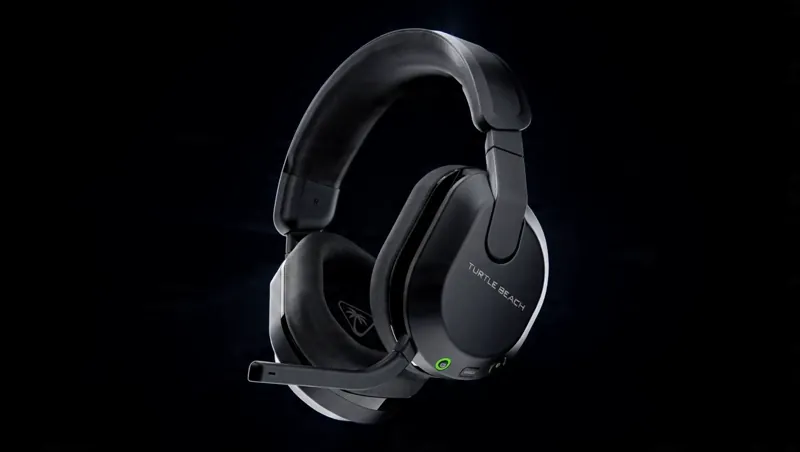
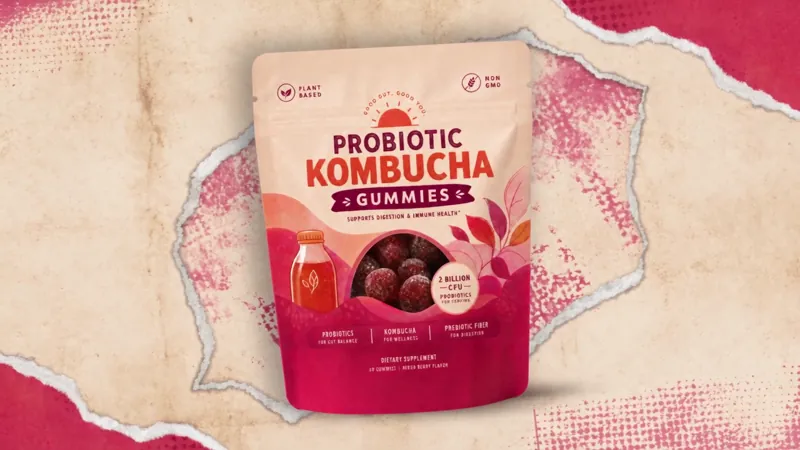
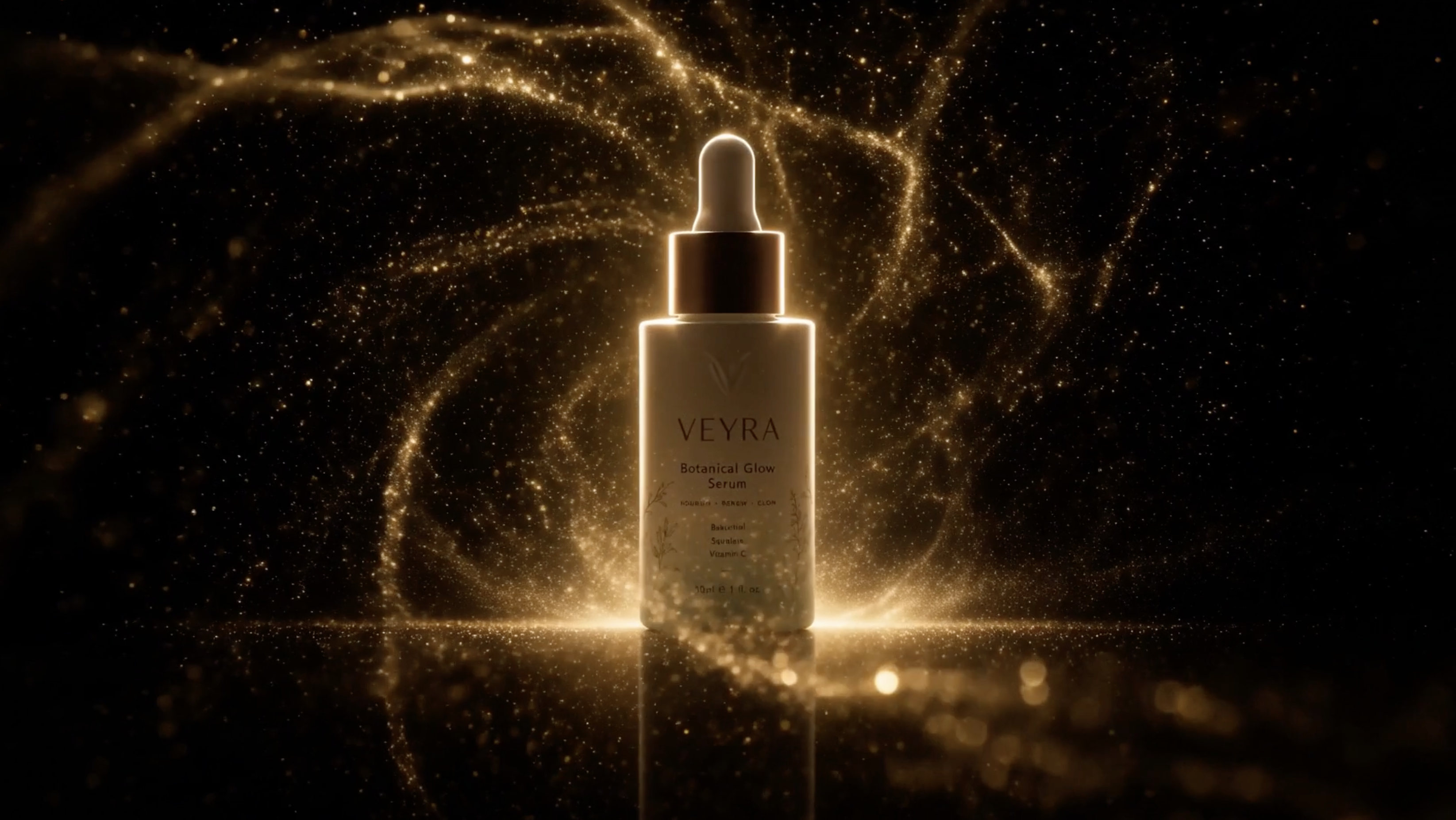
Hype Vibe Commercial
Build a fast, colorful product commercial with the Hype Vibe Commercial template—upload one product image and direct a playful, high-energy ad.
The Hype Vibe Commercial is a video template for turning a single product image into a brisk, colorful commercial with playful motion and a strong commercial rhythm. It is built for beverage, snack, and packaged-goods moments where the product itself stays central while ingredients, liquid, and particles bring energy around it. The format suits social feeds and larger screens where quick cuts and saturated color help a product read instantly. Instead of starting from a blank timeline, you begin with a structured workflow: a product extract step, a master prompt that describes the creative direction, and a video generation step. You keep control by supplying the product image and refining the direction in the workspace. The result is a short ad concept you can review, adjust, and export when generation is available—not a guaranteed viral hit, but a practical starting point for high-tempo product storytelling.
What this template creates
Single-image product anchoring
The template centers on one required Product Image input. That image becomes the visual reference for the commercial, so the product's shape, colors, and packaging details guide the scene. You are not assembling multiple product angles; you choose one clear source image and let the workflow treat it as the anchor for the ad's look.
Prompt-directed commercial rhythm
A Master Prompt node carries the creative brief: bright high-key lighting, playful motion, active supporting elements, and a clean hero ending. This is an editable text step, not an automatic script generator. You can adjust the wording to match your product category, such as fruit and water for drinks or crumbs and sauce for snacks, while keeping the fast, upbeat direction.
Product extract preparation
An image generation node prepares a product extract on a plain background before video generation. This step is about isolating the product so the commercial can place it against vibrant backgrounds without unrelated scene elements. Treat the extract as a working reference, then check that labels, proportions, and colors still read correctly before you rely on it.
When to use this format
Beverage launch teaser
A drinks brand with a new can or bottle can use the template to sketch a fast, condensation-heavy spot with citrus slices and splashes. The single product image keeps the packaging central while the prompt direction supplies the playful, refreshing mood for a social teaser.
Snack and packaged-food spot
For snacks, cereal, or prepared foods, the format supports crumb bursts, ingredient floats, and sauce or steam cues around the pack. A marketer can test a high-energy commercial concept before committing to a full production, using the product image as the fixed reference.
CTV and social concept testing
Teams planning both vertical social cuts and widescreen placements can preview the same colorful direction at different framings. The template's brisk pacing and saturated backgrounds suit attention-grabbing placements, and the preview helps stakeholders discuss the creative before final production.
What you’ll need
- Product ImageRequired
- Choose a clear image from Assets or upload your own.
How to use Hype Vibe Commercial
- 1
Inspect the template structure
Open the Hype Vibe Commercial and review its four workflow nodes: Product Image, Product Extract, Master Prompt, and Video Gen. Note the single required image input and the editable prompt. This tells you where your product enters and where the creative direction lives before you change anything.
- 2
Prepare the product image
Choose one clear product photo with the label facing the camera and minimal background clutter. If the template's extract step runs, review the isolated product it produces. Replace the sample reference in Canvas if you are using the example campaign, and sign in before saving or uploading your own assets.
- 3
Direct the master prompt
Edit the Master Prompt to match your category: name the supporting elements, the background color family, and the product-use moment you want. Keep the playful, high-key tone and the clean hero ending. Avoid promising exact labels or identical scenes; describe intent and check what the generation actually preserves.
- 4
Review and export
When generation is available, watch the result for product fidelity, pacing, and whether supporting elements feel premium rather than cluttered. Check the final hero moment for settled elements. Adjust the prompt or image and regenerate as needed, then export the version that best matches your campaign framing.
Make the creative yours
Product image swap
The Product Image field is the main creative control. Replacing the default sample with your own packshot changes the product the commercial is built around. Use a sharp, well-lit image so the extract step and video generation have a clear reference for shape, color, and label detail.
Master Prompt wording
The Master Prompt step generates video direction from the product reference. Edit its instructions to shift supporting elements from citrus and water to crumbs, sauce, or botanical mist. Review the generated wording before the video step, particularly any implied ingredients, benefits, or product use.
Canvas reference replacement
If you start from a sample campaign, the fixed references can be replaced in Canvas. This is where you bring your own product imagery and adjust the composition around it. Saving projects and uploading assets require sign-in, so plan that step before a review session.
Tips for your version
- Check the product extract before generating video: zoom in on labels and edges to see whether text and packaging details survived isolation, and fix the source image if they did not.
- Keep supporting elements purposeful: choose two or three ingredient or liquid cues that match the product category rather than filling every shot, so the commercial reads as premium rather than busy.
- Review the ending separately: confirm the final hero moment feels settled and the product is clearly readable, since a clean close is often what viewers remember from a fast spot.
Before you generate
Explore first. Sign in to create.
Browse the preview and read this guide without an account. Sign in to upload your product, save a project, and start generation. Your input form stays beside the preview; Canvas is there when you want to edit the workflow.
Review the credit cost before starting
Choose Generate to see the outputs, total credit cost, and your available balance before confirming. The total depends on the workflow and generation settings. See plans and generation credits for the current options.
Check your result before publishing
The preview shows the creative direction. AI results can vary, so inspect product shape, branding, and any generated text, motion, or audio before downloading your ad. The format gives you a starting point; audience response depends on your product, message, and campaign.
Frequently asked questions
Do I need more than one product image?
No. The template exposes a single required Product Image field. One clear packshot is the intended input. If you have multiple angles, choose the one that best shows the label and shape, because that image anchors the commercial's product reference.
Can I change the commercial's mood or category?
Yes, through the editable Master Prompt. You can describe different supporting elements and background colors while keeping the fast, playful structure. The template's example leans toward vivid beverage-style energy, but the prompt wording is where you adapt it to snacks, cosmetics, or other packaged goods.
Will the final video match my product exactly?
Product fidelity is the creative intent, not a guarantee. The workflow uses your image as a reference and includes an extract step, but generated frames can shift details. Check labels, proportions, and colors in the output, and treat any mismatch as a reason to refine the source image or prompt.
Where do I replace the sample references?
Replace fixed sample references in Canvas, where you can bring in your own product imagery and adjust the setup. Saving the project and uploading assets require sign-in. The workspace shows the current generation settings and availability, so review those before you start a run.
About the preview
800 × 450 px video example. This is the template preview; your generation settings determine the final output.
You can explore this template and its Canvas without an account. Sign in to save a project and upload your assets.