Premium Gold Particle Commercial
Create a cinematic short gold particle product commercial with dark luxury aesthetics, slow-motion macro shots, and CGI vortex effects.
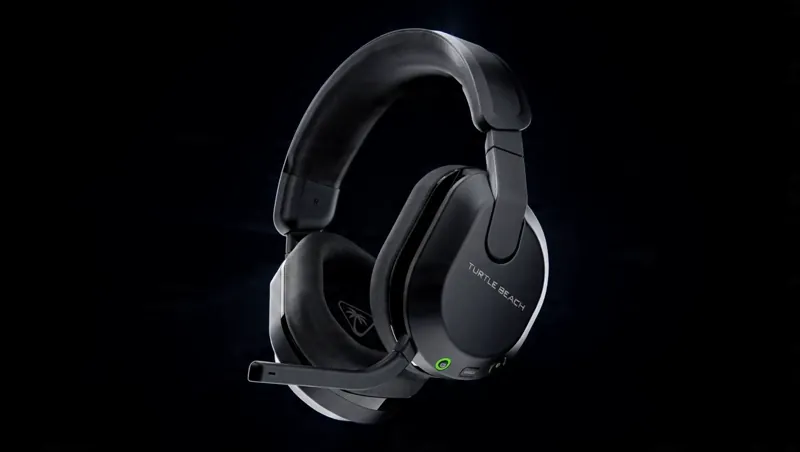
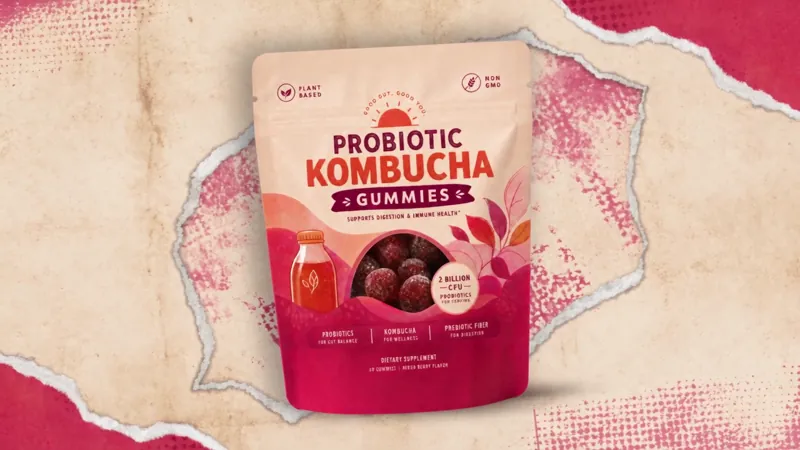
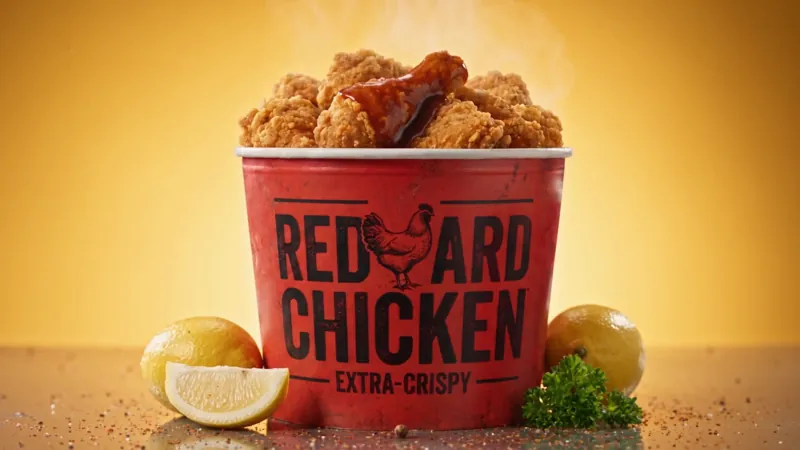
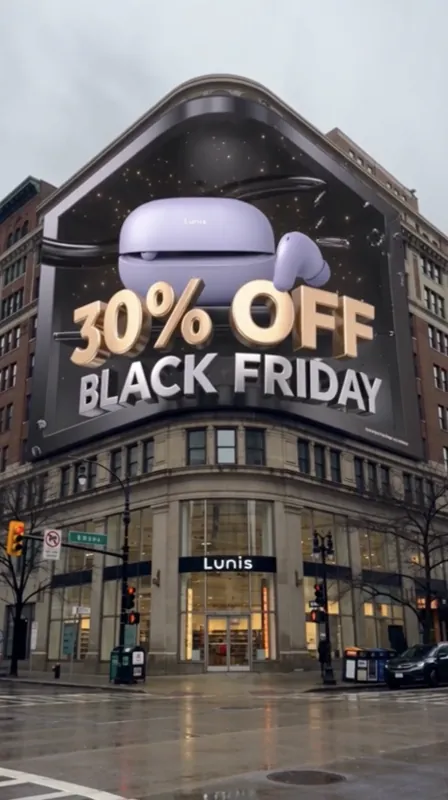
The Premium Gold Particle Commercial is a cinematic product reveal format built around dark, high-contrast visuals and luminous gold particle motion. It treats a single product image as the centerpiece and surrounds it with black backgrounds, rim lighting, and fluid golden vortexes that feel closer to a prestige skincare or luxury electronics spot than a standard product ad. The visual rhythm alternates between slow macro close-ups and faster energy bursts, giving the product a sense of depth and material richness without requiring physical studio footage. This template is most useful when a brand needs a short, high-end commercial for CTV or premium social placement but does not have the budget or time for a full CGI production. You provide one product image and an optional description; the workflow then analyzes the product, builds a storyboard, generates the video, and can add a slow, authoritative voice-over in the language of your description. It works best for products where packaging, silhouette, and surface texture carry the message: serums, fragrances, small electronics, jewelry, or limited-edition merchandise.
What this template creates
Dark Gold Visual Language
The template builds its look from a black background with warm gold rim light and backlight. Product edges and character silhouettes are outlined rather than fully lit, which creates a mysterious, premium tone. Gold particles and vortexes move around the product, reinforcing luxury without adding bright, distracting set elements.
Product-First Storyboard Generation
After analyzing the uploaded product image, the workflow generates a shot sequence of seven to nine scenes. These alternate between macro detail shots and wider energy moments. The product remains the visual anchor; any character appears briefly and is lit from behind, never speaking or using the product.
Narration in the Description Language
The voice-over is generated based on the language used in the Product Description field. If you write the description in Spanish, the narration follows in Spanish; otherwise it defaults to English. The script is kept short and paced slowly, with pauses between lines so the voice-over complements the visuals instead of competing with them.
When to use this format
Luxury Skincare Launch
A serum or cream in frosted glass or gold-accented packaging benefits from macro shots of the bottle surface and slow particle movement. The dark background makes the product the only bright object, which suits a premium launch teaser or CTV spot.
Consumer Electronics Reveal
Small devices with metallic or glass finishes can use the same gold vortex treatment to suggest precision engineering. The template keeps the product closed and unrotated, so it works well for a first look at a new device without revealing internal components.
High-Value Merchandise Promo
Limited-edition items, jewelry, or gift sets can be presented as collectible objects. The slow-motion macro rhythm gives each product detail time to register, while the gold particles add a celebratory, unveiling feel appropriate for a short campaign.
What you’ll need
- Product ImageRequired
- Choose a clear image from Assets or upload your own.
- Product DescriptionOptional
- Add the text you want to use in this template.
How to use Premium Gold Particle Commercial
- 1
Inspect the Format and Preview
Open the template and review the preview video and the seven workflow nodes. Inspect the preview’s landscape composition and the intended audio direction; confirm the current output settings in the workspace. This helps you decide whether the pacing and framing fit your campaign before you commit your own assets.
- 2
Prepare the Product Image and Description
Upload a clean product shot with complete, legible packaging text. In the Product Description field, write a short summary of the product name, type, key selling points, and the language you want for narration. Keep the description concise; it drives both the analysis and the voice-over language.
- 3
Direct the Existing Workflow
The workflow runs Product Analysis first, then builds a Master Prompt and Storyboard, extracts a clean product image, and generates the video. You can review the generated storyboard and prompt text in Canvas and adjust the description input if the product analysis misses a key selling point.
- 4
Review and Export
Check the generated video for legible packaging text, correct product proportions, and no on-screen UI or garbled labels. Confirm the voice-over language and pacing match your description. When the result is stable and generation is available in your workspace, export the final video for your campaign.
Make the creative yours
Product Description Language
The Product Description field controls both what the workflow knows about the product and the language of the generated voice-over. Writing the description in French, German, or Spanish directs the narration accordingly, while the visual style remains the same.
Character Presence and Silhouette
The Master Prompt allows zero to two character shots. You can influence whether a character appears by describing the target audience in the product description. Any character is lit from behind, shown only in silhouette or soft edge light, and never speaks or uses the product.
Selling Point Emphasis
The Product Analysis node extracts three selling points from your image and description. By writing the description around a specific benefit, such as hydration, brightness, or precision, you steer the storyboard and voice-over toward that message rather than a generic product summary.
Tips for your version
- Use a product image with a simple, uncluttered background so the extraction step can isolate the product cleanly and preserve fine packaging text.
- Write the Product Description as a short factual paragraph, not a list of keywords; the analysis node reads it as context for selling points and character design.
- After generation, check the product label closely for garbled or altered text, especially small print on the back or bottom of the packaging.
Before you generate
Explore first. Sign in to create.
Browse the preview and read this guide without an account. Sign in to upload your product, save a project, and start generation. Your input form stays beside the preview; Canvas is there when you want to edit the workflow.
Review the credit cost before starting
Choose Generate to see the outputs, total credit cost, and your available balance before confirming. The total depends on the workflow and generation settings. See plans and generation credits for the current options.
Check your result before publishing
The preview shows the creative direction. AI results can vary, so inspect product shape, branding, and any generated text, motion, or audio before downloading your ad. The format gives you a starting point; audience response depends on your product, message, and campaign.
Frequently asked questions
Does the product image need to be on a white background already?
No. The workflow includes an Extract Product step that isolates the product and generates a clean white-background version. However, a simple original background helps the extraction preserve edges, fine details, and packaging text more accurately.
Can I use this template for a product with no person in the ad?
Yes. The script logic allows zero to two character shots. If your product description does not suggest a model or target audience, the workflow can focus entirely on product macro shots, particle effects, and vortex transitions without any character.
Will the voice-over match the language of my product description?
The narration is generated based on the language input in the Product Description field. If you write the description in English, the voice-over defaults to English. Writing it in another language directs the narration to follow that language.
What should I check after the video is generated?
Review the packaging text for clarity and completeness, confirm the product is not rotated or opened, and check that no on-screen text or UI appears. Also listen to the voice-over pacing and language to make sure it aligns with your description.
About the preview
800 × 450 px video example. This is the template preview; your generation settings determine the final output.
You can explore this template and its Canvas without an account. Sign in to save a project and upload your assets.