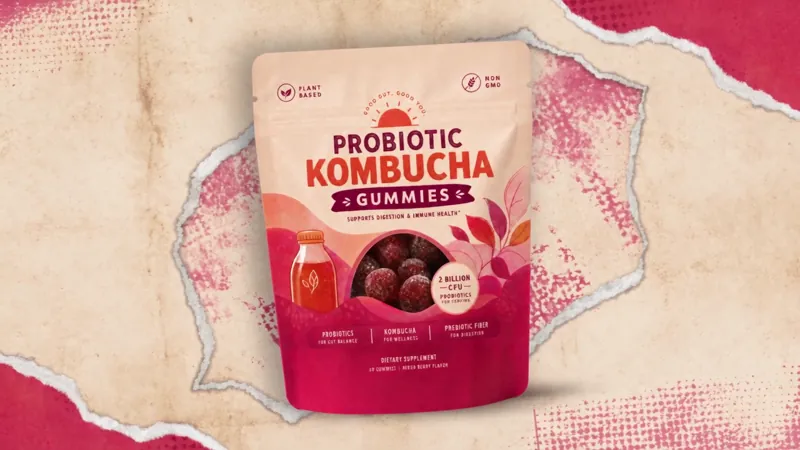
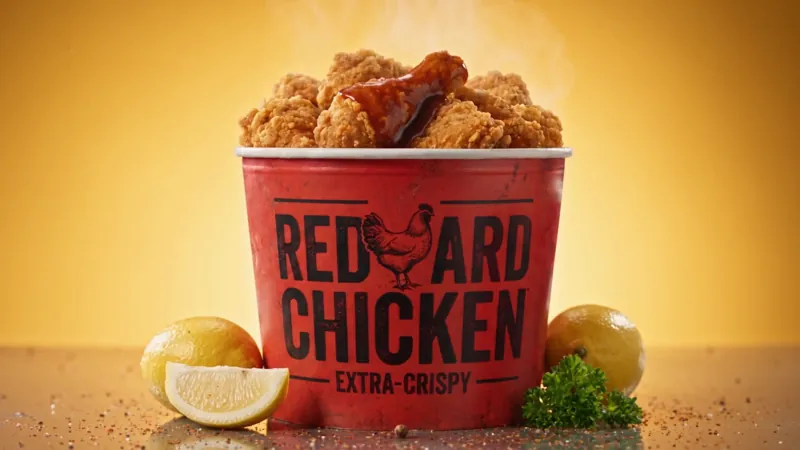
Dark Cinematic Product Ad
Create a dark cinematic product commercial with dramatic lighting, fast camera moves, and a powerful hero ending from one product image.
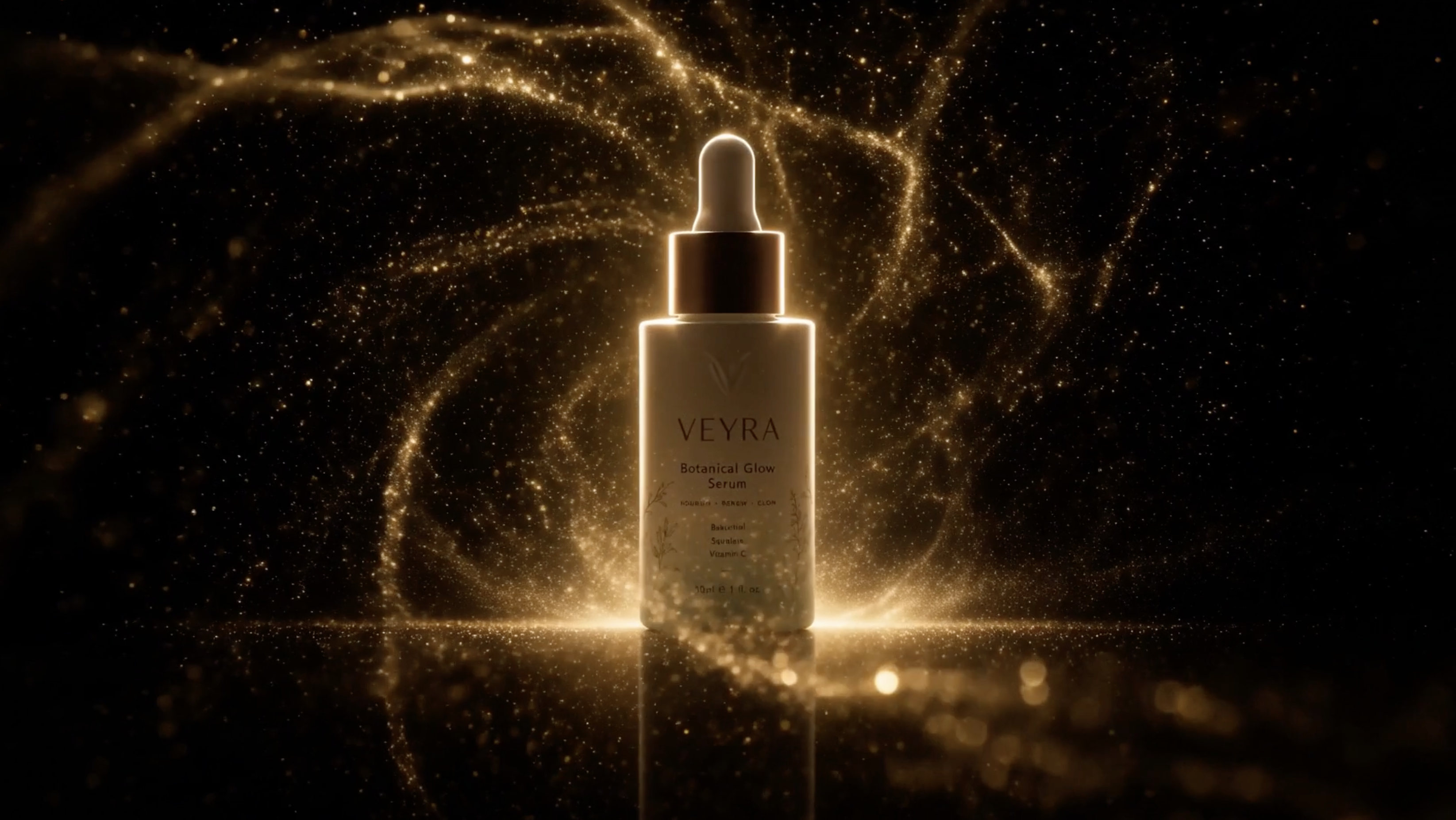
The Dark Cinematic Product Ad template turns a single product image into a high-contrast, moody commercial built around the Myblackplate aesthetic. It is designed for products that benefit from a premium, dramatic presentation: deep blacks, sharp rim lighting, controlled haze, and fast, rhythmic camera movement. The format keeps the product as the only subject, with no hands, people, or added text, so the viewer's attention stays locked on the item itself. This creative works best when the product already carries visual interest through its materials, shape, or packaging. A matte bottle, a metallic device, a textured cosmetic container, or a sculptural fashion accessory all respond well to the low-key lighting approach. The template is useful for brand campaigns, product launches, or paid social and CTV placements where a short, intense visual statement fits the media environment. Because the workflow generates a master prompt from the uploaded image and then produces the final video, the main creative work happens before generation: choosing the right product shot and reviewing how the dark grade treats its real colors and surface details.
What this template creates
Single-Image Product Reference
The template accepts one product image as the exclusive visual source. The generated master prompt instructs the video workflow to preserve the product's shape, proportions, colors, materials, labels, and surface finish from that image in every shot. Users should upload a clean, well-lit product photo so the dark cinematic grade has accurate material and texture information to work with.
Dark Cinematic Visual Direction
The creative intent is a near-black studio environment with deep shadows, sharp rim lighting, narrow moving light beams, and strong volumetric haze behind the product. The master prompt specifies dramatic low-key lighting, high contrast, intense specular highlights, and a dark cinematic grade. This direction suits luxury, tech, beauty, and fashion products that benefit from a premium, mysterious atmosphere.
High-Energy Pacing and Hero Ending
The generated prompt structures the commercial with fast camera movement, quick cuts, and rhythmic intensity rather than slow, lingering shots. The final moments are directed as a powerful product hero shot with bold lighting and strong composition. Users should review the generated video to confirm the ending holds the product clearly and the pacing feels energetic without losing product legibility.
When to use this format
Luxury Product Launch
A fragrance, watch, or premium accessory can be presented with dramatic rim lighting and deep shadows to reinforce exclusivity. The dark grade and fast camera work create a short, confident statement suitable for a launch teaser or high-end social placement.
Tech Device Reveal
A phone, headphones, or wearable with strong material contrast reads well under specular highlights and macro texture hits. The template's emphasis on product fidelity and geometric consistency helps keep the device recognizable while the camera moves aggressively around it.
Beauty or Fashion Spot
A sculptural cosmetic container or fashion item with interesting packaging can benefit from the controlled haze and moving light beams. The no-hands, no-people constraint keeps the focus on the object, which works for brand-forward campaigns that avoid lifestyle imagery.
What you’ll need
- Product ImageRequired
- Choose a clear image from Assets or upload your own.
How to use Dark Cinematic Product Ad
- 1
Inspect the Template Format
Open the Dark Cinematic Product Ad template and review the preview framing, the product image slot, and the workflow nodes. The preview shows a landscape-oriented video with a single image input. The workflow aims to create a compact commercial from that image; confirm the current output settings in the workspace.
- 2
Prepare the Product Image
Choose a product photo with clean edges, accurate colors, and visible surface texture. The workflow extracts the product onto a white background before video generation, so a clear subject-background separation helps. Upload the image to the mapped product image field or replace the default reference in Canvas.
- 3
Direct the Existing Workflow
The workflow includes an image asset node, a master prompt generation node, a product extraction step, and a final video generation node. Review the generated master prompt in Canvas to confirm it reflects the product and the dark cinematic intent. Adjust the prompt text if you want a different emphasis, such as more macro texture or a stronger hero ending.
- 4
Review and Export
When generation is available in the workspace, run the video node and review the result. Check that the product's labels, logos, and materials remain recognizable, that the dark grade does not crush important details, and that the ending hero shot holds the product clearly. Export when the result matches the campaign need.
Make the creative yours
Product Image Replacement
The mapped product image field accepts a new image. Replacing the default reference with your own product photo is the primary customization. The master prompt generation uses that image as the exclusive source, so the entire commercial adapts to the new subject.
Master Prompt Editing
The master prompt is generated by a text node and can be edited in Canvas. Users can adjust the camera language, lighting emphasis, or pacing description before the final video generation. For example, you might request more macro texture hits or a slower opening beat while keeping the overall dark aesthetic.
Product Extraction Review
The product extraction node creates a clean product cutout on a white background. Users can inspect this intermediate result in Canvas and, if the extraction misses part of the product or includes unwanted background, adjust the input image or prompt before proceeding to video generation.
Tips for your version
- Use a product photo with visible edge definition and no heavy shadows, so the extraction step can separate the product cleanly before the dark cinematic grade is applied.
- Check the generated master prompt for any invented product details, such as added text or altered materials, and edit those out before running the video node.
- Review the final hero shot frame by frame if possible; the ending should hold the product clearly with strong lighting, not fade out or cut away too quickly.
Before you generate
Explore first. Sign in to create.
Browse the preview and read this guide without an account. Sign in to upload your product, save a project, and start generation. Your input form stays beside the preview; Canvas is there when you want to edit the workflow.
Review the credit cost before starting
Choose Generate to see the outputs, total credit cost, and your available balance before confirming. The total depends on the workflow and generation settings. See plans and generation credits for the current options.
Check your result before publishing
The preview shows the creative direction. AI results can vary, so inspect product shape, branding, and any generated text, motion, or audio before downloading your ad. The format gives you a starting point; audience response depends on your product, message, and campaign.
Frequently asked questions
What kind of product image works best with this template?
A clean, well-lit product photo with accurate colors, visible surface texture, and clear edges works best. The workflow extracts the product onto a white background, so strong subject-background separation helps. Avoid images with heavy shadows or reflective surfaces that obscure the product's real shape and materials.
Can I change the pacing or camera style?
Yes. The master prompt is generated as editable text in Canvas. You can modify the camera language, pacing description, or lighting emphasis before the final video generation. For example, you might request more macro texture hits or a stronger push-in, as long as the overall dark cinematic direction remains coherent.
Will the video keep my product's labels and logos accurate?
The workflow is directed to preserve the product's exact shape, colors, materials, labels, and logos from the input image. However, this is creative intent, not a guaranteed result. Review the generated video and check that printed text, logos, and packaging details remain recognizable, especially in fast-moving shots.
Does this template add text overlays or people to the video?
No. The master prompt explicitly excludes hands, people, human body parts, text overlays, added logos, and subtitles. The product is the only subject. If your campaign needs on-screen text or a human element, you would need to add those in a separate editing step outside this template.
About the preview
800 × 452 px video example. This is the template preview; your generation settings determine the final output.
You can explore this template and its Canvas without an account. Sign in to save a project and upload your assets.