PDP Hero
Create a product detail-page video from one photo, with a tabletop setup, gentle camera movement, and a hands-on product turn.
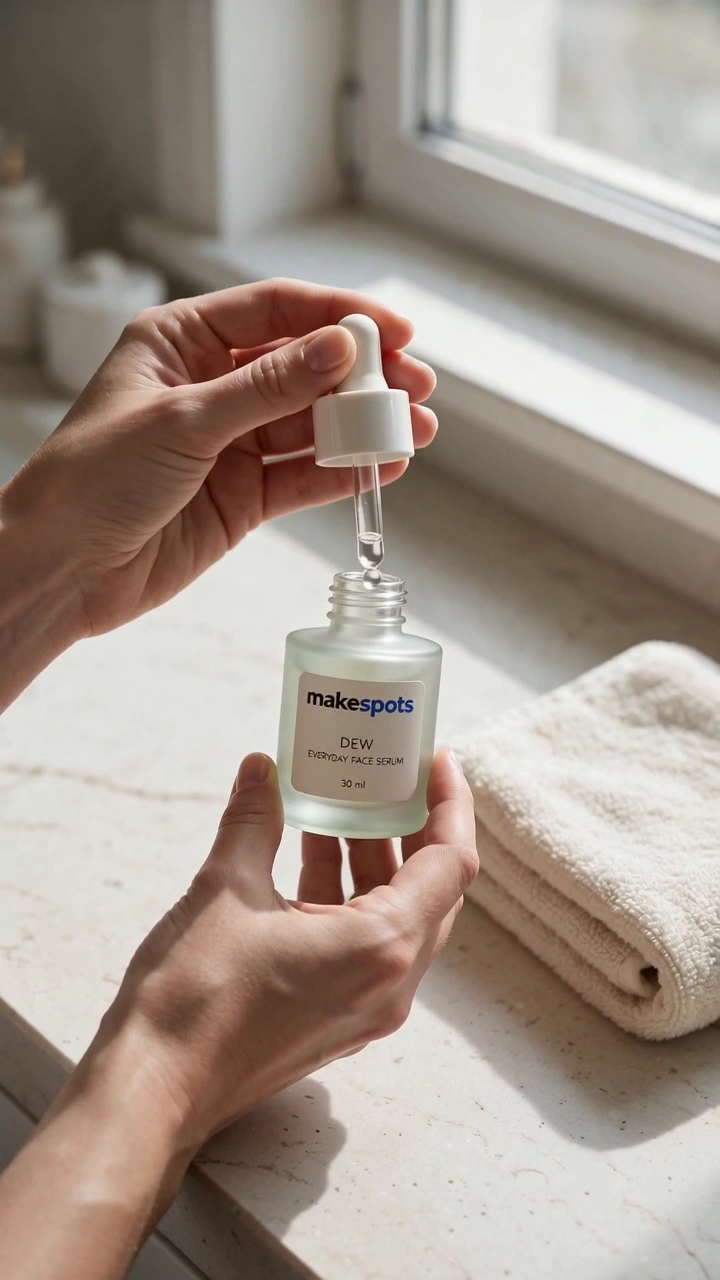
PDP Hero is a quieter product video built for explaining the object itself. The intended sequence starts with a product standing on a light tabletop, moves closer, and shows a hand picking it up and turning it before setting it down. The landscape preview gives the product and surrounding surface room to remain visible throughout the action. The form requires one Product image. An image-generation step prepares the tabletop composition, and a video step animates the handling sequence. This can serve as a starting point for a product detail-page clip or a practical cutaway inside an advertisement. A single photograph cannot establish details hidden on the back of an item, so any generated rear view needs particular scrutiny. Use the clip for a visual concept, and verify product information before publishing it as a demonstration.
What this template creates
A tabletop first frame
The workflow creates a calm scene from your product photograph before animating it. The image direction places the label toward the viewer with soft light and a simple background. Inspect this stage for altered packaging, incorrect proportions, or distracting objects before relying on the final motion.
A product-handling sequence
The video direction asks a hand to lift, rotate, and return the object. This gives viewers a sense of size and handling. Review the grip and object shape carefully, because generated contact between fingers and packaging can change across the movement.
A restrained camera approach
A gentle move toward the product keeps the object as the main subject. The existing direction avoids extra titles or a complicated scene change. You can refine it in Canvas, but the useful feature is a clear, readable product view throughout the shot.
When to use this format
A product-page motion concept
Use the tabletop treatment when a listing needs a short motion view alongside still photography. Match the creative to the actual item and verify all visible details. The generated video should not introduce features or packaging information that the supplied image cannot establish.
A practical advertising cutaway
A calm handling shot can sit between a presenter opening and a campaign closing. It gives the product visual attention without adding another elaborate story. Check that the scale and background fit the other footage in the edit.
A packaging-focused presentation
Containers, boxes, and other freestanding objects can use the upright tabletop composition naturally. The turn can suggest the physical form, but any previously unseen surface is generated. Compare it with verified product material before using that view commercially.
What you’ll need
- Product imageRequired
- Choose a clear image from Assets or upload your own.
How to use PDP Hero
- 1
Review the handling motion
Watch the preview for the lift, rotation, and return to the table. Decide whether the object you want to show can plausibly be handled in that way. Very large or flexible items may need different direction.
- 2
Upload a clear product view
Use Product image to add a photograph with the whole object visible. A sharp view of the front and outline helps establish the tabletop scene. Remove unrelated accessories from the frame unless they are essential to the intended item.
- 3
Inspect the tabletop composition
Open Canvas to review the first-frame image and the video prompt. Check the product placement and label orientation, then refine the movement if necessary. Save the project and review the available generation options and cost.
- 4
Verify the full rotation
After generation, watch the contact between fingers and product, then pause on the back and side views. Confirm that the object returns to the table coherently. Download only after reviewing any new details introduced during the turn.
Make the creative yours
Choose the main product angle
The input photograph anchors the front view and overall shape. Try a different reference angle if the first result hides an important feature. The form exposes one image, so do not assume hidden surfaces are verified by additional product references.
Adjust the tabletop atmosphere
The image prompt in Canvas contains the surface, room, and lighting direction. You can adapt those details to the campaign while retaining a simple setting. Keep the product boundary easy to distinguish from the background and table.
Refine the handling action
Use the video prompt to simplify or emphasize the turn. A modest action can be easier to assess than a complex demonstration. If the back cannot be verified, consider directing a smaller turn that keeps known surfaces in view.
Tips for your version
- Pause on the rear view and compare it with real product material; a front photograph does not verify the back label.
- Check that fingers do not pass through the package and that the object maintains its volume during the grip.
- Inspect the return to the tabletop for a consistent contact point and shadow instead of a sudden floating or sliding motion.
Before you generate
Explore first. Sign in to create.
Browse the preview and read this guide without an account. Sign in to upload your product, save a project, and start generation. Your input form stays beside the preview; Canvas is there when you want to edit the workflow.
Review the credit cost before starting
Choose Generate to see the outputs, total credit cost, and your available balance before confirming. The total depends on the workflow and generation settings. See plans and generation credits for the current options.
Check your result before publishing
The preview shows the creative direction. AI results can vary, so inspect product shape, branding, and any generated text, motion, or audio before downloading your ad. The format gives you a starting point; audience response depends on your product, message, and campaign.
Frequently asked questions
Is the preview landscape?
Yes. The current example is framed horizontally, with room for the tabletop and handling action. The workspace shows the settings used for your generation. Review those settings and the actual result for the placement where you intend to use it.
Does it know what the back of my product looks like?
A single front photograph does not supply verified rear details. The model may invent a back label or surface during the rotation. Compare that view with real product references, or adjust the direction to keep known surfaces visible.
Can I change the room or table?
The tabletop image direction is editable in Canvas. Change the surface or atmosphere while keeping the product clearly visible. Review the prepared image again after those edits, since lighting and background can affect the apparent color and shape.
Is this suitable for a detailed feature demonstration?
The existing sequence focuses on appearance and simple handling. It does not establish how a mechanism works or verify technical claims. Use real supporting material for detailed demonstrations, and treat this template as a product presentation starting point.
About the preview
800 × 450 px video example. This is the template preview; your generation settings determine the final output.
You can explore this template and its Canvas without an account. Sign in to save a project and upload your assets.