Hands-Only Product Demo
Template guide
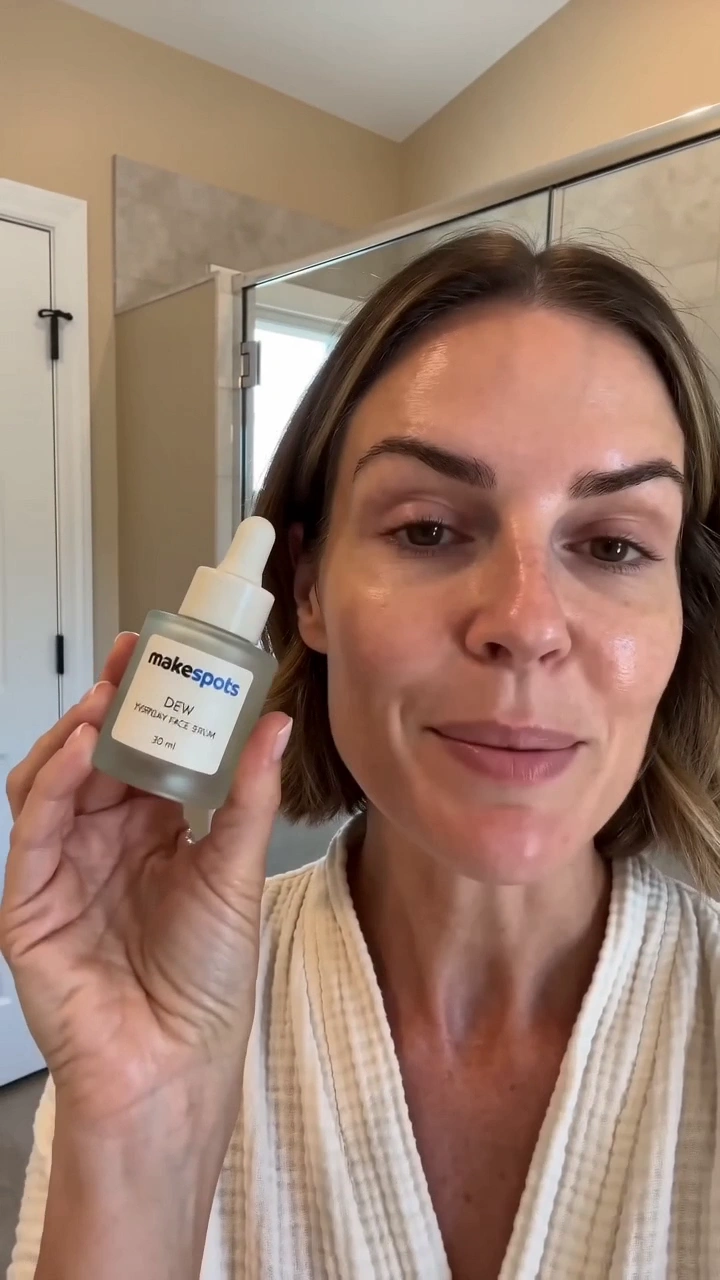
The Hands-Only Product Demo template turns a still product image into a short, practical demonstration clip where only hands and forearms appear. Instead of relying on a presenter or voiceover, the footage shows someone picking up the item, turning it toward the camera, using it in a believable setting, and setting it back down. The result works as clean b-roll for ads, social posts, or product pages where the item itself should carry the message. The preview uses a vertical framing suited to mobile feeds, and the workflow builds the scene from two inputs: your product photo and a short description of where the product is used. Because no face or speech is involved, the template keeps attention on the product's shape, logo, and real-world function without requiring talent, a shoot location, or audio production.
What this template creates
Photo-to-motion product handling
The workflow starts with a required product image and generates a first frame that places the item in your described setting. The hands-only direction keeps the focus on the product itself, with the logo positioned toward the camera so viewers can identify it quickly.
Scene-based visual direction
The 'Where it's used' field lets you specify the environment, such as a sunny cafe table next to an iced latte. That description feeds the image and video stages, so the generated setting should match the product's natural use context rather than a blank studio backdrop.
Ambient sound without dialogue
The video stage includes generated audio described as soft ambient sound with no speech or music. This keeps the clip feeling like real footage while avoiding the need to script lines, record a voice, or clear music rights, which is useful when the clip will sit inside a larger ad.
When to use this format
Product ads needing quick b-roll
An advertiser with only a product photo can generate demonstration footage showing the item being handled in a realistic setting. The clip can sit between talking-head or text-based segments without requiring a separate shoot.
Social media product teasers
For short vertical feeds, a hands-only clip showing the product being picked up and used feels native and unobtrusive. The absence of a face keeps the focus on the item and works well for brands that avoid on-camera presenters.
E-commerce product page support
A brief demonstration clip can supplement still gallery images by showing scale, grip, and handling. Because the product remains the only subject, the video supports the listing without distracting from the item's details.
What you’ll need
- Product imageRequired
- Choose a clear image from Assets or upload your own.
- Where it's usedRequired
- Add the text you want to use in this template.
How to use Hands-Only Product Demo
- 1
Inspect the template's visual sequence
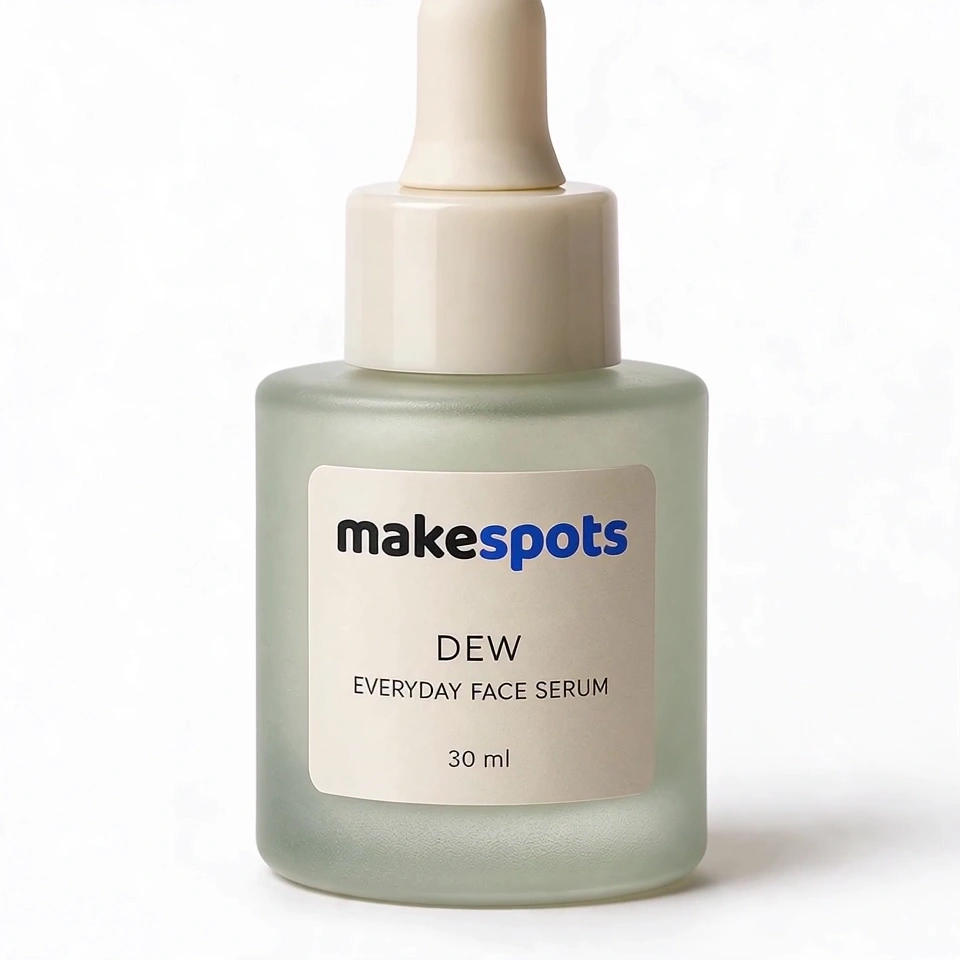
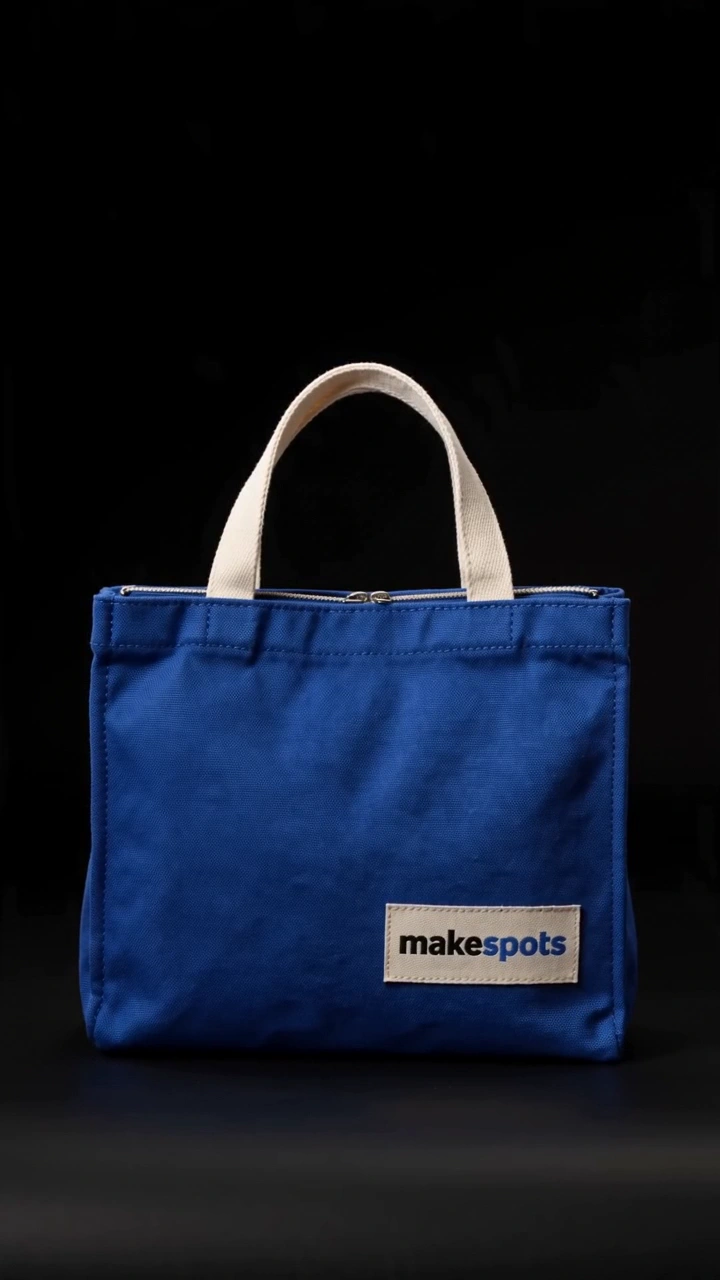
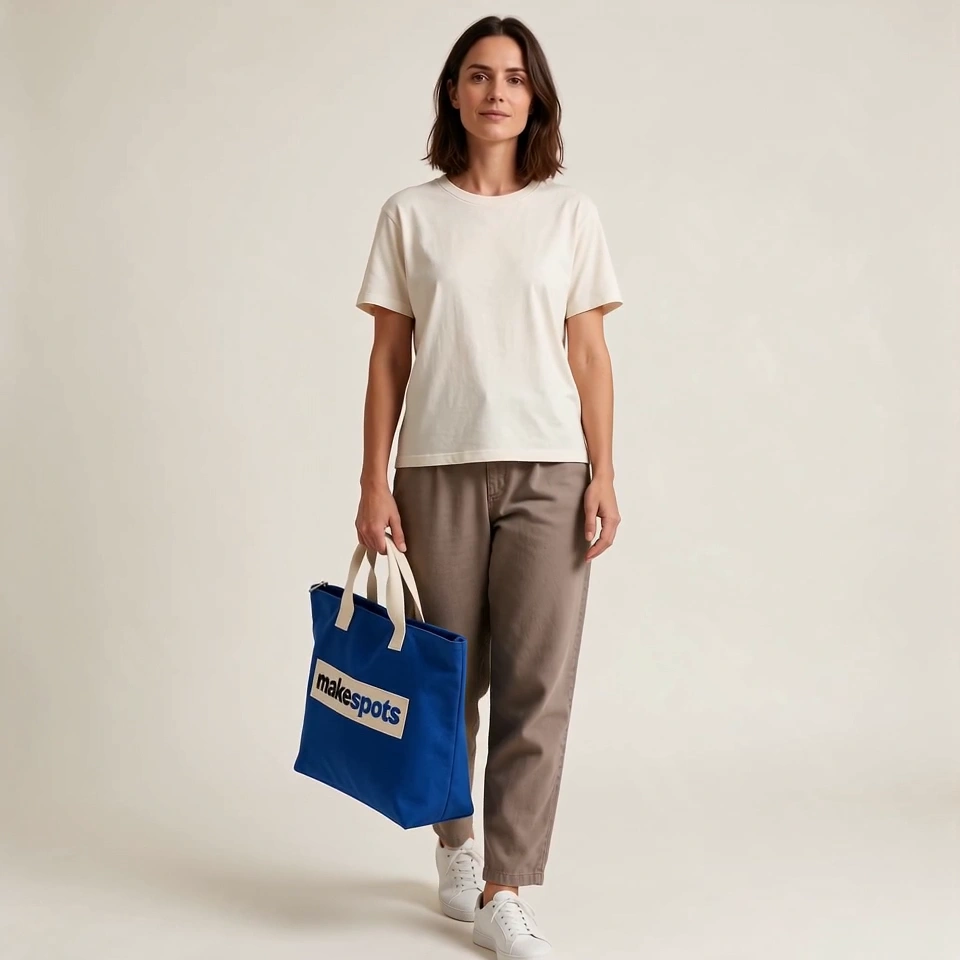
Open the template and review the four workflow stages: product image, scene description, hands-first frame, and demo clip. Notice that the clip is intended as one continuous take with no captions, faces, or added products.
- 2
Prepare a clear product photo and scene description
Upload a product image where the logo and printed details are visible. In the 'Where it's used' field, write a short, concrete setting that matches how the product is actually handled, such as a desk, kitchen counter, or outdoor table.
- 3
Adjust the existing workflow in Canvas
The scene description and video prompt are editable nodes. Refine the wording to match your product's specific use motion, such as opening, pouring, applying, or holding. Keep the hands-only direction intact unless you intentionally want a different result.
- 4
Review the generated clip and export when ready
Check that the product's shape, colors, and printed text remain consistent through the clip, and that the hands perform the intended action without morphing. Generation availability and credit costs are shown in the workspace; export the clip when the result fits your use.
Make the creative yours
Choose the product's environment
The 'Where it's used' field is the main creative lever. A short, specific phrase like 'on a workshop bench' or 'next to a running trail' changes the generated lighting, surfaces, and context while keeping the product as the focal point.
Direct the handling action
The demo clip prompt describes a generic pick up, turn, use, and set down sequence. In Canvas, you can edit that direction to match your product's actual use, such as squeezing a tube, opening a lid, or pressing a button.
Refine the first frame composition
The hands-first frame prompt controls how the product is initially presented. Adjust the wording if you want the hands to hold the item at a different angle or if the logo needs to face the camera more directly for brand recognition.
Tips for your version
- Use a product photo with the logo and printed text clearly visible, since the workflow aims to keep those details unchanged through the clip.
- Write the 'Where it's used' field as a single, specific scene rather than a list of adjectives; concrete settings produce more believable lighting and surfaces.
- After generation, scrub through the clip to check that the product does not morph between frames, especially around the logo and edges.
Frequently asked questions
What kind of product image works best for this template?
A clean, well-lit photo where the product fills a good portion of the frame and the logo or label is readable. The workflow uses that image as the visual reference, so blurry or heavily cropped photos make it harder to keep details consistent.
Can I change the setting after generating the first version?
Yes. The 'Where it's used' field is editable, and you can update it in Canvas before regenerating. A different description will push the image and video stages toward a new environment, though you should review the result for consistency.
Will the clip include any talking or music?
The video stage is directed to produce soft ambient sound only, with no speech or music. This keeps the clip usable as b-roll, but you should listen to the generated audio and treat the direction as intent rather than a guaranteed result.
What should I check before exporting the demo clip?
Confirm that the product's shape, colors, and printed text remain stable throughout the motion, that the hands perform the intended action, and that no extra products or faces appear. If anything looks off, adjust the relevant prompt node and regenerate.
About the preview
720 × 1280 px video example. This is the template preview; your generation settings determine the final output.
You can explore this template and its Canvas without an account. Sign in to save a project and upload your assets.