Moving Static
Animate an existing ad image with subtle product light and background movement. Create a motion variation from your finished design.
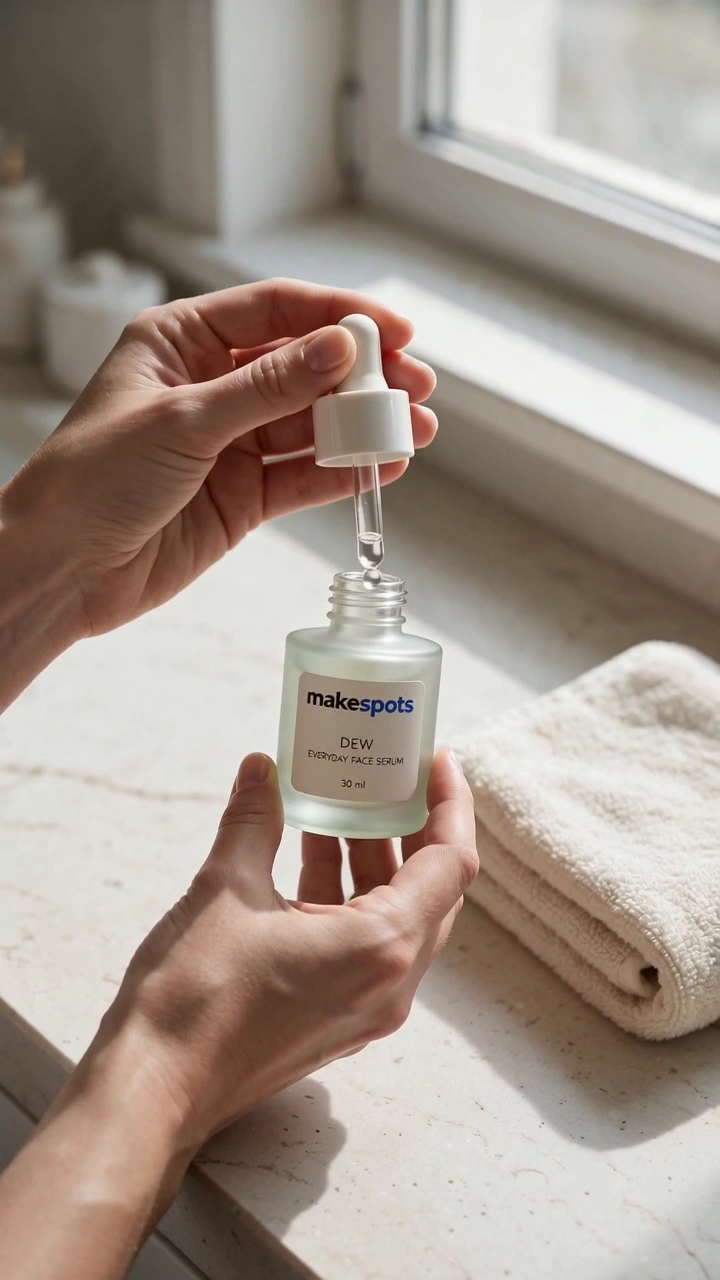
Moving Static starts from a finished image and gives it restrained movement. The direction calls for small changes in light, gentle activity in suitable background elements, and a subtle camera approach, while trying to retain the original composition. The supplied preview is square and demonstrates a product-focused image with a quiet visual treatment. The required Static ad image field accepts the artwork you want to animate. There is no separate headline or logo field: those elements come from the uploaded image. The workflow connects that image directly to a video step, with the motion direction available in Canvas. This is useful when you already have a design you want to explore in motion. Generated text and logos can still change, so inspect them rather than assuming the animation will preserve every pixel.
What this template creates
An existing design is the starting point
The uploaded image supplies the composition, product, and any copy already in the artwork. This keeps the creative brief focused on animation instead of rebuilding a layout from separate inputs. Use a clean export of the design, with all essential information readable at the intended viewing size.
Small movements give the image life
The prompt favors restrained light and background motion. Appropriate details depend on what is actually present in the artwork; a leaf or water surface offers different movement opportunities from a plain studio backdrop. Review the direction so it does not introduce unrelated objects.
A loop is part of the intent
The existing instructions ask the ending to connect with the opening. This can support repeated playback, but it needs verification in the generated result. Watch several repetitions and inspect changes in framing, lighting, and text at the join.
When to use this format
A motion version of an image ad
Use a finished campaign graphic as the reference when exploring a video variation. Keep the message and product concept consistent so you can judge what movement contributes. Do not assume a motion version will perform better without evaluating it in your own campaign.
A quiet product social post
A simple product image can gain visual activity without a presenter or a new story. Choose restrained direction that fits the original photograph. A clean composition is easier to evaluate than dense artwork filled with many competing animated details.
A repeated-play display concept
A gentle animated image can be useful where a short clip plays repeatedly. Check the actual loop, text clarity, and final crop for the destination. If exact typography is essential, verify it throughout the clip or use a separate editing approach.
What you’ll need
- Static ad imageRequired
- Choose a clear image from Assets or upload your own.
How to use Moving Static
- 1
Choose the design to animate
Review the preview to judge the amount of movement. Select a finished ad or product image whose composition already works as a still. Avoid relying on animation to fix a confusing layout or unreadable headline.
- 2
Upload the full artwork
Use Static ad image to provide a clean export. Include any product, logo, and copy that should appear, because the form does not add them separately. Keep important content away from the image edges.
- 3
Match motion to visible elements
Open Canvas and review the video instructions. Refine the movement around details that actually exist in your image. Save the project and check the displayed cost before starting the generation.
- 4
Compare the result with the source
Watch the entire clip and repeated playback. Pause to compare the logo, headline, and product shape against the uploaded artwork. Inspect the edges during the camera movement and verify that no essential content leaves the frame.
Make the creative yours
Replace the finished artwork
The image input is the main control. To change a headline or logo, update the source design and upload that version. This provides a coherent reference instead of relying on the video model to redesign small graphic elements.
Direct the moving details
The editable prompt determines the intended light, background activity, and camera behavior. Describe a small number of movements that suit the actual image. Competing movement directions can make the design less readable and complicate continuity.
Refine the loop direction
Use Canvas to emphasize the relationship between the first and last view. Keep the motion simple enough that returning to the initial composition is plausible. The instruction remains a creative target, so evaluate the actual output rather than treating it as a guarantee.
Tips for your version
- Compare the headline and logo in several paused frames; text can change briefly even when the opening looks correct.
- Leave margin around important artwork so a subtle camera approach does not crop the call to action.
- Watch the end-to-start join repeatedly to catch a shift in product size, lighting, or background position.
Before you generate
Explore first. Sign in to create.
Browse the preview and read this guide without an account. Sign in to upload your product, save a project, and start generation. Your input form stays beside the preview; Canvas is there when you want to edit the workflow.
Review the credit cost before starting
Choose Generate to see the outputs, total credit cost, and your available balance before confirming. The total depends on the workflow and generation settings. See plans and generation credits for the current options.
Check your result before publishing
The preview shows the creative direction. AI results can vary, so inspect product shape, branding, and any generated text, motion, or audio before downloading your ad. The format gives you a starting point; audience response depends on your product, message, and campaign.
Frequently asked questions
Can I change the headline in the form?
The form accepts one finished image and has no separate headline field. Edit the wording in your source artwork before uploading. Canvas controls the motion direction, while the actual text is part of the visual reference.
Will my logo remain perfectly unchanged?
The prompt requests visual consistency, but generated video can alter logos, lettering, or fine details. Inspect the complete clip against the original artwork. Use an editing workflow with separate graphic layers when exact preservation is a strict requirement.
Does the source image need leaves or water?
No. Those are examples of details that can support subtle movement when present. Review the video direction for your actual artwork. A studio product image may be better served by a small lighting change than by invented background activity.
Is the result always a seamless loop?
No. A loop is requested by the template direction, but the final frame may not match the first. Test repeated playback and revise the direction or edit the clip if the join is visible. Check the framing as well as the motion.
About the preview
800 × 800 px video example. This is the template preview; your generation settings determine the final output.
You can explore this template and its Canvas without an account. Sign in to save a project and upload your assets.