UGC Selfie Line Clip
Template guide
The UGC Selfie Line Clip template turns a single product image, one spoken line, and a chosen setting into a short, front-camera style video. The creative idea is simple: a relatable person holds the product near their face, looks into the lens, and delivers one natural sentence as if recording themselves on a phone. This is the building block of user-generated content ads, where authenticity matters more than polished production. Instead of shooting hours of footage, you generate individual clips that can be stitched together into a longer spot or tested as standalone hooks. This format works well when you need to show a product in someone's hand while they describe a specific benefit or experience. Because the template separates the product, the spoken line, and the environment, you can quickly produce variations for different angles, messages, or audiences. The vertical preview framing suits social feeds and short-form placements. The result is meant to feel candid and unscripted, which helps it sit naturally alongside organic content. You control what the person says and where they appear, while the workflow handles the visual consistency between the still frame and the moving clip.
What this template creates
Product-centered selfie framing
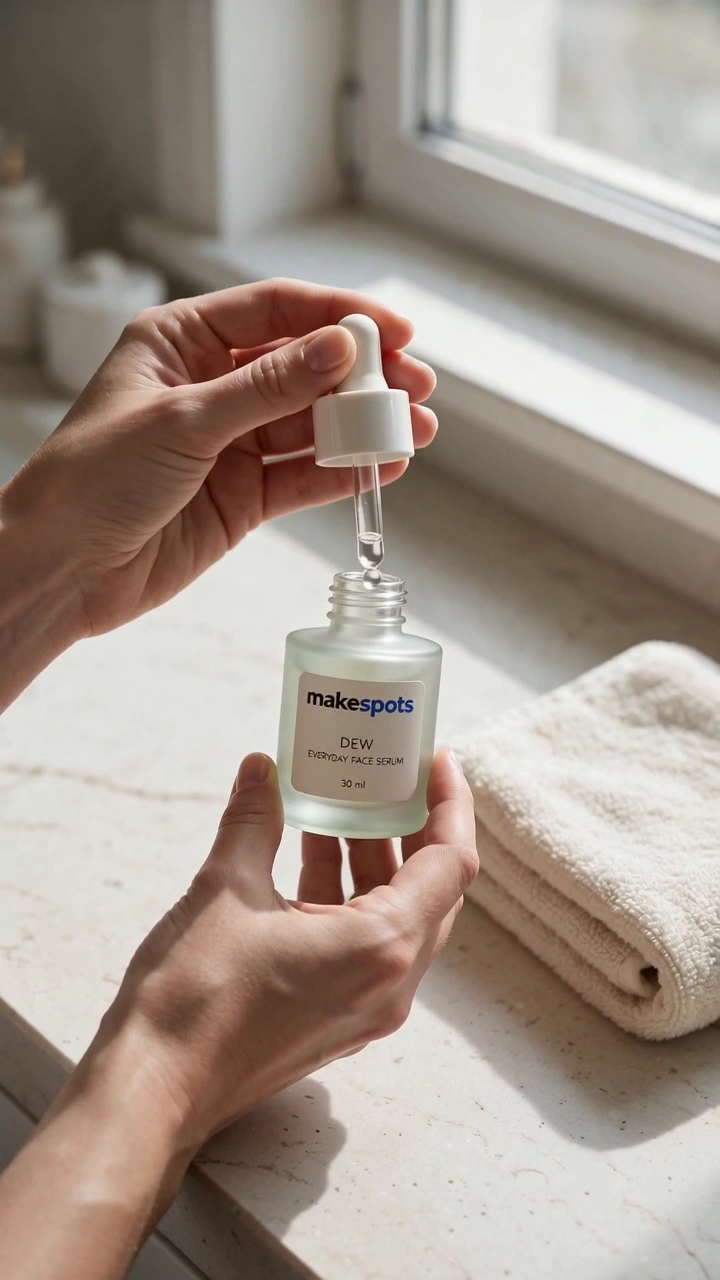
The workflow builds a vertical, front-camera style shot where the person holds the product near their face with the label visible. The product image you provide becomes the visual reference, so the generated frame and video attempt to keep its shape, colors, and label text consistent. This keeps the item recognizable while the speaker remains the focus.
Single-line spoken delivery
The script line field accepts one sentence that the on-screen person delivers in a casual, conversational tone. The workflow includes audio generation, so the clip is meant to have spoken words rather than silent footage. You can test short, punchy lines about results, ease of use, or a specific moment where the product helped.
Setting-driven background
The location field describes where the person appears, such as a bright bathroom or a kitchen counter. The first frame generation uses this setting to build a believable environment behind the speaker. Changing the setting shifts the context of the clip without altering the core product or message, which helps when you want to match different audience contexts.
When to use this format
Skincare or beauty product testimonials
A brand can create a clip of someone in a bathroom describing how a serum felt after two weeks of use. The product stays visible near the face, and the line sounds like a real customer sharing a personal observation rather than reading a script.
Quick ad hooks for social feeds
Use one clip as the opening of a short ad. The person says a specific benefit while holding the product, which gives viewers an immediate reason to keep watching. You can generate several hooks with different lines and test which one resonates.
Multi-clip UGC-style campaigns
Generate multiple clips with different lines and settings, then stitch them together in editing. One clip can introduce the product, another can describe a result, and a third can give a simple instruction. The consistent selfie style ties the sequence together.
What you’ll need
- Product imageRequired
- Choose a clear image from Assets or upload your own.
- What they sayRequired
- Add the text you want to use in this template.
- Where they areRequired
- Add the text you want to use in this template.
How to use UGC Selfie Line Clip
- 1
Inspect the template structure
Open the template and review the three mapped inputs: product image, script line, and setting. Note that the workflow contains a first-frame image generation step and a video generation step with audio. Understand that the product image is the visual anchor for both.
- 2
Prepare your product image and line
Choose a clear product photo where the label and shape are easy to read. Write one short, natural sentence that sounds like something a real person would say to a phone camera. Keep the setting description simple and specific, such as a room or outdoor location.
- 3
Direct the existing workflow
Fill in the three fields with your actual inputs. The workflow will use the product image as a reference, generate a first frame with the person in the described setting, and then create a talking clip where the person delivers your script line while holding the product.
- 4
Review and export when generation is available
Check the generated clip for product label accuracy, natural speech pacing, and background consistency. If the label looks warped or the line sounds off, adjust the product image or rewrite the line. Export the clip when you are satisfied, then repeat for additional lines or settings.
Make the creative yours
Replace the product image
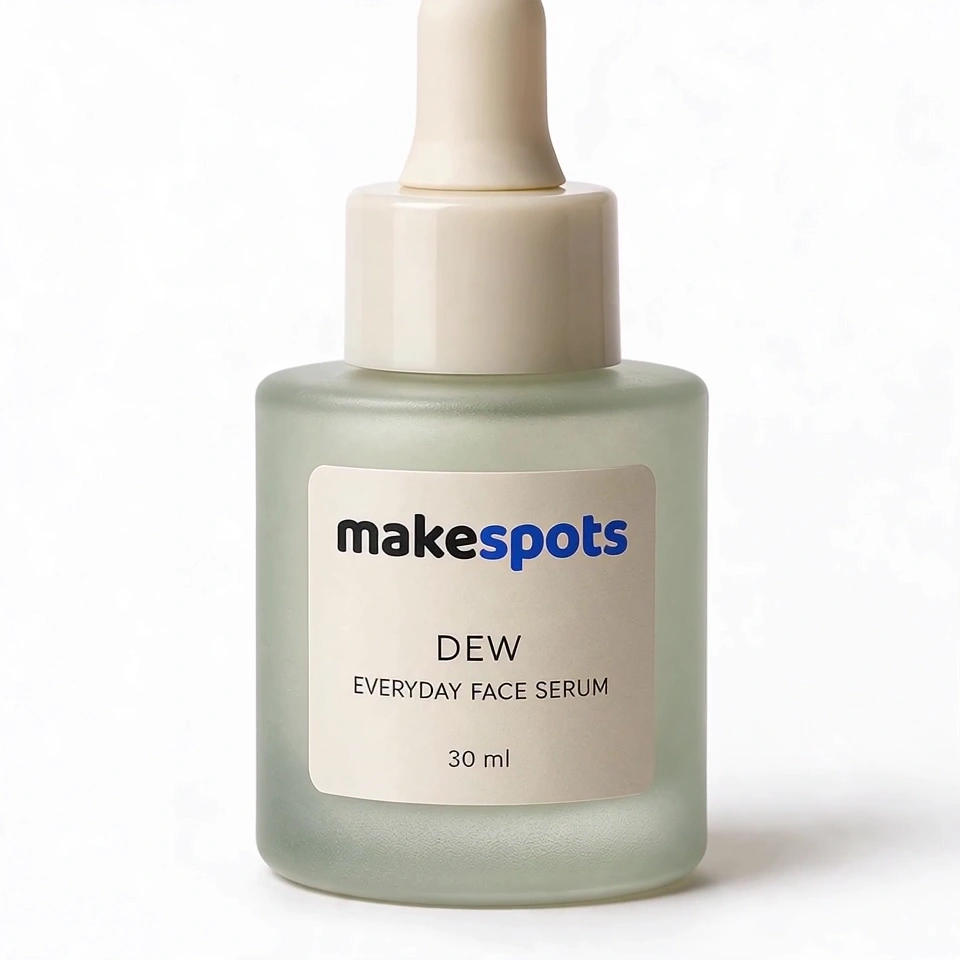
Swap in any product photo from your own library. The workflow uses the image as a reference for the product's appearance in both the first frame and the video. A clean, front-facing product shot with a visible label gives the generation step more to work with.
Rewrite the spoken line
The script line field is a static text input, so you can specify the intended spoken message. Keep it to one sentence that fits a short clip. Avoid long explanations or multiple clauses, since the delivery is meant to feel like a quick, casual remark to the camera.
Change the setting description
The setting field accepts a plain text description of the environment. You can move the clip from a bathroom to a car, a kitchen, or an outdoor park. The generated first frame and video will attempt to place the person and product in that context, which changes the mood and audience fit.
Tips for your version
- Write the script line as if you were texting a friend about the product, not reading a marketing claim.
- Use a product photo with the label facing forward and no fingers covering key text, since the workflow tries to preserve label details.
- Generate one clip per benefit or angle, then arrange them in a sequence that builds from introduction to result.
Frequently asked questions
Can I use this template for a product that is not a physical item?
The workflow expects a product image and shows a person holding the item near their face. It works best for physical products with visible packaging or labels. Digital products or services would need a different visual approach, since the selfie framing depends on holding something recognizable.
How many clips should I generate for one ad?
The template produces one clip per script line. For a short ad, three to five clips can work well: one hook, one or two benefit lines, and a closing remark. You can generate them separately and stitch them in an editor to control pacing and order.
Will the product label look exactly like my photo?
The workflow uses your product image as a reference and attempts to keep the shape, colors, and label text consistent. However, generated video can introduce warping or blur, especially with small text or curved packaging. Review the clip and use a clearer product photo if the label becomes unreadable.
What should I do if the spoken line sounds unnatural?
Rewrite the line to be shorter and more conversational. Read it aloud before generating. If it still sounds stiff, remove formal words and replace them with phrases you would actually say to a friend. The text input is static, so the workflow uses your exact wording for the spoken delivery.
About the preview
720 × 1280 px video example. This is the template preview; your generation settings determine the final output.
You can explore this template and its Canvas without an account. Sign in to save a project and upload your assets.