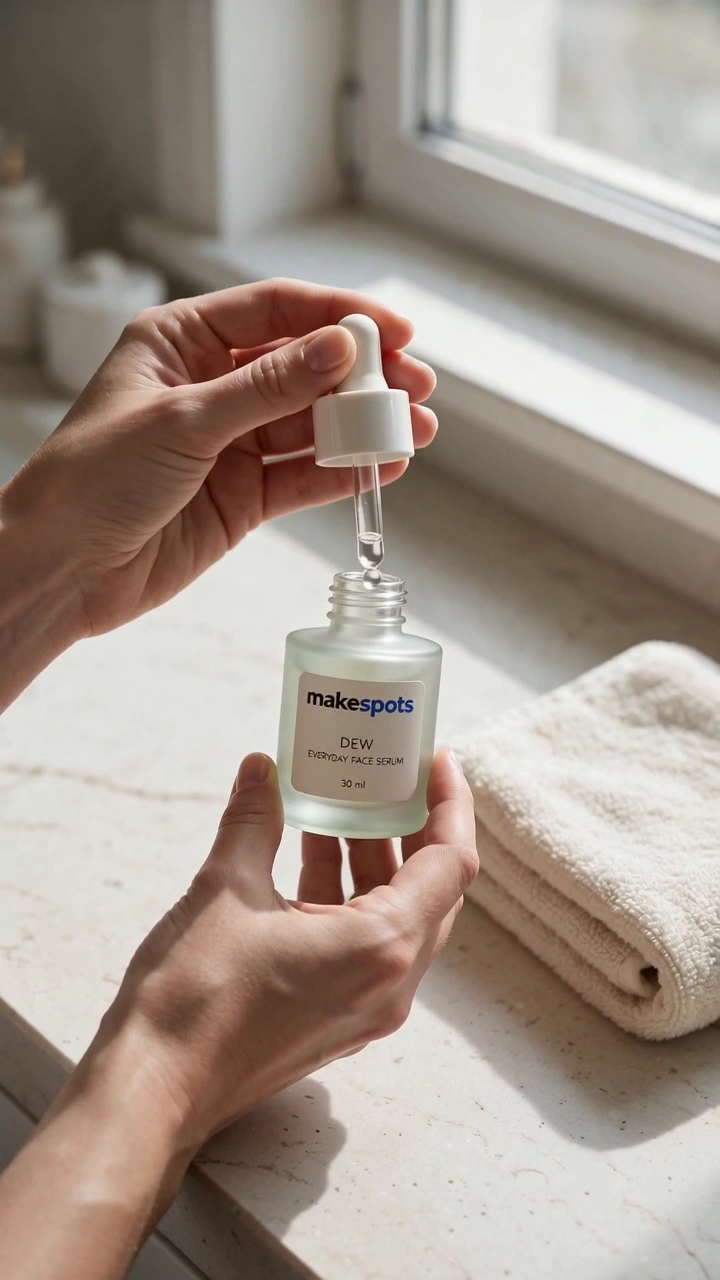
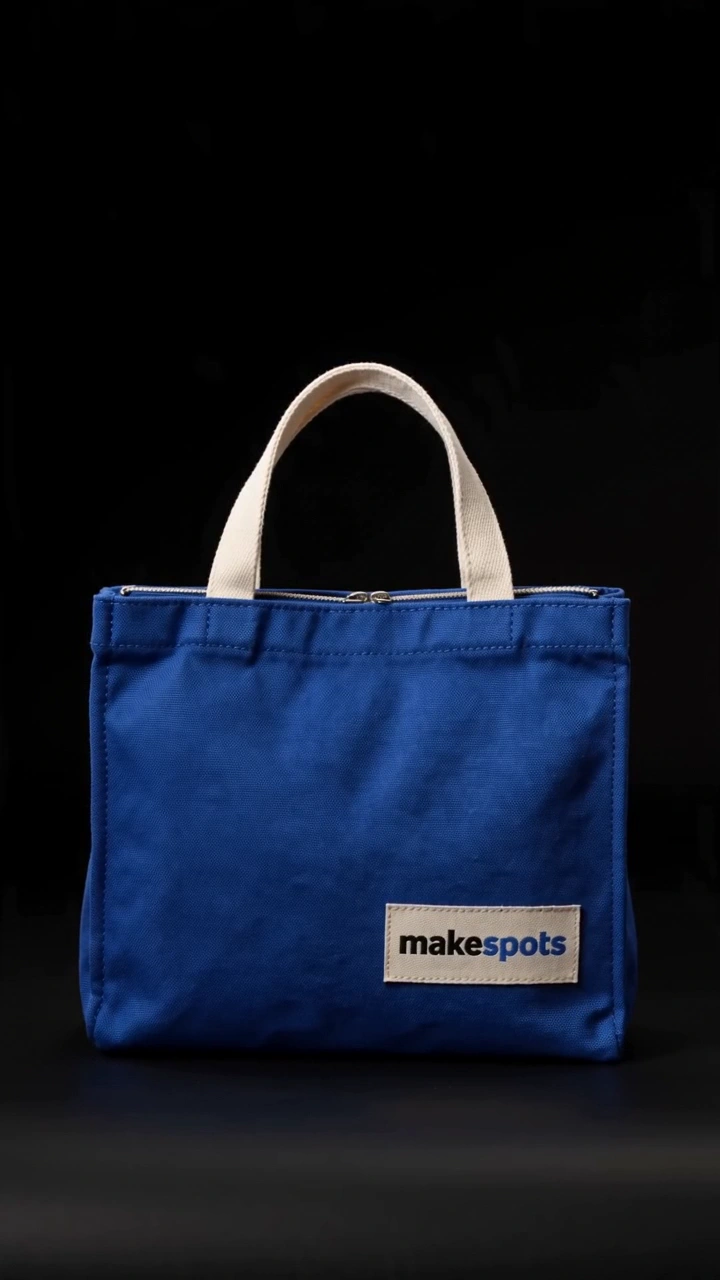
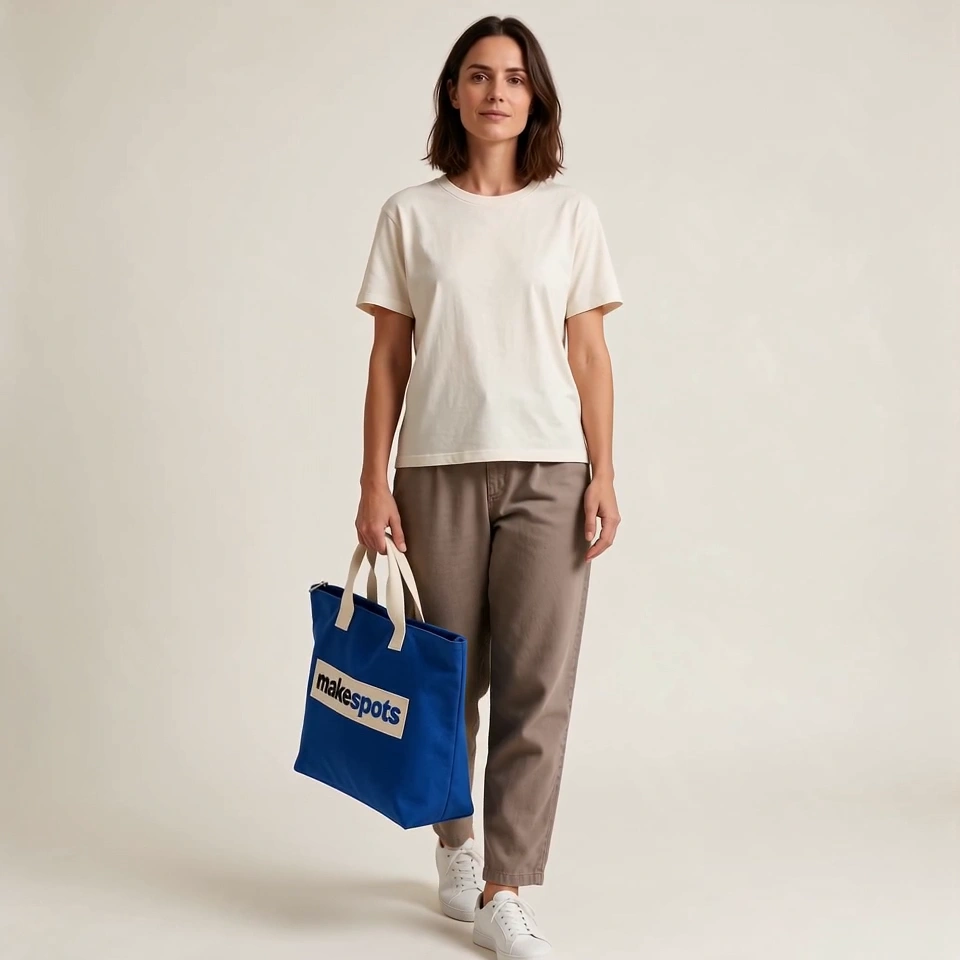
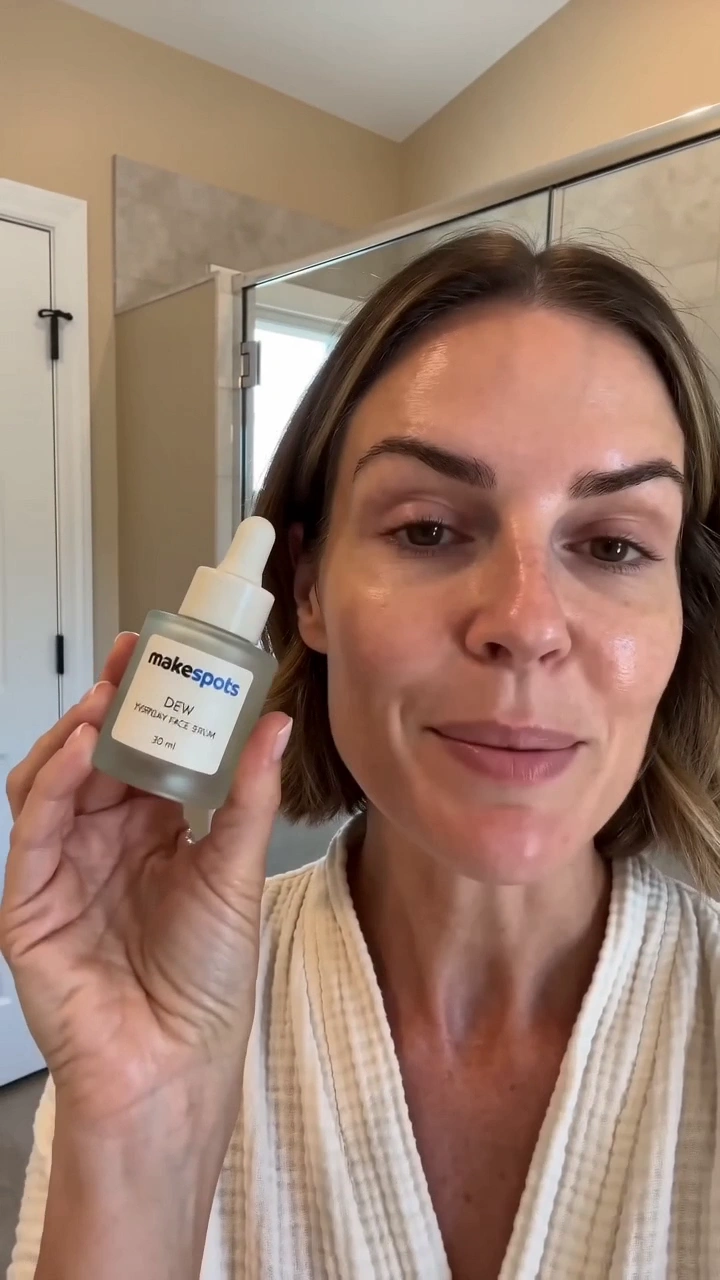
Product B-Roll Shot
Template guide
Product B-Roll Shot is a focused video template that takes one clean product photograph and turns it into a short, restrained motion clip. The creative direction is deliberately simple: a slow push-in toward the label, a soft highlight sweeping across the surface, or a gentle tilt that gives a still life a sense of presence. This is not a full commercial or a narrative sequence. It is a single, usable b-roll shot designed to sit inside a larger edit, a social cutaway, or a quick product showcase where the product is intended to remain the focus while camera and lighting cues supply the motion. The template is built around one required product image and one text field for shot type, so the preparation is minimal and the creative decision is focused. For anyone cutting ads, assembling product roundups, or building short-form content that needs a quiet moment of visual polish, this template fills a specific gap: it turns a static asset into motion without asking the user to storyboard a full scene.
What this template creates
Single-subject motion from one still image
The workflow starts from the product image you supply and builds one continuous b-roll shot around it. The motion direction is described in the shot type prompt, such as a slow push-in or a soft light sweep, while the product shape, label, and logo are intended to remain recognizable and stable. This keeps the clip focused on the product rather than inventing a new environment around it.
Editable shot direction through a text prompt
The shot type field is a static text input, not a fixed preset. You can describe the camera movement and lighting in your own words, and that description becomes part of the b-roll direction. This means the template adapts to different product categories: a slow tilt for a bottle, a macro push toward a label, or a soft highlight sweep for a cosmetic jar.
Quiet, non-narrative clip for editing
The output is designed as a clean cutaway, not a standalone story. There is no generated audio and no text overlay in the workflow, so the clip can be dropped into an existing edit without competing with voiceover, music, or captions. The emphasis on subtle, elegant motion makes it suitable for ads where the product should feel present but not aggressively animated.
When to use this format
Ad editor needing a quick product cutaway
When an ad edit needs a brief product moment between lifestyle shots or a voiceover line, this template provides a clean insert. The motion stays restrained enough to avoid distracting from the ad's message while still giving the product a sense of depth.
Social media manager building a product roundup
For a carousel or short video featuring multiple products, each still image can become a short motion clip with a consistent visual language. Using the same shot type description across several products creates a matched set of b-roll moments.
E-commerce creative testing subtle product motion
A product page or feed ad often relies on stills. A gentle push-in or light sweep can make a listing feel more premium without requiring a full video shoot. This template lets a team test whether subtle motion improves engagement before investing in produced footage.
What you’ll need
- Product imageRequired
- Choose a clear image from Assets or upload your own.
- Shot typeRequired
- Add the text you want to use in this template.
How to use Product B-Roll Shot
- 1
Inspect the template structure
Open the template and review the two mapped fields: the required product image and the shot type text prompt. The video generation node is the final step, and there is no audio or caption layer, so the output is a silent, clean clip intended for editing.
- 2
Prepare a clean product image
Choose a photograph where the product is sharp, well-lit, and isolated enough that the motion will not introduce distracting background changes. The workflow references this exact image, so the label and product shape should be clear in the source file before you start.
- 3
Direct the existing workflow
Replace the sample shot type text with your own description of the camera movement and lighting. Keep the direction simple and continuous: one motion, one light change, no sudden zooms or new objects. The existing prompt structure is already built for subtle, elegant motion, so your description should fit that tone.
- 4
Review and export
When generation is available in the workspace, run the clip and check the product label, logo, and overall shape against your source image. Look for any unwanted rotation, new objects, or text artifacts. If the motion feels too strong or the product drifts, adjust the shot type wording and generate again.
Make the creative yours
Shot type description
The shot type text field is the main creative control. You can specify the direction of the push-in, the angle of the tilt, or the path of the light sweep. A slower, more restrained description will produce a calmer clip, while a slightly more active light movement can add energy.
Product image selection
The image you upload defines the entire visual subject. A product shot with a clean background and even lighting will give the motion more room to read clearly. A busy background may create distracting movement, so choose or shoot the source image with this template in mind.
Framing for the edit
Since the preview is square but the clip is meant to be cut into a larger project, consider how the product sits in the frame. Centered products with breathing room around the edges will survive a push-in or tilt without the subject leaving the safe area.
Tips for your version
- Describe only one camera movement and one light change in the shot type field; combining multiple motions in a short clip often makes the product feel unstable.
- Check the product label text in the generated clip against your source image, especially for small text or logos, since subtle motion can sometimes blur or distort fine details.
- If the clip will be used with on-screen captions or graphics, leave extra empty space around the product in the source image so text overlays do not cover the subject.
Frequently asked questions
What kind of product image works best with this template?
A sharp, well-lit product shot with a clean or softly blurred background works best. The product should be the clear subject, with the label and logo visible. Busy backgrounds can create distracting motion, so a simple composition gives the push-in or light sweep more impact.
Can I control the exact camera movement?
You control the motion through the shot type text field. You can describe a slow push-in, a gentle tilt, or a light sweep, but the final result is an interpretation of that description. Keep the wording simple and focused on one continuous motion for the most predictable result.
Does this template add music or voiceover?
No. The workflow generates a silent video clip with no audio track. This is intentional, since the b-roll shot is meant to be cut into a larger edit where you will add your own music, voiceover, or sound design.
Will the product label and logo stay exactly the same?
The creative intent is to keep the product shape, logo, and label text unchanged and sharp. However, motion generation can sometimes introduce small distortions, especially with fine text. Always review the generated clip against your source image and regenerate with adjusted wording if the label drifts or blurs.
About the preview
960 × 960 px video example. This is the template preview; your generation settings determine the final output.
You can explore this template and its Canvas without an account. Sign in to save a project and upload your assets.