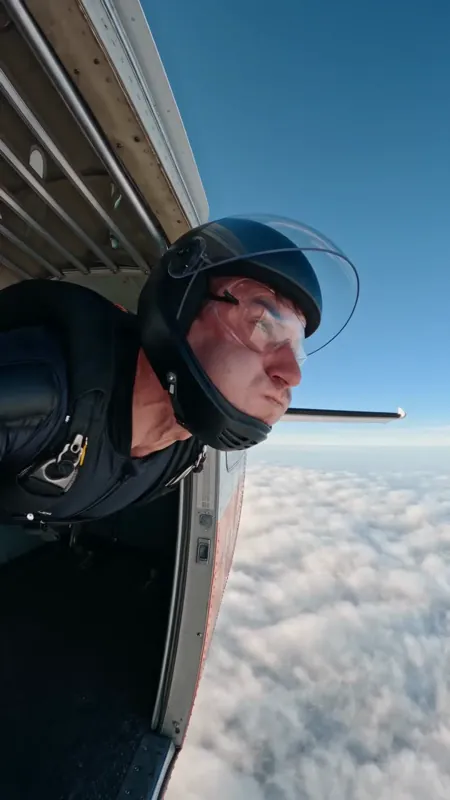
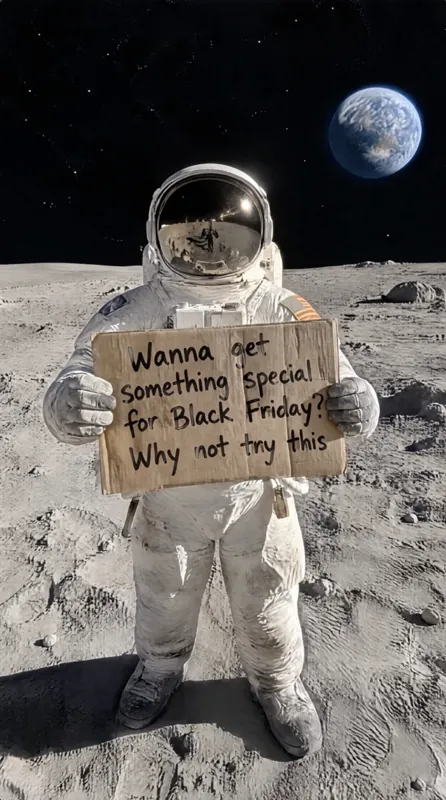
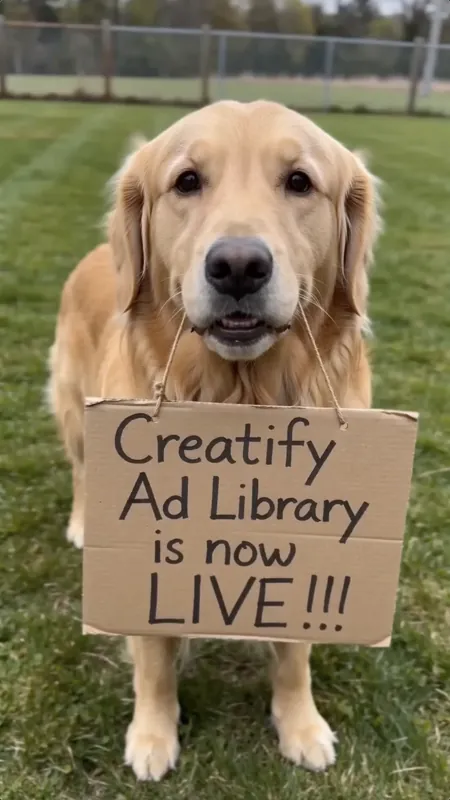
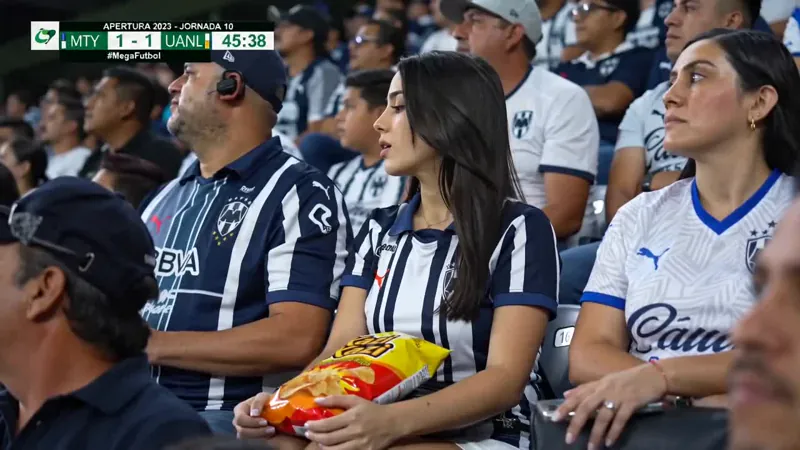
Skiing Challenge POV
Skiing Challenge POV template: add your product image, direct the five-step workflow, and preview a first-person snowboard ad concept.
The Skiing Challenge POV template is a short-form video concept built around a first-person snowboard descent, with your product woven into the action. It is designed for brands in tech, sportswear, or lifestyle that want to borrow the speed and intensity of winter sports for a social ad. The format uses a handheld action-camera feel, quick cuts, and exaggerated expressions to create a UGC-style spot that feels less polished and more immediate. In the workspace, you can inspect the template without an account, then save and customize it once signed in. The workflow includes product extraction, a short analysis, script direction, and video generation, so you can see how the pieces connect before committing to your own assets.
What this template creates
Product extraction for a clean starting frame
The first workflow step isolates your product from the uploaded image and prepares a white-background version. For physical goods, it aims to preserve shape and texture; for app screenshots, it builds a device frame around the content. This gives later steps a cleaner reference, though you should check that labels and proportions still read correctly.
Short analysis that informs persona and product logic
A text-generation step analyzes the extracted product and proposes a brief product description and rider persona. These outputs help the following script step connect the product with the winter-sports scene. Review the description for invented features and adjust the instructions in Canvas if the proposed character does not fit your campaign.
Script and video steps with editable direction
The workflow includes a script node that generates a short POV sequence with specific beats, and a video generation node that turns that direction into a preview. The script is editable, so you can change how the product is held or used. The video step is where timing and visual consistency are actually tested, and results should be reviewed rather than assumed.
When to use this format
Sportswear or gear launch teaser
A brand with a new jacket, glove, or wearable can place the product in a fast downhill sequence to suggest performance and cold-weather credibility. The POV angle keeps the product visible while the environment does the storytelling.
App or mobile service demo in an active context
A tech brand can show a phone screen being used mid-ride, turning a routine app interaction into a memorable moment. The template's script logic supports holding a phone and operating an app, which suits a quick feature highlight.
Lifestyle brand testing a UGC-style hook
A lifestyle label can use the exaggerated expressions and handheld shake to mimic creator content rather than a studio ad. This is useful for social feeds where a rougher, first-person look fits the surrounding posts.
What you’ll need
- Product ImageRequired
- Choose a clear image from Assets or upload your own.
How to use Skiing Challenge POV
- 1
Inspect the five-step structure
Open the template and review the workflow nodes: product extraction, product analysis, script, video generation, and the product image asset. Note that only the product image is a mapped input field; other changes happen in Canvas. This shows you where your asset enters and where creative direction is applied.
- 2
Prepare a clear product image
Upload a well-lit image of the product or app screen. For physical items, avoid heavy shadows or busy backgrounds; for screens, use a legible capture. The extraction step works from this file, so a clean source reduces ambiguity. Saving and uploading require a signed-in account.
- 3
Direct the script and video nodes
In Canvas, edit the script direction to match how your product should be held or used. Keep the POV logic consistent: one rider, one product, and a clear reason for the interaction. Then run the video generation step when available and watch the preview framing.
- 4
Review the output and export
Check that the product remains recognizable, the action reads as a single continuous ride, and any on-screen text is legible. Look for extra hands, warped labels, or abrupt scene changes. If the result needs adjustment, revise the script or references and regenerate when credits and availability allow.
Make the creative yours
Replace the default product image
The Product Image field is the main input. Swap the default for your own asset to change the product at the center of the sequence. This is the most direct way to make the template yours without rewriting the entire concept.
Edit the script direction in Canvas
The Script step generates a sequence from the product analysis. Edit its instructions to change how the product is opened, held, or shown, and review the generated wording before the video step. Keeping the same connections lets the revised analysis and script continue to feed the final motion.
Adjust the persona description
Edit the Product Analysis instructions in Canvas to describe the rider style and audience context you want. Review the new analysis before continuing to the Script step. Keep character direction visual and concise, with the product action grounded in a use that the real item supports.
Tips for your version
- Watch the first three seconds closely: the opening POV should establish speed and product presence without a black or white frame. If the product is hard to identify early, revise the script to bring it into view sooner.
- Check product labels and app text at full size. Extraction and generation can soften small type, so compare the preview against your original asset and decide whether a simpler label or larger UI element would read better.
- Keep the action logically consistent. If the script says the rider holds a phone, make sure the generated sequence does not introduce a third hand or a disconnected device. A single clear interaction is easier to review than several competing ones.
Before you generate
Explore first. Sign in to create.
Browse the preview and read this guide without an account. Sign in to upload your product, save a project, and start generation. Your input form stays beside the preview; Canvas is there when you want to edit the workflow.
Review the credit cost before starting
Choose Generate to see the outputs, total credit cost, and your available balance before confirming. The total depends on the workflow and generation settings. See plans and generation credits for the current options.
Check your result before publishing
The preview shows the creative direction. AI results can vary, so inspect product shape, branding, and any generated text, motion, or audio before downloading your ad. The format gives you a starting point; audience response depends on your product, message, and campaign.
Frequently asked questions
Do I need an account to try the Skiing Challenge POV template?
You can inspect the template and its workflow without an account. Saving a project, uploading your product image, and generating video require signing in. Availability and credit costs are shown in the workspace, so check there before starting a full run.
Can I use an app screenshot instead of a physical product?
Yes. The extraction step includes logic for screen-based products, building a device frame around the content. The script also supports a character holding a phone and operating an app. Review the result to confirm the screen content stays legible and the device looks natural.
How should I plan the pacing?
The script describes a short sequence of action beats. Review the current duration settings in the workspace, then keep the setup, product interaction, and closing moment simple enough to fit. Judge the actual clip for pacing rather than relying on timing written in a sample prompt.
What should I check before exporting?
Confirm the product is recognizable, the rider and clothing stay consistent, and no extra limbs or warped text appear. Also check that the CTA is readable and the audio, if generated, does not include unwanted speech or music. Revise the script or references if something looks off.
About the preview
450 × 800 px video example. This is the template preview; your generation settings determine the final output.
You can explore this template and its Canvas without an account. Sign in to save a project and upload your assets.