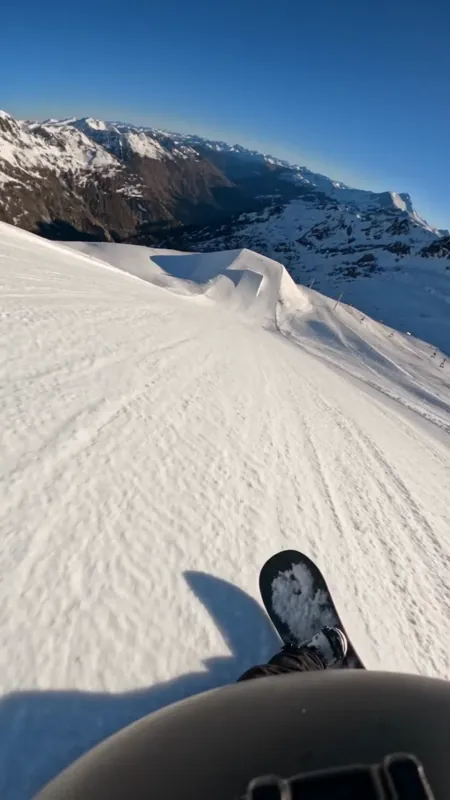
Skydiving Challenge POV
Skydiving POV product ad template for energy drinks, snacks, and apps. Drop in a product image and build a short freefall hook.
The Skydiving Challenge POV template turns a standard product shot into a first-person freefall sequence built around contrast and controlled chaos. The creative idea places an extreme athlete in a skydiving scenario, then has them casually interact with your product mid-jump. The humor comes from the mismatch: a person falling at terminal velocity trying to open packaging, take a sip, or use an app as if nothing unusual is happening. It is a hook-first format designed for short social feeds where the opening seconds need to stop the scroll. This template suits action-oriented campaigns that want to associate a product with peak performance, adventure, and a raw UGC feel. The workflow extracts your product from an uploaded image, analyzes what it is, writes a custom script around the product's actual use logic, and generates a vertical video with environmental audio. Because the script generation adapts to the specific product type, the template works for physical goods like drinks or snacks as well as app screenshots, with the interaction rewritten accordingly.
What this template creates
Product-aware script generation
The template analyzes the uploaded product image to identify what it is and how a person would realistically hold and use it. It then writes a skydiving script around that specific product logic, so a drink can, snack bag, or phone app each gets a different interaction sequence rather than a generic placeholder.
First-person action camera framing
The sequence alternates between helmet-mounted and wrist-mounted GoPro perspectives, with aerial shots for scale. Aggressive camera shake, rolling horizons, and wind-driven motion blur create the raw, immersive feel of actual skydiving footage rather than a polished commercial look.
Environmental audio without music
The workflow specifies realistic sound design only: aircraft engine noise, freefall wind, fabric flapping, packaging rustles, and human voice. No background music or copyright-sensitive audio is used, which keeps the result feeling like authentic action-camera documentation.
When to use this format
Energy drink or performance supplement launch
A brand selling caffeine drinks or workout supplements can position the product as fuel for extreme moments. The athlete retrieves the can mid-freefall and drinks it, linking the product to focus under pressure without a hard-sell voiceover.
Snack brand social hook
Packaged snacks fit the template's original concept of trying to open and eat something in an absurd environment. The struggle to tear packaging in high wind becomes the comedic centerpiece and gives the product repeated screen time.
Mobile app awareness campaign
When the uploaded image is an app screenshot, the script adjusts so the skydiver holds a phone and operates the app during freefall. This works for fitness, delivery, gaming, or productivity apps that want to demonstrate usability in an unforgettable context.
What you’ll need
- Product ImageRequired
- Choose a clear image from Assets or upload your own.
How to use Skydiving Challenge POV
- 1
Inspect the template structure
Open the Skydiving Challenge POV template in makespots and review the five workflow nodes: product extraction, product analysis, script generation, video generation, and the product image asset. Confirm the preview framing and available controls before adding your own material.
- 2
Prepare a clean product image
Use the product image field to upload a shot with clear edges, readable labels, and minimal background clutter. The extraction node generates a white-background version, so the better the original crop and lighting, the more accurate the isolated product will be.
- 3
Review the generated script direction
The analysis node identifies the product and persona, then the script node writes the freefall sequence. Read the generated script to verify the product interaction matches how your item is actually opened, held, or used before proceeding to video generation.
- 4
Generate and review the video
Run the video generation node when you are satisfied with the script and product reference. Check the result for label legibility, consistent character appearance, and correct hand movement, then export when the sequence reads clearly from the airplane door to the final product close-up.
Make the creative yours
Product image replacement
The single mapped input field accepts any product image. Swap the default energy drink for your own packaged good, beverage, or app screenshot, and the analysis and script nodes will adapt the plot and interaction logic to that specific item.
Persona direction through the analysis node
The product analysis step creates an extreme athlete persona matched to the product. While the node generates this automatically, the output feeds the script, so reviewing and adjusting the persona description in Canvas influences the character's look and energy.
Script editing before video generation
The script node produces a full shot-by-shot sequence with timing, camera angles, actions, and audio notes. You can edit this text in Canvas to change pacing, emphasize certain product moments, or adjust the closing call-to-action tone before the video node runs.
Tips for your version
- Upload a product image where the label or interface text is large and straight-on; the freefall sequence includes close-up product moments, and angled or partially cropped text is harder to keep legible in motion.
- Check the generated script's product interaction against reality. If your product has a cap, tear strip, or specific opening mechanism, make sure the described action matches so the final video does not show an impossible motion.
- Review the final frames for the closing product close-up. The script calls for the product pointed directly at camera, so confirm the label is readable and not smeared or distorted in the generated result.
Before you generate
Explore first. Sign in to create.
Browse the preview and read this guide without an account. Sign in to upload your product, save a project, and start generation. Your input form stays beside the preview; Canvas is there when you want to edit the workflow.
Review the credit cost before starting
Choose Generate to see the outputs, total credit cost, and your available balance before confirming. The total depends on the workflow and generation settings. See plans and generation credits for the current options.
Check your result before publishing
The preview shows the creative direction. AI results can vary, so inspect product shape, branding, and any generated text, motion, or audio before downloading your ad. The format gives you a starting point; audience response depends on your product, message, and campaign.
Frequently asked questions
What kind of product image works best with this template?
A clean, well-lit shot with the product centered and minimal background works best. The extraction node isolates the product onto a white background, so clear edges and readable labels help the generated video preserve accurate details during the freefall close-ups.
Can I use this template for a mobile app instead of a physical product?
Yes. The product analysis node detects app screenshots and adjusts the script so the skydiver holds a phone and operates the app mid-air. The interaction logic changes from opening packaging to using a device, keeping the same freefall setting and comedic contrast.
Does the template include music or voiceover?
The audio direction specifies realistic environmental sound only: wind, engine noise, fabric, packaging, and human voice. No background music is used. The closing line is written as a shouted UGC-style call to action rather than a polished voiceover.
How do I change the athlete's appearance or the script's pacing?
The product analysis node generates a persona description that feeds the script. You can edit that persona text in Canvas to change facial features, hairstyle, or energy. You can also edit the generated script directly to adjust shot timing, actions, or the final line before running video generation.
About the preview
450 × 800 px video example. This is the template preview; your generation settings determine the final output.
You can explore this template and its Canvas without an account. Sign in to save a project and upload your assets.