Black Friday Product Ad
Create a bold Black Friday product poster with a red circle backdrop, product display base, and optional discount banner in makespots.
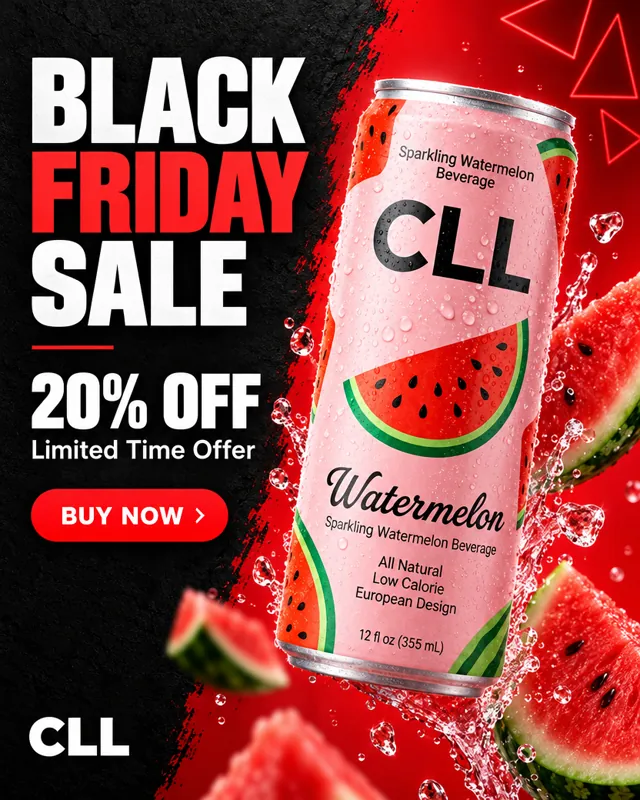
The Black Friday Product Ad template gives you a structured poster layout for promoting a single product during the holiday sales window. It combines a dark studio background, a large red circular graphic, a central product display base, and space for a product name, slogan, and optional discount text. The composition is built around a clean, high-contrast commercial photography look that keeps attention on the product while signaling urgency through the Black Friday visual language. This format is useful when you need a ready-made promotional image for social feeds, storefront banners, or email headers without designing a layout from scratch. The template accepts a product image and text inputs, then generates a poster that arranges three copies of the product on a circular base with supporting gift-box and banner elements.
What this template creates
Structured promotional composition
The template arranges your product on a matte black circular base with a polished gold band, set against a dark gradient background and a large red circle. Three product units are composed for depth, with one centered hero and two slightly behind. This layout creates a consistent, premium studio look without requiring manual design work.
Product image extraction and placement
The workflow includes a step that isolates the product from your uploaded image and generates a version with a white background. This extracted product is then referenced in the poster generation so the final image places your item on the display base. The intent is to preserve the product's shape, texture, and color while removing the original background.
Conditional discount display
The Discount Rate field accepts either a standard percentage offer or a quantity offer. If you enter text like '50% OFF', the prompt logic places that exact text on a red banner along the left edge. If you enter a quantity offer like '3+1', it appears as a small black capsule label near the product. Leaving the field blank omits discount text entirely.
When to use this format
Social media sale announcements
A brand preparing for Black Friday can use this poster on Instagram or Facebook to announce a specific product discount. The vertical framing suits feed placements, and the bold red circle draws attention in a crowded feed.
Supplement or wellness product promotions
The template's example uses a probiotic product, showing how wellness brands can present a single SKU with a clear slogan and discount. The circular base and dark background give the product a clinical, premium presentation that fits health-related merchandise.
Limited-time storefront banners
An e-commerce store can adapt this poster for a homepage or category banner during the Black Friday weekend. The 'Last 24 Hours' style sub-headline and optional discount banner communicate urgency while keeping the focus on one featured product.
What you’ll need
- Product ImageRequired
- Choose a clear image from Assets or upload your own.
- Product NameRequired
- Add the text you want to use in this template.
- SloganRequired
- Add the text you want to use in this template.
- Discount RateOptional
- Add the text you want to use in this template.
How to use Black Friday Product Ad
- 1
Inspect the existing layout
Open the template and review the preview image to understand the composition: red circle, dark background, circular base, gift boxes, and text placement. Note which elements are fixed and which depend on your inputs.
- 2
Prepare your product image and text
Upload a clear product image with the item visible and ideally on a simple background. Enter the product name, a short slogan or subtitle, and any discount text you want shown. If no discount is needed, leave that field empty.
- 3
Direct the existing workflow
The workflow first extracts your product, then generates a poster prompt using your Product Name, Slogan, and Discount Rate. Review the generated prompt in Canvas to confirm the discount text and product description match your intent before the final image step runs.
- 4
Review and export
Check the generated poster for product accuracy, text legibility, and discount placement. If the product appears distorted or the text is incorrect, adjust the input fields or refine the prompt in Canvas. Export when the result matches your campaign needs.
Make the creative yours
Product name and slogan text
The Product Name and Slogan fields are editable text inputs. Your product name appears in the footer area, while the slogan appears as the white sub-headline below the Black Friday badge. Keep the slogan short so it remains legible in the vertical layout.
Discount rate formatting
The Discount Rate field accepts free-form text. Enter a standard offer like '50% OFF' for the left-edge red banner, or a quantity offer like 'Buy three get one free' for the capsule label. You can also combine both formats in one field, as the example shows.
Product image replacement
The mapped Product Image field lets you swap the default product for your own. The extraction step attempts to isolate the item and place it on the display base. Choose an image where the product is fully visible and has clear edges for the best extraction result.
Tips for your version
- Use a product image with strong contrast against its background so the extraction step can separate the item cleanly. Busy backgrounds may cause artifacts in the final poster.
- Check the generated prompt in Canvas before running the final image step. If the discount text appears incorrectly or the product description is wrong, edit the prompt text directly.
- Keep the slogan under 30 characters. The sub-headline sits below the Black Friday badge in a vertical layout, and longer text may wrap awkwardly or become hard to read.
Before you generate
Explore first. Sign in to create.
Browse the preview and read this guide without an account. Sign in to upload your product, save a project, and start generation. Your input form stays beside the preview; Canvas is there when you want to edit the workflow.
Review the credit cost before starting
Choose Generate to see the outputs, total credit cost, and your available balance before confirming. The total depends on the workflow and generation settings. See plans and generation credits for the current options.
Check your result before publishing
The preview shows the creative direction. AI results can vary, so inspect product shape, branding, and any generated text before downloading your ad. The format gives you a starting point; audience response depends on your product, message, and campaign.
Frequently asked questions
What happens if I leave the Discount Rate field empty?
The prompt logic is designed to omit discount text entirely when no discount information is provided. The red banner on the left edge would remain blank or use brief product information for decoration, and no quantity label would appear near the product.
Can I use a product image with a busy background?
The workflow includes a product extraction step that attempts to isolate the item and generate a version with a white background. A busy or cluttered background may reduce extraction accuracy, so a clean, high-contrast product shot produces better results.
How many products appear in the final poster?
The visual direction specifies three units of the product on the circular display base: one centered hero product and two slightly behind to the left and right for depth. This is the intended composition, though the final output may vary.
Is the Black Friday badge text fixed?
The hexagonal badge is designed to display 'BLACK FRIDAY' in two lines of bold white text. This is part of the template's visual structure. The sub-headline below it is editable and should match your Slogan input.
About the preview
450 × 800 px image example. This is the template preview; your generation settings determine the final output.
You can explore this template and its Canvas without an account. Sign in to save a project and upload your assets.