Bold Type
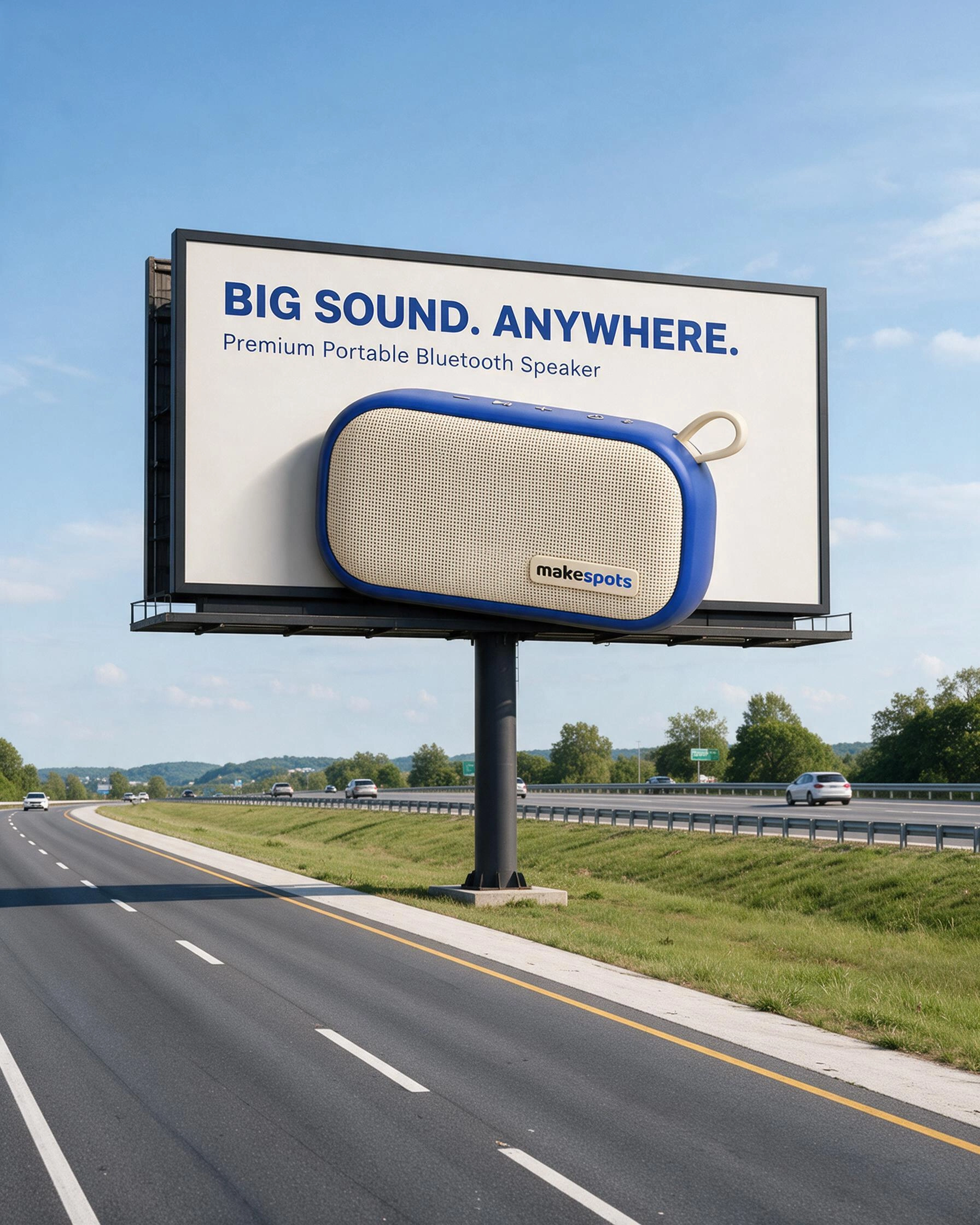
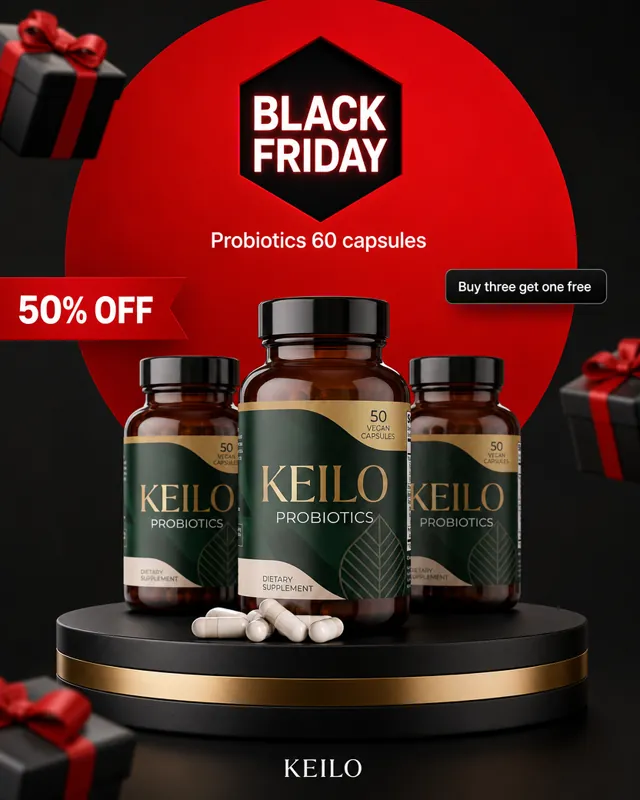
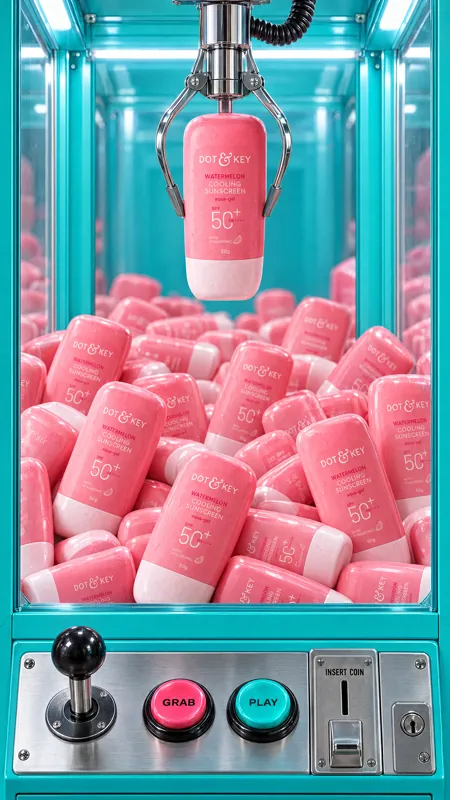
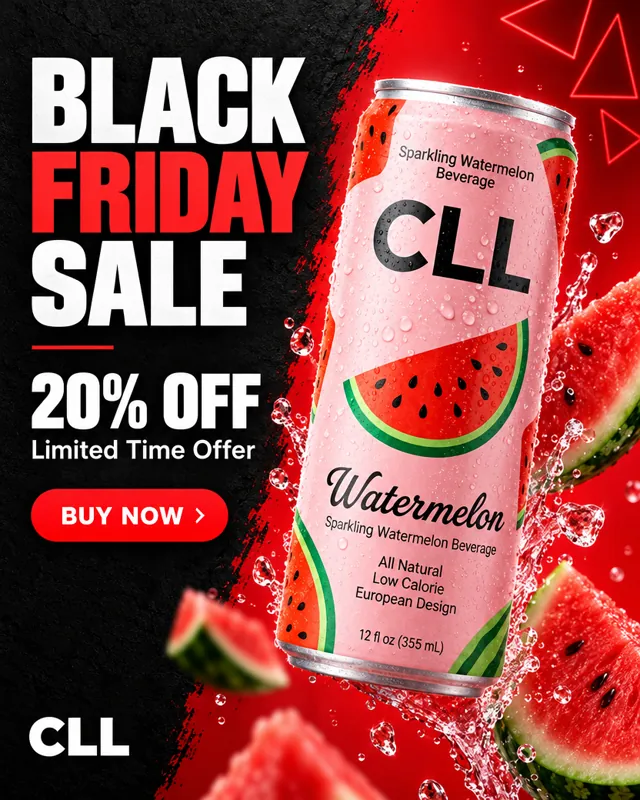
Create a Bold Type product poster: place giant type behind a centered product, customize the image and headline, and review the result in the workspace.
Bold Type is a poster-style image template built around one strong idea: a product sits large and centered while oversized headline letters run behind it, partly hidden by the product itself. That overlap is what gives the layout its commercial weight, turning a simple packshot into a graphic statement. The format suits a single hero product rather than a lineup, and it reads clearly at feed size because the composition is reduced to a product, a headline and a controlled background. In the workspace you supply a product image and a short headline, then direct the existing workflow toward a clean, high-contrast advertising look. The template is a starting point for a specific visual direction, not a promise of an exact render.
What this template creates
Layered type behind the product
The core move is typographic depth: large condensed letters sit behind the centered product so the object interrupts the word. This creates a sense of scale and focus without extra decoration. You control the headline text, and the workflow aims to keep every letter inside the frame rather than cropping it at the edges.
Product-led composition
The layout treats the product as the dominant subject, held near the center with realistic surface detail, reflections and contact shadow. The reference image drives shape, branding and proportions. Because the format depends on a single clear object, busy or multi-item images tend to weaken the effect.
Restrained graphic backdrop
Background color is intended to harmonize with the product's dominant tone, supported by subtle light trails, arcs or glow rather than heavy effects. The direction is premium and uncluttered, closer to a studio advertising shot than a marketplace listing. This keeps attention on the headline and the object.
When to use this format
Single-product launch announcement
When one hero item needs an immediate, confident announcement, this poster gives it a stage. A short headline such as a product name or campaign line carries the message while the object anchors the frame. It works well for a first reveal where the product itself is the news.
Seasonal sale and BFCM creative
A bold headline behind a centered product translates naturally to promotional moments, where a few words need to land fast in a crowded feed. The template's contrast and scale suit short sale phrases, and the same layout can be repeated across products for a consistent campaign family.
Brand campaign key visual
Teams building a recognizable visual system can use this format as a repeatable key visual, swapping product and headline while keeping the composition. It gives art directors a consistent frame for social posts, landing-page headers or print-ready promos without redesigning from scratch each time.
What you’ll need
- Product ImageRequired
- Choose a clear image from Assets or upload your own.
- Bold TextRequired
- Add the text you want to use in this template.
How to use Bold Type
- 1
Inspect the template structure
Open Bold Type and review its four steps: the product image input, the editable headline, the master prompt that describes the visual direction, and the image generation step. Read the prompt as creative intent and note where your own choices will matter.
- 2
Prepare the product image and headline
Choose a clean product shot with a clear silhouette, visible branding and minimal background clutter, then write a short headline that fits behind the object. Saving projects and uploading assets require a signed-in the workspace account, though you can inspect the template without one.
- 3
Direct the existing workflow
Adjust the headline field and, in Canvas, replace the sample product reference with your own. Refine the prompt language if you want a different background mood or graphic accent, keeping the composition centered and the type behind the product.
- 4
Review the render and export
Check that the headline is fully visible, the product shape and branding read correctly, and the lighting feels consistent. Regenerate if letters are clipped or the product distorts, then export when the result matches your intent and generation is available in your workspace.
Make the creative yours
Headline wording
The Bold Text field is a plain editable input, not an AI writing step, so you type the exact phrase you want rendered. Keep it short and punchy, since long lines reduce letter size and weaken the overlap effect behind the product.
Product reference swap
The sample uses a protein container, but you can replace it in Canvas with your own product image. Choose a shot where the object's outline and branding are clear, because the layout depends on recognizable shape and surface detail at the center of the frame.
Prompt-level art direction
The master prompt is editable, so you can shift the background tone, the style of graphic accents or the lighting emphasis while keeping the centered product and layered type. Treat changes as direction for the look, and expect to review each result rather than assume identical output.
Tips for your version
- Write a headline that stays readable when the product covers its middle letters; test short words or a two-word phrase first, since the overlap is the point of the layout.
- Use a product image with a strong, simple silhouette and clear front-facing branding, because busy backgrounds or angled shots make the centered composition harder to judge.
- When reviewing a render, zoom in on the headline edges and the product's logo to check for clipped letters, warped branding or softened detail before approving the export.
Before you generate
Explore first. Sign in to create.
Browse the preview and read this guide without an account. Sign in to upload your product, save a project, and start generation. Your input form stays beside the preview; Canvas is there when you want to edit the workflow.
Review the credit cost before starting
Choose Generate to see the outputs, total credit cost, and your available balance before confirming. The total depends on the workflow and generation settings. See plans and generation credits for the current options.
Check your result before publishing
The preview shows the creative direction. AI results can vary, so inspect product shape, branding, and any generated text before downloading your ad. The format gives you a starting point; audience response depends on your product, message, and campaign.
Frequently asked questions
Can I use a product other than the sample container?
Yes. The sample protein container is a reference example. Replace it in Canvas with your own product image, keeping the shot clean and front-facing so the centered composition and layered type still read as intended.
Will the headline appear exactly as typed?
The Bold Text field carries your exact wording, but rendering is a creative process rather than a guarantee. Check spelling, letter completeness and placement in each result, and regenerate if letters are cropped or the type sits in front of the product.
Does the template work for square or portrait posts?
The preview framing is portrait, and the visual direction is built around a tall composition. When width and height settings support it, portrait framing suits the format best; confirm the final framing in the workspace before exporting for a specific channel.
Can I change the background color or graphic accents?
Yes, through the editable master prompt. You can describe a different background mood or lighter graphic elements, but the template's strength is restraint, so keep changes subtle and review each render for clutter or product distortion.
About the preview
450 × 800 px image example. This is the template preview; your generation settings determine the final output.
You can explore this template and its Canvas without an account. Sign in to save a project and upload your assets.