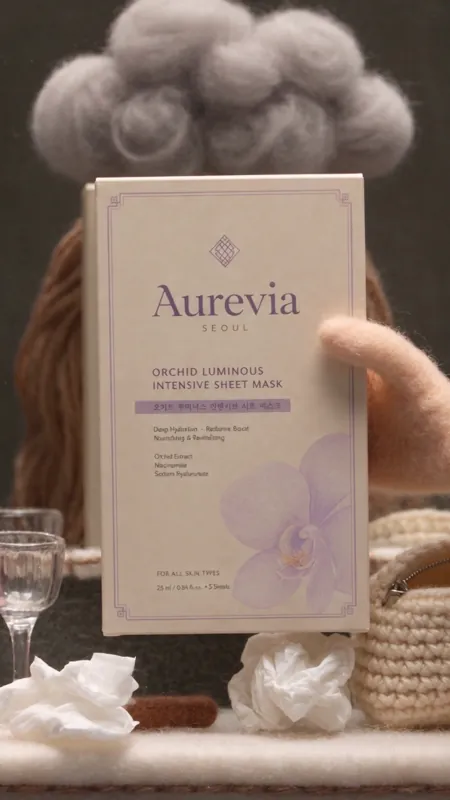
Season Transition
Product video template with a summer-to-fall environmental shift and two editable headline slots for seasonal promos.
The Season Transition template is a product-focused video concept built around a single, visible transformation: a bright late-summer setting gradually shifts into early autumn while the product stays fixed as the visual anchor. Warm sunlight deepens, greenery moves toward golden tones, and a few leaves cross the frame as the camera pushes forward. This movement gives a limited-time offer or seasonal refresh a natural sense of change without requiring complex footage or location work. The format is designed for product visuals that need to feel timely and campaign-ready, especially around seasonal sales, holiday pushes, or collection updates. Two editable text slots let you attach a headline and a supporting line to the visual moment. The template provides the environmental story and pacing; your product image and copy define the specific message. It is most useful when a brand wants a short, focused seasonal spot without building a full scene from scratch.
What this template creates
Seasonal environment shift around a fixed product
The video concept places the product at the center of the frame and moves the environment around it. The setting transitions from late summer into early fall, with warmer light, shifting sky tones, and drifting leaves. The product is intended to remain stable as the scene changes, which helps the viewer keep attention on the item while the seasonal cue plays out around it.
Two editable headline positions
The template includes two text fields. The first is designed for a primary line such as a seasonal announcement, and the second supports a secondary line like a sale name or date. The workflow passes these values into the video concept, with fallback text available if a field is left empty. This keeps the message structure consistent while allowing the wording to change per campaign.
Product extraction for a clean anchor visual
Before the video generation step, the workflow includes a product processing node that isolates the product from the uploaded image and places it on a white background. This step is intended to give the video concept a clean product reference. The goal is to preserve the item's shape and details so the seasonal environment can change without altering the product itself.
When to use this format
End-of-season retail promotion
A retailer can use this format to mark the close of a summer collection while introducing early fall inventory. The visual shift from bright outdoor warmth to golden autumn tones supports a message about limited stock or a final seasonal offer.
Holiday or Labor Day sale announcement
The editable text slots work well for a short promotional window. A brand can set the first line to a seasonal phrase and the second to the sale name or discount period, keeping the product visible while the environment signals the calendar shift.
Limited-edition product reveal
For a product tied to a specific season, the template can introduce the item as the setting changes. The environmental transition implies a new moment or drop without requiring the product itself to change, which suits a single seasonal SKU or refreshed packaging.
What you’ll need
- Product ImageRequired
- Choose a clear image from Assets or upload your own.
- First TextOptional
- Add your own text, up to 50 characters.
- Second TextOptional
- Add your own text, up to 50 characters.
How to use Season Transition
- 1
Inspect the preview and text placement
Open the template and watch the preview framing. Note where the product sits and where the two text lines appear in the sequence. This helps you decide how much copy will fit and whether the seasonal transition matches the campaign timing.
- 2
Prepare the product image and copy
Use a clear product image with the item centered and minimal background clutter. Write the first and second text lines with the character limit in mind. Shorter phrases tend to read better in the vertical preview framing, especially when the environment is changing behind them.
- 3
Direct the existing workflow
The workflow already includes product extraction, text handling, and the video concept. Review the text nodes to confirm the copy is being passed as intended, and check the video node's visual direction against the seasonal tone you want. Adjust the inputs rather than rebuilding the structure.
- 4
Review and export when generation is available
Once the video is generated, check the product's appearance, the timing of the text, and whether the seasonal shift reads clearly. If the product looks distorted or the text appears at the wrong moment, revise the input image or copy and run the workflow again before exporting.
Make the creative yours
Product image replacement
The product image field is the primary visual input. Replace the default image with your own product shot. The workflow will attempt to isolate the item, so a clean, well-lit image with clear edges gives the extraction step a better starting point.
Headline and supporting text
The first and second text fields accept up to 50 characters each. Use them to set the campaign message. The workflow is designed to pass the text into the video sequence, with fallback copy appearing if a field is left blank.
Seasonal tone through the video concept
The video generation node contains a detailed scene description. While the core transition is fixed, you can review and adjust the prompt in Canvas to shift the mood, such as making the autumn tones more pronounced or changing the framing emphasis, as long as the product remains the anchor.
Tips for your version
- Keep the product centered and avoid cropping important details, since the extraction step and video concept both rely on a clear main subject.
- Write the first text line as a short seasonal hook and the second as a concrete offer or date, so the two lines do not compete for attention.
- After generation, watch the video without sound first to confirm the environmental shift is visible even before audio or captions are considered.
Before you generate
Explore first. Sign in to create.
Browse the preview and read this guide without an account. Sign in to upload your product, save a project, and start generation. Your input form stays beside the preview; Canvas is there when you want to edit the workflow.
Review the credit cost before starting
Choose Generate to see the outputs, total credit cost, and your available balance before confirming. The total depends on the workflow and generation settings. See plans and generation credits for the current options.
Check your result before publishing
The preview shows the creative direction. AI results can vary, so inspect product shape, branding, and any generated text, motion, or audio before downloading your ad. The format gives you a starting point; audience response depends on your product, message, and campaign.
Frequently asked questions
What happens if I leave the text fields empty?
The workflow includes fallback behavior. If the first text field is empty, the video concept may use a default seasonal phrase; if the second is empty, a default sale line may appear. The text nodes also have logic to pass through whatever you enter or mark the field as having no text.
Can I use a screenshot or digital product image?
The product extraction node is designed to detect whether the input is a physical product or a screen. For a screenshot, it attempts to generate a container, such as a phone or computer, that displays the screen content. This means the template can work with digital products, but the result depends on the source image clarity.
Will the product look exactly like my original image in the video?
The workflow aims to preserve the product's shape, texture, and details during extraction, but video generation can introduce variation. Check the generated result for any unwanted changes to the product. If the item looks off, try a cleaner source image or adjust the video prompt in Canvas.
How do I change the season or transition style?
The current video concept is built around a late summer to early fall transition. To change the season, open the video generation node in Canvas and revise the scene description. The product anchoring and text timing are part of that prompt, so keep those elements intact while adjusting the environmental details.
About the preview
450 × 800 px video example. This is the template preview; your generation settings determine the final output.
You can explore this template and its Canvas without an account. Sign in to save a project and upload your assets.