Photo to Life + Narrator
Animate your photo with gentle camera movement and one narrated line. Create a calm video introduction for a place, person, or moment.
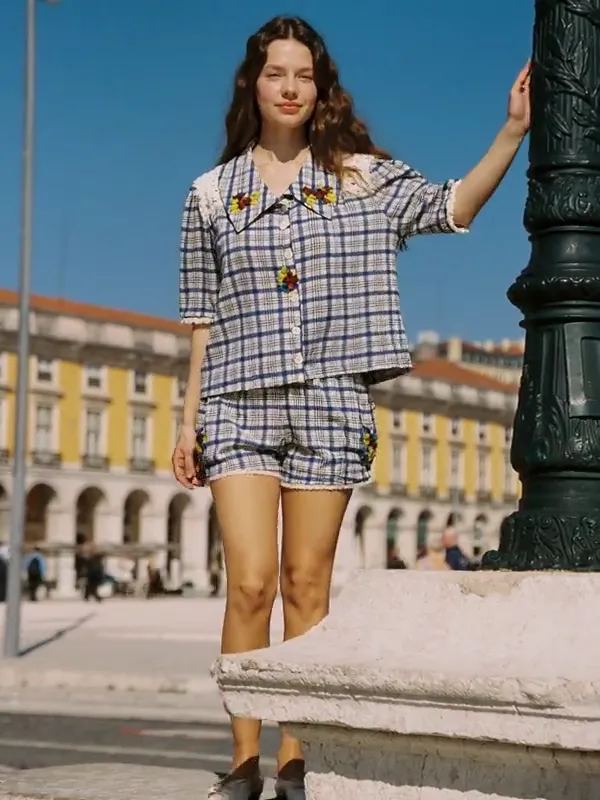
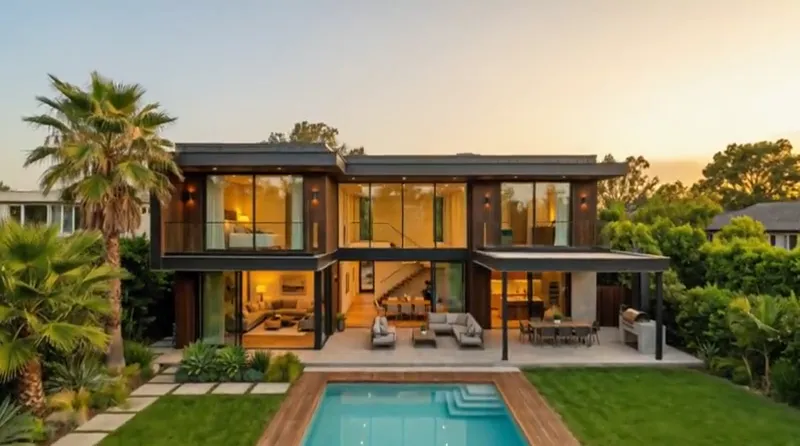
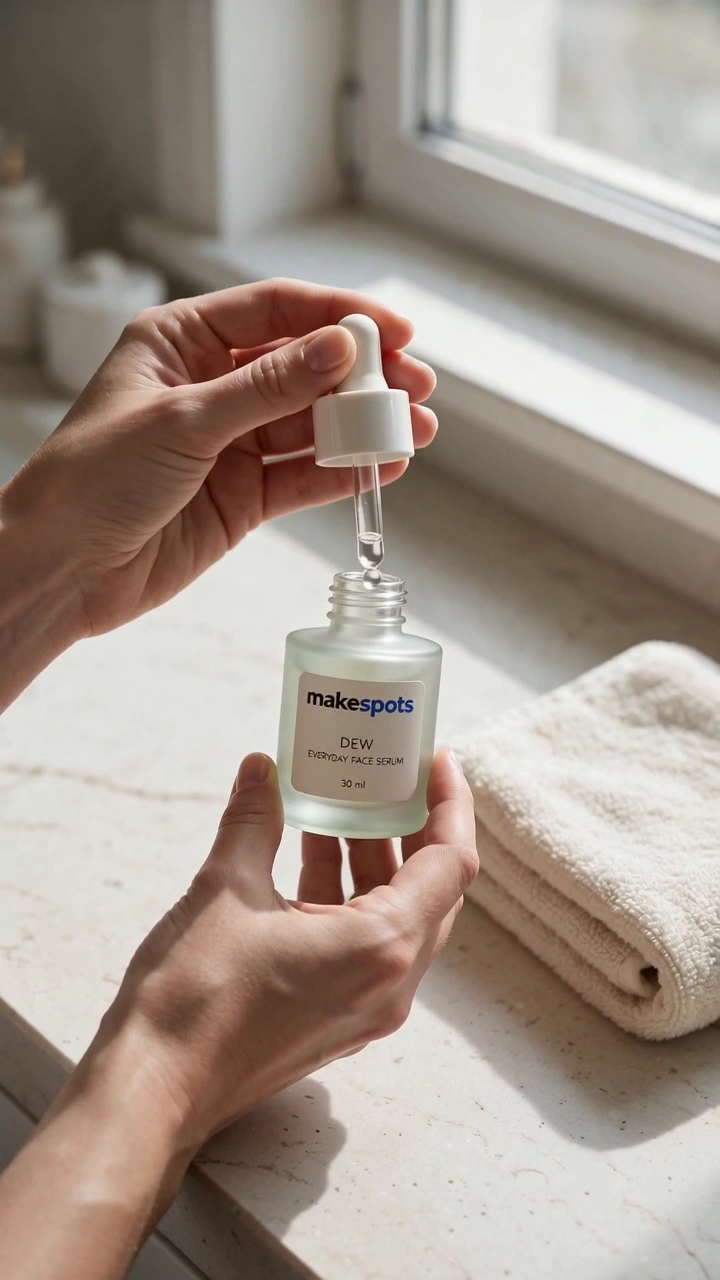
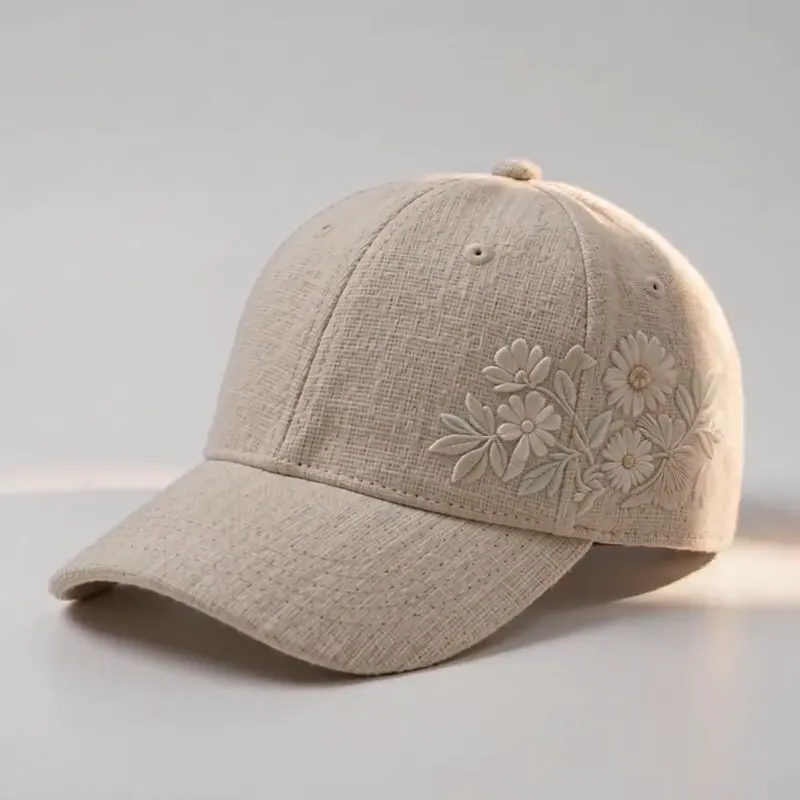
Photo to Life + Narrator begins with a photograph you already have and adds a restrained camera move, small natural activity, and a spoken sentence. The existing direction separates the voice from the people in the picture: the narrator speaks over the scene while anyone visible is intended to remain quiet. The current portrait example demonstrates the slower, reflective tone. The form requires Your photo and Narrator line. These connect directly to the video step, so you do not need to prepare a multi-scene storyboard or a separate audio file. The format can introduce a venue, a lifestyle moment, or a personal visual story with one focused thought. Your source photograph establishes the composition; the generated motion and spoken delivery still need review before the clip is ready to use.
What this template creates
One photograph establishes the scene
The uploaded image provides the people, objects, and surroundings that the video should retain. Choose a photograph that already communicates the intended situation. A gentle animation works best when the composition is understandable without needing a large camera move to explain it.
A short line gives the image context
Narrator line supplies the intended spoken sentence. Use it to add something the photograph does not explain by itself, such as the occasion or campaign thought. The workflow requests a voice-over, but the final wording, pronunciation, and timing must be checked in the output.
Restrained motion preserves the mood
The existing direction asks for a slow camera approach and small activity appropriate to the scene. Canvas lets you refine that direction. Keep the movement connected to the photograph rather than asking a still reference to support an unrelated sequence of events.
When to use this format
A venue introduction
A strong photograph of a café, accommodation, or event space can support a brief narrated introduction. Describe the actual place accurately. Avoid using generated movement as evidence of features or surroundings that the source image does not show.
A reflective lifestyle post
A quiet image and a concise spoken thought can work together when the campaign needs a slower pace. Choose wording that belongs to the pictured moment, rather than adding a generic quotation with no connection to the scene.
A visual opening for a longer edit
Use the animated photograph as an opening before additional footage or product information. One narrated line can establish the theme. Keep the transition into the rest of the edit in mind so the opening feels connected to what follows.
What you’ll need
- Your photoRequired
- Choose a clear image from Assets or upload your own.
- Narrator lineRequired
- Add the text you want to use in this template.
How to use Photo to Life + Narrator
- 1
Choose a photograph with a clear subject
Review the preview to understand the restrained treatment. Pick a photo whose main person, place, or object is easy to identify. Avoid a crowded collage that requires viewers to interpret several unrelated scenes.
- 2
Add the photo and narration
Upload through Your photo and enter a concise sentence in Narrator line. Read the sentence aloud to check its pace. Use wording you are comfortable presenting as narration, without attributing it to someone in the photograph.
- 3
Review the motion and voice direction
Open Canvas to inspect the video instructions. Keep the movement appropriate to the scene and the narration separate from visible speech. Save your project, then review the displayed credit estimate before generating.
- 4
Listen and watch all the way through
Check the complete spoken line, faces, hands, and background during playback. Compare the resulting composition with the original photograph. If the voice sounds rushed or incomplete, shorten the sentence and revise the direction before downloading.
Make the creative yours
Select another source photograph
Your photo is the main visual control. Choose a different image when you want a new subject or setting. A clean original with visible details gives the workflow a stronger reference than a screenshot containing unrelated interface elements.
Write one focused narrated thought
Narrator line controls the intended wording. A single clear sentence is easier to follow than a long paragraph. Check names and unusual terms in the generated audio, and rewrite them when the pronunciation does not communicate the intended meaning.
Refine the camera and atmosphere
The editable video prompt specifies the camera movement and ambient treatment. You can adjust those details in Canvas while preserving the source composition. Large invented actions may change the character of the template and need closer visual review.
Tips for your version
- Keep the spoken line focused on one idea so it can accompany the image without competing with it.
- Check that people in the photograph are not accidentally animated as if they are delivering the narrator line.
- Compare small background details at the beginning and end to catch changes introduced by the camera movement.
Before you generate
Explore first. Sign in to create.
Browse the preview and read this guide without an account. Sign in to upload your product, save a project, and start generation. Your input form stays beside the preview; Canvas is there when you want to edit the workflow.
Review the credit cost before starting
Choose Generate to see the outputs, total credit cost, and your available balance before confirming. The total depends on the workflow and generation settings. See plans and generation credits for the current options.
Check your result before publishing
The preview shows the creative direction. AI results can vary, so inspect product shape, branding, and any generated text, motion, or audio before downloading your ad. The format gives you a starting point; audience response depends on your product, message, and campaign.
Frequently asked questions
Does the person in my photo speak?
The existing direction requests an off-screen narrator and asks visible people to remain silent. Inspect the generated result for unintended mouth movement. This template is a narrated image animation, not a verified recording of the pictured person speaking.
Can I use a photograph without people?
Yes. A venue, landscape, object, or other clear subject can provide the reference. Review the motion direction for the actual image, since small gestures appropriate to a person are not relevant to every scene.
Can I choose a voice in the form?
The form contains Your photo and Narrator line. It does not expose a separate voice selector. The existing prompt describes the intended narration style, which you can inspect in Canvas; the generated voice still requires listening and review.
Will every detail remain unchanged?
The photograph guides the result, but generative motion may alter faces, objects, or background details. Compare the complete video with the source. Use a conventional editing approach if exact pixel preservation is necessary for the intended use.
About the preview
450 × 800 px video example. This is the template preview; your generation settings determine the final output.
You can explore this template and its Canvas without an account. Sign in to save a project and upload your assets.