Cute Doodle Animation
Template guide
Cute Doodle Animation builds a short vertical video around a single product photograph, then introduces one small hand-drawn character into the existing scene. The product stays fixed at the center while the doodle figure moves through the negative space beside it, creating a playful contrast between a realistic commercial photo and a simple white line drawing. The result is a whimsical micro-world that keeps the product as the dominant visual anchor. This format suits product teasers, social ads, and seasonal campaign posts where a light, youthful tone helps the product feel approachable. Because the template uses the uploaded image as the authoritative reference, the surrounding environment, lighting, and product details remain the creative foundation. The doodle is an added layer, not a replacement for the photograph. Users can inspect the template without an account, while saving projects and uploading product images requires sign-in.
What this template creates
Product-anchored photographic base
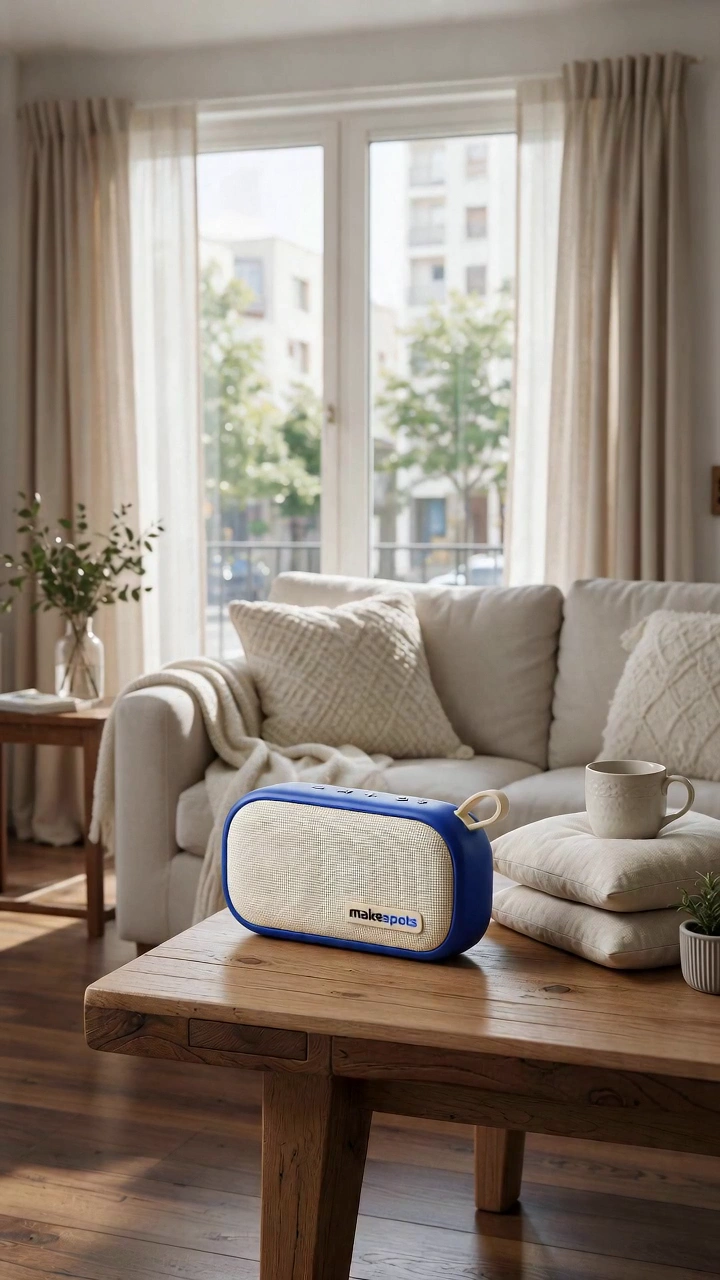
The workflow starts with your uploaded product image and generates a photorealistic lifestyle scene around it. The product remains centered, fully visible, and dominant, while the scene adds one believable everyday setting with restrained props. This keeps the animation grounded in a real commercial photograph rather than a fully illustrated frame.
Single miniature doodle character overlay
A small gender-neutral 2D character is drawn inside the negative space beside the product. The figure uses clean white strokes, a rounded head, capsule torso, and oversized hands, staying roughly 18–25% of the product's height. This scale relationship keeps the product large and readable while the doodle adds motion and personality.
Vertical animated composition
The final video uses a vertical framing suited to mobile feeds. The input image is treated as a fixed photographic plate, so the environment, lighting, and product position stay visually consistent while the doodle animates. The product remains stationary and fully visible, with clear space around its silhouette throughout the sequence.
When to use this format
Product teaser for a new launch
A brand introducing a new item can use this template to show the product in a realistic setting while a small doodle reacts to it. The contrast between the polished photo and the simple character draws attention without hiding product details or adding promotional text.
Seasonal campaign post
For BFCM or holiday feeds, the playful doodle can make a standard product shot feel more energetic. The template keeps the product centered and recognizable, so the animation works as a quick scroll-stopping post that still communicates what is being sold.
Independent brand social content
Smaller brands without illustration resources can add a hand-drawn feel to product photography. The white doodle sits inside the existing scene, so the brand keeps its photographic style while gaining a lightweight animated element for stories or short ads.
What you’ll need
- Product ImageRequired
- Choose a clear image from Assets or upload your own.
How to use Cute Doodle Animation
- 1
Inspect the template structure
Open the template and review the four workflow steps: product image, image generation, video prompt, and final video. Note that the product image is the only required input field, and the rest of the pipeline builds from that reference.
- 2
Prepare a clear product image
Choose a product photo where the item is fully visible, centered, and not cropped at the edges. The workflow uses this image as the sole product reference, so avoid shots with heavy overlays, multiple products, or props covering important details.
- 3
Direct the existing workflow
Replace the sample product reference with your own image in Canvas. The image generation step creates the photographic scene, and the video prompt step describes the doodle character's behavior. Adjust the scene direction if you want a different everyday environment or prop arrangement.
- 4
Review and export
Check the generated image and final animation for product accuracy, framing, and doodle placement. Confirm the product stays centered and fully visible. When generation is available in the workspace, export the vertical video for your intended platform.
Make the creative yours
Product reference replacement
The mapped product image field is the primary control. Swap in your own product photo to change the entire creative. The workflow preserves the uploaded item's shape, colors, materials, and packaging as the authoritative reference for the generated scene.
Scene environment direction
The image generation node analyzes the product's function and personality to choose a believable everyday setting. You can guide this choice by describing a preferred environment or prop arrangement in Canvas, keeping the scene minimal and product-focused.
Doodle character behavior
The video prompt node describes how the miniature white doodle interacts with the negative space around the product. You can adjust the character's position, movement, or gestures while keeping it small and secondary to the product.
Tips for your version
- Use a product photo with generous negative space around the item so the doodle character has room to move without overlapping important product details.
- Check that the generated scene keeps the product's original colors and packaging accurate; if the image generation drifts, replace the reference with a cleaner, more centered product shot.
- Review the final animation for doodle scale. The character should stay clearly smaller than the product so the item remains the dominant focal point.
Frequently asked questions
What kind of product image works best for this template?
A single product, fully visible and centered, with some empty space around it works best. The workflow preserves the uploaded item as the authoritative reference, so avoid cropped edges, multiple products, or props that cover labels, logos, or important construction details.
Can I change the doodle character's appearance?
The video prompt describes a small white 2D figure with a rounded head, capsule torso, and oversized hands. You can adjust the character's position and movement through the workflow, but the core style is a clean white line drawing intended to stay secondary to the product.
Will the product stay exactly the same in the animation?
The workflow treats the input image as a fixed photographic plate, so the product should remain stationary, centered, and visually consistent. However, generation can introduce variations, so review the result and check that the product's shape, colors, and packaging match your original image.
Can I use this for a landscape or square video?
The final video is set up for vertical framing, which suits mobile feeds and stories. The preview shows a portrait orientation. If you need a different aspect ratio, check the workspace for available framing options before generating.
About the preview
720 × 1280 px video example. This is the template preview; your generation settings determine the final output.
You can explore this template and its Canvas without an account. Sign in to save a project and upload your assets.