Miniature World
Turn a product photo into a miniature construction diorama video with tiny workers, using the Miniature World template in the workspace.
Miniature World is a product-video template that stages your item as the oversized centerpiece of a tiny construction diorama. Small workers climb, polish, inspect, and animate around the product while the camera holds steady, giving the scene a playful, premium campaign feel. The workflow starts from a single product image and builds the setting and worker motion around it. This format suits brands that want a whimsical, character-driven spot without a full production shoot. It is less about literal product demonstration and more about world-building: the product's color, category, and silhouette guide the props, uniforms, and lighting. Use it when you want a short, self-contained scene that reads clearly as a campaign visual and can be adapted across products by swapping the reference image.
What this template creates
Product-anchored diorama staging
The workflow begins with your product image, then generates a clean isolated product before placing it at the center of a miniature construction scene. The product is meant to stay still and dominant while the environment and tiny workers are built around its shape, texture, and dominant color.
Worker choreography and themed props
The video step directs tiny workers to build, polish, and inspect the product with theatrical actions such as lifts, ropes, and tools. Their roles adapt to category: chef-like figures for food, engineers otherwise. Uniforms and props are intended to echo the product's palette, though exact poses and props are creative direction rather than fixed output.
Prompt-driven scene variation
An editable prompt step analyzes the product and drafts a scene description covering environment, props, lighting, and worker poses. You can revise this prompt in the workspace to shift the setting, mood, or prop set before the video step runs, so the same template can serve different product categories.
When to use this format
Consumer packaged goods launch teaser
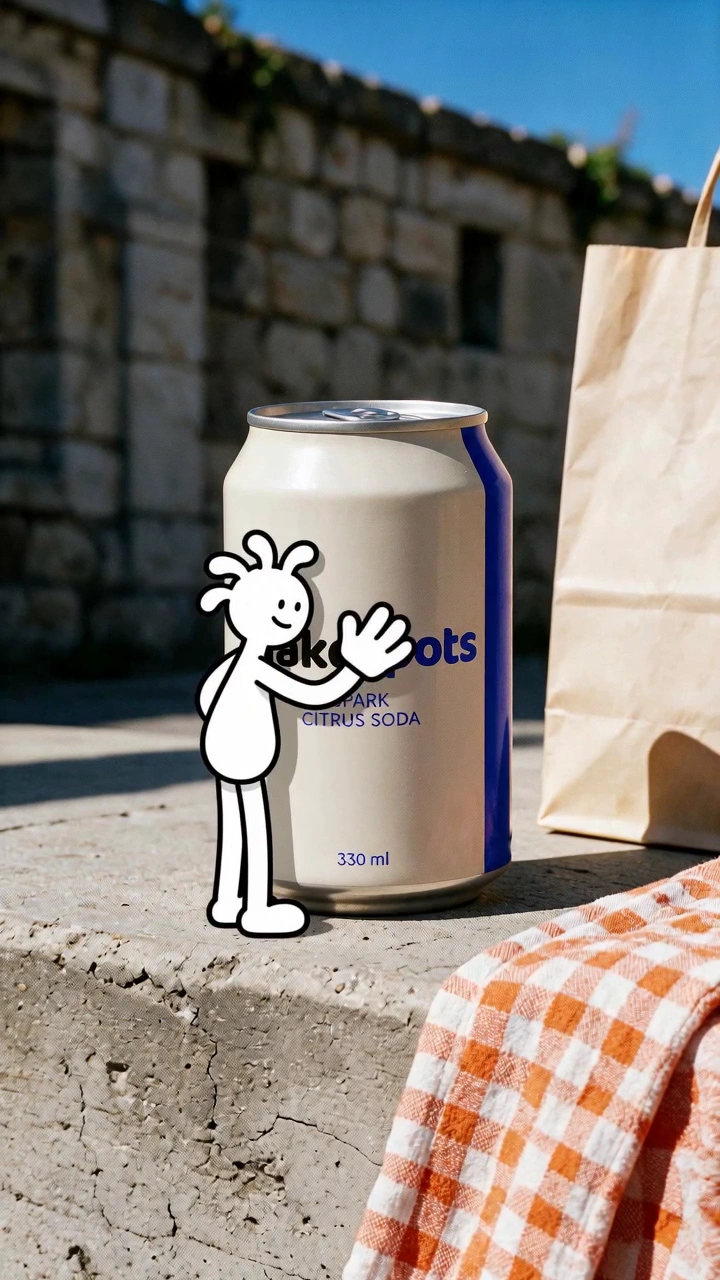
A beverage or snack brand can place its can or box at the center of a matching-color diorama, with tiny workers treating it like a construction site. The short scene works as a social teaser where the product is the hero and the whimsy carries the tone.
Beauty and cosmetics social content
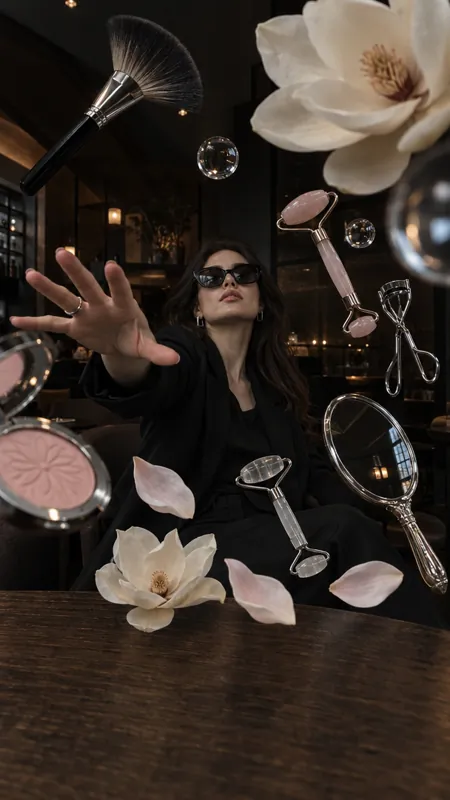
A cosmetics brand can frame a bottle or jar inside a miniature workshop where tiny figures polish and inspect it. The clean studio lighting and color-matched props suit premium beauty feeds that want a crafted, characterful visual rather than a flat packshot.
Hardware and tech product storytelling
A gadget or tool brand can set its product in a miniature lab or construction site with engineers and scanners. This gives technical products a playful narrative frame while keeping the item itself central and clearly visible.
What you’ll need
- Product ImageRequired
- Choose a clear image from Assets or upload your own.
How to use Miniature World
- 1
Inspect the template and preview
Open Miniature World in the workspace and review the preview framing and the five workflow steps. Note that the product image is the only mapped input field, and that scene customization happens through the editable prompt and Canvas rather than a large form.
- 2
Prepare a clean product reference
Choose a product photo with clear edges, even lighting, and minimal background clutter. The workflow isolates the product, so a sharp, well-lit image helps the generated cutout read cleanly. If you want a specific product, replace the default reference in Canvas before running.
- 3
Direct the scene through the prompt
Review the editable prompt that describes environment, props, worker roles, and lighting. Adjust category cues, color emphasis, or prop ideas to match your campaign. Keep the instruction to hold the camera steady and keep the product still if that framing matters to you.
- 4
Review the generated scene and export
When generation is available in your workspace, watch the result for product fidelity, worker motion, and color harmony. Check that labels and product details read as intended, then export the clip for your channel. Saving projects and uploading assets require sign-in.
Make the creative yours
Replacing the product image
Swap the default product reference for your own asset in Canvas. Because the product image is the single mapped input, changing it is the main way to re-skin the template for a different item, palette, or campaign.
Editing the scene prompt
The prompt step is editable. You can shift the environment from construction site to lab or kitchen, change worker roles, or adjust lighting language. This is where creative direction lives, and revisions here change the scene the video step receives.
Adjusting preview framing in Canvas
The preview uses a wide framing. If your campaign needs a different composition, adjust the scene in Canvas and review how the product sits within the frame. Framing choices are creative decisions you should confirm visually rather than assume.
Tips for your version
- Photograph the product against a plain background with soft, even light so the isolation step has clean edges to work with; busy backgrounds can leave stray elements or rough cutouts.
- When reviewing the generated scene, zoom in on the product's label and surface details to confirm they still read correctly, since miniature staging and motion can soften fine text.
- Match your prompt's color language to the product's actual dominant hue, and check the finished clip for uniform and prop colors that clash rather than harmonize.
Before you generate
Explore first. Sign in to create.
Browse the preview and read this guide without an account. Sign in to upload your product, save a project, and start generation. Your input form stays beside the preview; Canvas is there when you want to edit the workflow.
Review the credit cost before starting
Choose Generate to see the outputs, total credit cost, and your available balance before confirming. The total depends on the workflow and generation settings. See plans and generation credits for the current options.
Check your result before publishing
The preview shows the creative direction. AI results can vary, so inspect product shape, branding, and any generated text, motion, or audio before downloading your ad. The format gives you a starting point; audience response depends on your product, message, and campaign.
Frequently asked questions
Do I need more than one input to run Miniature World?
The template exposes a single mapped input field: the product image. Scene direction, environment, and worker roles are handled through the editable prompt and Canvas rather than additional form fields, so plan to customize there.
Will the product look exactly like my original photo?
The workflow aims to preserve shape, texture, and details, but generated video is creative output, not a guaranteed replica. Check the final clip for distortions, label legibility, and color shifts, and revise the prompt or reference if something drifts.
Can I change the construction setting to something else?
Yes. The editable prompt describes the environment, and you can shift it toward a lab, kitchen, or workshop to suit your category. The template's intent is a miniature diorama, so keep that framing while adjusting the specific setting and props.
Does the template include audio and captions?
The video step is set to generate simple audio, and the prompt asks for no captions, titles, or on-screen text. Treat audio as part of the creative direction and review it in the result rather than assuming a fixed soundtrack or dialogue.
About the preview
800 × 446 px video example. This is the template preview; your generation settings determine the final output.
You can explore this template and its Canvas without an account. Sign in to save a project and upload your assets.