80s Product Ad
Template guide
The 80s Product Ad template transforms a single product photograph into a full vintage print advertisement in the visual language of late-1980s consumer marketing. It builds a vertical poster around your hero product, placing it in a composition with period-appropriate typography, airbrushed lighting, and the confident, optimistic energy that defined magazine back covers and department-store campaigns of the era. The output is a still image meant to feel like a scanned piece of print collateral, complete with headline, tagline, body copy block, and brand lockup baked into the design. For teams working on retro-themed launches, throwback social content, or brand refreshes that borrow from analog advertising aesthetics, this format offers a fast way to visualize a product as the centerpiece of a period-styled campaign. The template accepts one required input: your product image. Everything else is shaped through the existing image generation workflow in Canvas, where you can adjust the visual direction and replace placeholder text with your own copy.
What this template creates
Single product image becomes a full poster
The workflow takes your uploaded product photo and positions it as the hero of a vertical 1980s advertisement layout. The composition places the product at the center, supported by a reflective pedestal or period-styled ground, with generous margins and a clear magazine-ad hierarchy. Your product remains the focal point while the surrounding design elements reinforce the retro commercial feel.
Period-accurate typography baked into the design
The template directs the image generation to include headline, tagline, body copy, and a corner brand lockup as part of the poster itself. The type treatment follows 1980s conventions: condensed display lettering, chrome metallic effects with reflections, tight tracking, and bold sans or condensed serif forms. Text appears as printed design elements rather than modern UI overlays.
Vintage commercial color and lighting direction
The visual direction calls for high-contrast color blocking with neon magenta, electric cyan, chrome silver, sunset orange, and deep navy. Studio lighting with airbrushed highlights, soft specular reflections, and a faint perspective grid floor creates the glossy, high-energy look associated with late-1980s consumer advertising. Subtle offset-print texture and mild color bleed add a printed, analog feel.
When to use this format
Retro product launch teaser
A brand introducing a limited-edition product with a throwback angle can use this template to create announcement visuals that feel like archival ads. The vintage poster format gives the launch a distinctive visual identity without requiring a full period-styled photoshoot.
Social media throwback content
Marketing teams running themed content series around nostalgia or brand heritage can adapt existing product photography into 1980s-style posters. The format works well for platforms where a single striking vertical image carries the message.
Concept mockups for campaign direction
Creative teams exploring a retro advertising direction can generate quick visual concepts before committing to a full production. The template provides a concrete reference for how a product might look within 1980s print advertising conventions, useful for internal reviews or client presentations.
What you’ll need
- Product ImageRequired
- Choose a clear image from Assets or upload your own.
How to use 80s Product Ad
- 1
Inspect the template and its single input
Open the template in makespots and review the workflow nodes. You will see an image generation step, a prompt-building step, a product extraction step, and an image asset node for your upload. The only required form field is the product image.
- 2
Prepare a clean product photograph
Choose a product image where the item is clearly visible, well-lit, and free of distracting accessories. The workflow includes a product extraction step that attempts to isolate the main product onto a white background, so a photo with the product as the dominant subject works best.
- 3
Direct the existing workflow with your copy and visual intent
Use Canvas to edit the prompt-building node. Replace placeholder text such as headline and tagline with your own copy, and adjust the product description if the automatic reading of your image needs clarification. You can also refine the setting and color direction to match your brand.
- 4
Review and export when generation is available
Generate the poster and check the result carefully. Confirm that the product shape, labels, and colors are recognizable, and that the baked-in text is legible. If the product appears distorted or the type is garbled, refine the product description or simplify the headline, then regenerate and export the final image.
Make the creative yours
Replace the placeholder headline and tagline
The prompt-building node includes slots for a headline and tagline that appear as baked-in poster text. Edit these in Canvas to match your campaign voice. Shorter, punchier copy tends to read more clearly in the generated poster, especially when the type treatment is condensed or chrome-styled.
Adjust the product description for accuracy
The workflow uses a product description to guide how the generation step treats your uploaded image. If the automatic result misreads your product's shape or label, provide a more specific one-sentence description in the prompt-building node to reinforce the correct details.
Refine the setting and color palette
The visual direction defaults to a reflective pedestal with neon accents and a perspective grid floor. You can modify the prompt in Canvas to place the product in a different period-appropriate setting, such as a mall interior or studio color sweep, or shift the palette toward specific brand colors.
Tips for your version
- Use a product photo with the item centered and occupying most of the frame; the extraction step works best when the product is clearly separated from its background.
- Keep headlines under four words when possible; the condensed display type used in this style can become illegible with long phrases.
- After generating, zoom in on the product area and compare it against your original image to check for shape, label, or color drift before exporting.
Frequently asked questions
What kind of product image works best with this template?
A well-lit photo where the product is the clear main subject, centered and occupying most of the frame, gives the extraction step the best chance of isolating it cleanly. Avoid images with multiple competing products or heavy background clutter.
Can I change the text that appears on the poster?
Yes. The prompt-building node in Canvas contains placeholder slots for the headline, tagline, and body copy. Replace these with your own copy before generating. The text is baked into the image as part of the poster design, so review the output for legibility.
Will my product look exactly like the uploaded photo?
The workflow aims to preserve the product's shape, colors, labels, and logo, but generation is not deterministic. Check the result against your original image and refine the product description in Canvas if you notice drift in details or proportions.
Is this template for video or still images?
This template produces a still image in a vertical poster format. It is designed for print-style advertising visuals, social media posts, or concept mockups rather than motion content.
About the preview
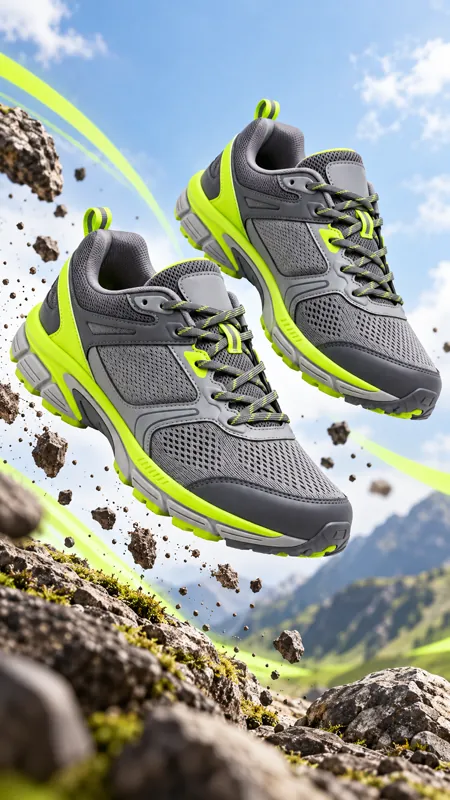
450 × 800 px image example. This is the template preview; your generation settings determine the final output.
You can explore this template and its Canvas without an account. Sign in to save a project and upload your assets.