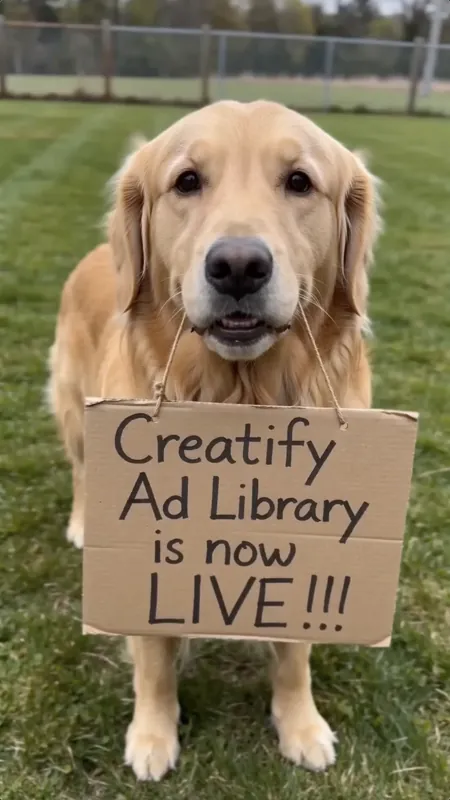
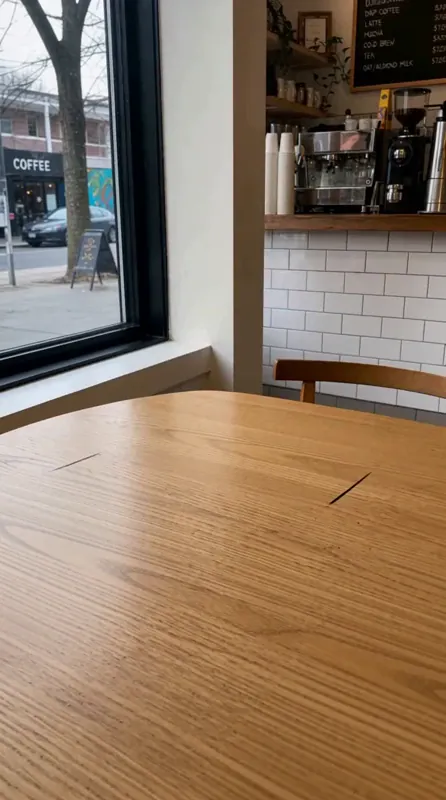
Scene Swap
Create a looping scene-swap product video where a hand holds your item while ten backgrounds change on the beat.
Scene Swap is a product commercial format built around one visual idea: a hand holds your product in the foreground while the background changes rapidly through ten different environments. The opening and closing scenes return to the same location, so the clip can loop cleanly when it replays. This makes the format feel like a short social edit rather than a traditional product demonstration, with the item staying readable while the world around it shifts. The template is designed for handheld products, from bottles and tech accessories to beauty items and daily carry pieces. The practical value is speed and structure. Instead of planning separate location shoots or arranging multiple set changes, you provide a product image and direct a single video generation step. The workflow includes a text node that develops a scene sequence based on the product's visual identity, then passes that direction to the video generator. The result is meant to feel like iPhone-shot UGC footage with beat-matched cuts, not a studio animation. It works as a scroll-stopping ad, a product teaser, or a looping social post where the return to the first environment keeps viewers watching another cycle.
What this template creates
Ten-scene background sequence
The creative direction calls for ten distinct backgrounds that change while the hand and product remain the foreground subject. Scenes are intended to follow a product-relevant theme but vary in location type, scale, lighting, and energy so the sequence does not feel repetitive or limited to one environment.
Looping return structure
The final scene returns to the same environment, lighting mood, and color palette as the opening hook scene. This creates a natural loop point so the video can replay without a jarring cut. The closing hold is meant to stay visually stable rather than fading or flashing.
Environment-matched product integration
The direction asks for lighting, shadow direction, color temperature, and reflections on the hand and product to adjust for each new background. This is intended to keep the product from looking pasted on, making the foreground feel physically present in sunny outdoor, shaded indoor, and reflective settings.
When to use this format
Social media product teaser
A short looping clip suits platforms where autoplay and repeat viewing are common. A skincare bottle or supplement container held against ten lifestyle backgrounds can introduce the product's world quickly without a full narrative or voiceover.
UGC-style ad testing
Brands testing handheld product creatives can use this format to produce a fast, music-synced montage that feels like creator footage. The scene variety gives multiple visual contexts in one asset, useful for early creative exploration or split testing.
E-commerce product highlight
For a portable gadget or accessory, the changing environments can suggest where the item fits into daily life. The loopable structure works well as a product card animation or a short homepage visual that plays repeatedly without an obvious end.
What you’ll need
- Product ImageRequired
- Choose a clear image from Assets or upload your own.
How to use Scene Swap
- 1
Inspect the template structure
Open the Scene Swap template and review the preview framing, the single product image input, and the four workflow nodes. Note that the video generation node and the text direction node are editable, so you can see where creative control sits before adding anything.
- 2
Prepare a clear product image
Upload a product image where the item is visible, well-lit, and shown whole. The workflow uses this as the visual reference for the hand-held foreground. A clean product shot with readable surface texture and design details gives the generator more to work from.
- 3
Direct the scene sequence
Use the text node to adjust the background theme, scene order, or overall mood. You can describe the product's lifestyle context, the type of environments you want, and how the opening hook should feel. The node is meant to generate a video prompt, so your input shapes that direction.
- 4
Review and export
When generation is available, check whether the product remains recognizable, the cuts feel rhythmic, and the final scene connects back to the first. Adjust the text direction or product reference if the result drifts, then export from the workspace once the loop point and pacing feel right.
Make the creative yours
Product image selection
The required product image is the main creative control. Choose a shot that shows the item's material, logo placement, and shape clearly. The workflow uses this reference for the foreground, so a cleaner product image supports better visual fidelity across all ten backgrounds.
Scene theme direction
The text generation node can be edited to describe the product's lifestyle world. You can steer the sequence toward active outdoor settings, refined interiors, travel environments, or tech-life spaces, and the node will build a scene list around that theme.
Hook scene emphasis
The opening scene is meant to be a high-attention moment rather than a generic background. You can specify what that hook should feel like for your product, whether it is a busy street, a morning routine surface, or a bright outdoor path, and the closing scene will return to it.
Tips for your version
- Check the loop point carefully: the final frame should match the opening environment closely enough that the replay feels intentional, not like a repeated clip.
- If the product has visible text or a logo, review the generated foreground at full size to confirm the details stayed readable across scene changes.
- When editing the text node, describe scene variety in terms of location type and lighting rather than listing ten nearly identical settings, so the sequence does not collapse into one visual mood.
Before you generate
Explore first. Sign in to create.
Browse the preview and read this guide without an account. Sign in to upload your product, save a project, and start generation. Your input form stays beside the preview; Canvas is there when you want to edit the workflow.
Review the credit cost before starting
Choose Generate to see the outputs, total credit cost, and your available balance before confirming. The total depends on the workflow and generation settings. See plans and generation credits for the current options.
Check your result before publishing
The preview shows the creative direction. AI results can vary, so inspect product shape, branding, and any generated text, motion, or audio before downloading your ad. The format gives you a starting point; audience response depends on your product, message, and campaign.
Frequently asked questions
What kind of product works best with Scene Swap?
The format is designed for handheld products, so items like bottles, tech accessories, beauty products, and daily carry pieces fit naturally. The product needs to be visible when held in a hand in the foreground, so very small or irregularly shaped items may be harder to keep readable.
How do I control which backgrounds appear?
The text generation node builds a scene sequence based on the product image and any direction you add. You can describe the product's lifestyle context, preferred environments, and the feeling of the opening hook. The node then turns that into a video prompt for the generation step.
Why does the final scene repeat the first one?
The loop structure is intentional. Returning to the opening environment means the video can replay without a hard visual break, which suits autoplay feeds and short ad placements. The closing scene is meant to hold the product steadily rather than fade or cut away.
Can I change the pacing or number of scenes?
The template's creative direction specifies ten scenes with a rhythmic cut pattern, but you can edit the text node to adjust how the sequence is described. The actual pacing and scene count in the generated video will depend on the generation step, so review the result and refine your direction if needed.
About the preview
450 × 800 px video example. This is the template preview; your generation settings determine the final output.
You can explore this template and its Canvas without an account. Sign in to save a project and upload your assets.