Concerns & Solutions
Build a split-screen concerns-and-solutions ad with three chat bubbles and a product cutout. Enter a product image and name to customize.
Concerns & Solutions is an image-ad template that turns a product into a direct answer to three customer doubts. The layout splits the frame: three blue chat bubbles on the left carry first-person concerns, while the right side presents a clean product cutout with its name beneath a paired header. It suits campaigns where the objection is the hook — replacement purchases, unmet daily needs, or usage frustration — and you want the product to appear as the resolution rather than the pitch. Because the image is generated from your inputs, the template gives you a structured starting point for a static ad rather than a finished asset you simply download.
What this template creates
Split-screen objection layout
The template places three blue rounded chat bubbles on the left and a product cutout on the right, separated by a thin vertical divider. Headers label the two columns as concerns and solution. This structure keeps the objection and the answer visible at once, so a viewer reads the doubt and the product in a single glance.
Input-driven bubble copy
The product name field feeds the three left-hand concerns, which are written as short first-person statements about replacement, unmet needs, or usage frustration. Each bubble is sized for one or two lines and ends with an inline emoji. The exact wording is generated, so you review and revise the copy rather than expect fixed phrasing.
Product cutout and name lockup
Your uploaded product image is treated as the visual reference for a clean cutout placed below the right header, with the product name rendered beneath it. The name is meant to appear verbatim, but long names may wrap or shrink. Check spelling, capitalization, and character accuracy against your input before using the image.
When to use this format
Replacement-purchase campaigns
Use this format when shoppers already own a similar item and need a reason to switch. The left column can voice wear, failure, or outdated features, while the right side shows the new product as the direct alternative.
Everyday-problem products
For items that solve a recurring annoyance, the three-bubble structure lets you name daily frustrations in the customer's own voice. It works for home, beauty, and accessory products where the benefit is easier to show as a response than as a feature list.
Promo and seasonal image ads
The template fits Black Friday, seasonal sales, and poster-style promos where a static image needs to carry both a problem and a product. Swap the product image and name to adapt the same layout across a small campaign set.
What you’ll need
- Product ImageRequired
- Choose a clear image from Assets or upload your own.
- Product NameRequired
- Add your own text, up to 60 characters.
How to use Concerns & Solutions
- 1
Inspect the layout and fields
Open the template and review the three workflow steps: the product name field, the product image asset, and the image generation step. Confirm the two required inputs and note that the left-bubble copy is generated from the name you supply.
- 2
Prepare the product image and name
Choose a clear product photo with the item fully visible and minimal background clutter, since it becomes the cutout reference. Enter the product name exactly as you want it rendered, keeping it within the field's character limit and checking spelling before generation.
- 3
Direct the existing workflow
Run the image generation step and let the template compose the split layout, bubbles, cutout, and name lockup. If the generated concerns do not match your product's real objections, revise the product name or adjust the direction in Canvas rather than expecting the template to infer new copy.
- 4
Review and export
Check the three bubble statements for clarity and length, verify the product cutout looks complete and realistic, and compare the rendered name character by character with your input. When the composition reads correctly, export the image for your campaign.
Make the creative yours
Product name field
Enter the product name in the textarea, up to 60 characters, for the name beneath the product. The image prompt generates the three concerns using the product reference. Keep the real name accurate; for a different customer objection, edit the image-generation instructions in Canvas rather than changing the product name.
Product image upload
The product image input determines the cutout on the right. A well-lit, unobstructed photo gives the generation step a clearer reference, while a busy or partial image may produce a less faithful cutout that you will need to review.
Canvas adjustments
Beyond the two mapped fields, further changes to bubble wording, layout emphasis, or visual details happen in Canvas. Use it when the generated concerns need to reflect a specific objection rather than the template's default framing.
Tips for your version
- Read the three generated concerns as a customer would: if two bubbles repeat the same idea, revise the product name or adjust the copy in Canvas so each addresses a distinct doubt.
- Zoom in on the product cutout to confirm edges, shadows, and materials look natural; a cutout that clips part of the item weakens the solution side of the layout.
- Compare the rendered product name against your input character by character, including punctuation and capitalization, because long names may wrap or reduce in size.
Before you generate
Explore first. Sign in to create.
Browse the preview and read this guide without an account. Sign in to upload your product, save a project, and start generation. Your input form stays beside the preview; Canvas is there when you want to edit the workflow.
Review the credit cost before starting
Choose Generate to see the outputs, total credit cost, and your available balance before confirming. The total depends on the workflow and generation settings. See plans and generation credits for the current options.
Check your result before publishing
The preview shows the creative direction. AI results can vary, so inspect product shape, branding, and any generated text before downloading your ad. The format gives you a starting point; audience response depends on your product, message, and campaign.
Frequently asked questions
Can I control the exact wording in the chat bubbles?
The form does not contain separate bubble-copy fields. The image step creates those lines from the product reference and its instructions. To direct a particular objection, edit that prompt in Canvas and generate a new image, then check every statement for accuracy and relevance.
What kind of product image works best?
A clear photo with the full product visible and a relatively plain background gives the generation step a stronger reference for the cutout. Partial or cluttered images may produce less faithful results, so check the cutout before exporting.
Does the template guarantee the product name appears exactly as typed?
The template is designed to render the name verbatim, but long names may wrap or shrink to fit the space. Treat exact fidelity as a review step: compare the rendered text with your input and correct any differences before using the image.
Can I use this for a campaign with more than three concerns?
The composition is designed for three bubbles. Use several images to cover a wider set of objections, keeping the same product name and adjusting the image prompt for each version. Review the resulting copy, since these bubbles are part of the generated image rather than independent text layers.
About the preview
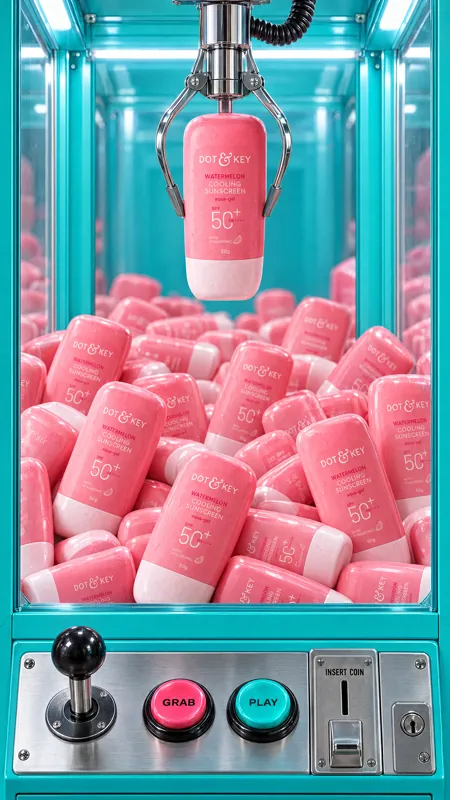
450 × 800 px image example. This is the template preview; your generation settings determine the final output.
You can explore this template and its Canvas without an account. Sign in to save a project and upload your assets.