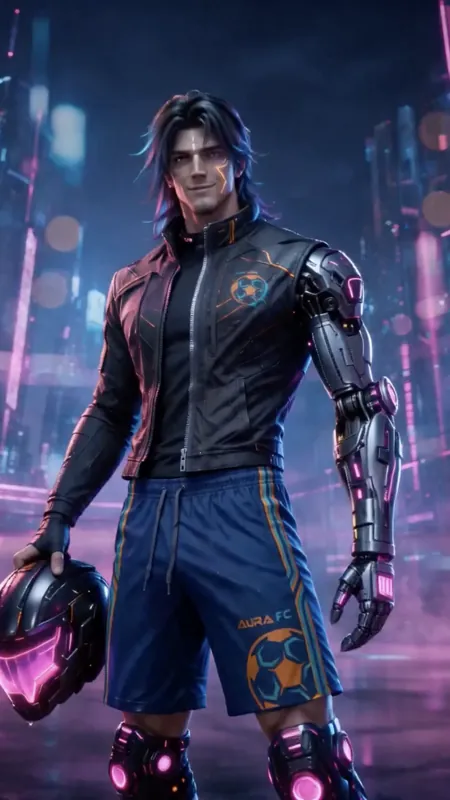
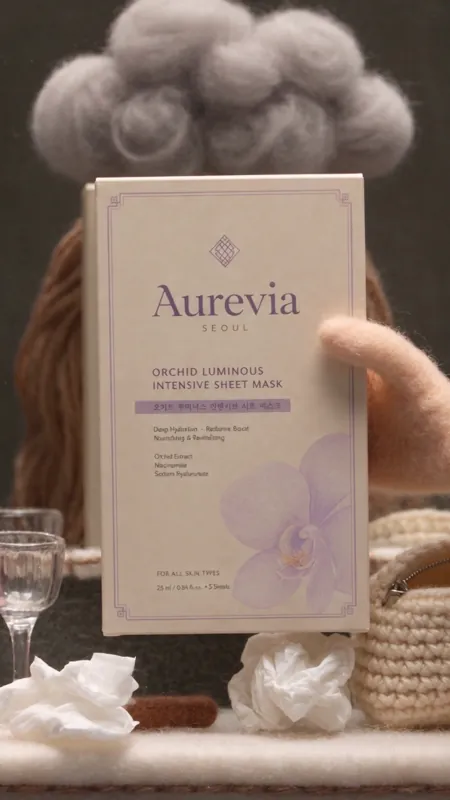
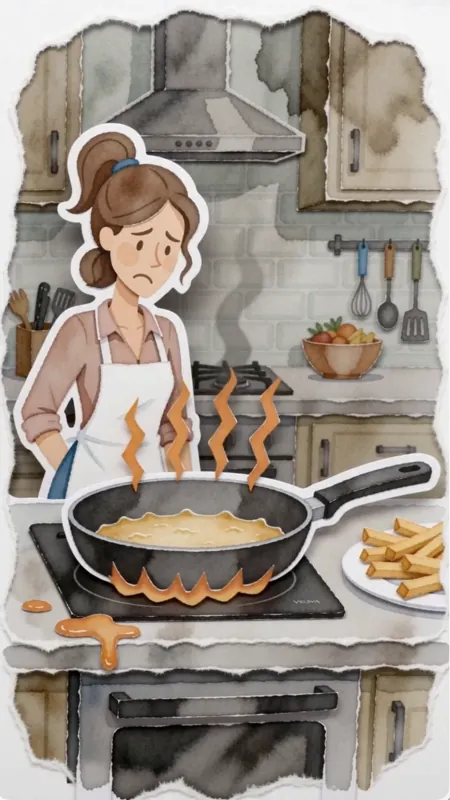
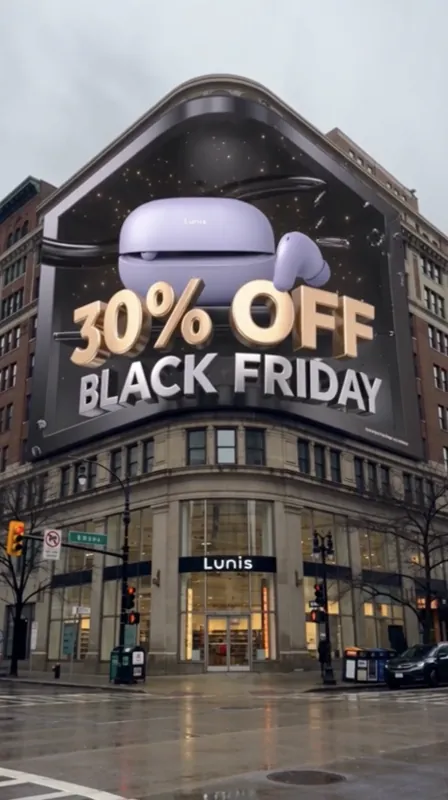
Pixel Style Animation
Turn a product image into a cozy 2.5D pixel-art animated ad with an original character and storyline in makespots.
The Pixel Style Animation template transforms a single product image into a character-driven 2.5D pixel-art video concept. Instead of a straightforward product showcase, the workflow builds a miniature diorama world around an original pixel protagonist who interacts with the product as a natural part of an everyday story. The visual language draws on crisp square pixels, bold outlines, stepped shading, and warm interior environments such as kitchens, bedrooms, or study corners. This format is useful when a product needs emotional context rather than feature listing. The generated direction places the product inside a relatable moment, whether that is a busy morning, a small frustration, or a quiet daily ritual. Because the template accepts both a product image and an optional storyline, it can follow a specific narrative or generate a fitting scenario from the product analysis. The result is a short-form concept suited to social feeds, product launches, or brand refreshes that benefit from playful, story-rich presentation.
What this template creates
Original pixel protagonist creation
The workflow analyzes the product and builds a fitting user character, such as a tiny helper, cozy resident, or human-and-pet duo. The persona is designed to interact with the product naturally, with expressive eyes, readable silhouettes, and layered casual outfits that match the western-inspired pixel style.
Product extraction on a clean background
A dedicated image generation step separates the product from its original photo and places it on a precise white background. This gives later animation direction a clean reference for shape, texture, and proportions, while the product analysis step identifies type, usage, pain point, and selling point.
Storyline-driven scene direction
An optional storyline field lets users describe a specific scenario, such as a character getting sunburned and reaching for sunscreen. When left blank, the workflow generates a fitting everyday struggle from product analysis. Either path produces a narrative direction that places the product as the practical resolution inside a cozy miniature world.
When to use this format
Skincare and personal care products
A sunscreen or moisturizer works well with a beach or bathroom diorama where a pixel character faces sunburn, dryness, or a rushed morning routine. The product becomes the visible solution in a relatable moment rather than an isolated bottle shot.
Food and beverage brands
A coffee, snack, or packaged drink can anchor a kitchen counter or picnic scene. The character acts as a sleepy breakfast lover, a traveler, or a snack enthusiast, giving the product a role in a small story that feels warm and shareable.
Apps and digital products
When the input is a screenshot, the workflow identifies the device type and generates a matching container, such as a phone or laptop. A pixel character then uses the app in a study corner or work desk environment, making screen-based products feel tangible and situated.
What you’ll need
- Product ImageRequired
- Choose a clear image from Assets or upload your own.
- StorylineOptional
- Describe your storyline. E.g: Sarah played volleyball on the beach, got sunburned, and used this sunscreen. Leave blank for auto script.
How to use Pixel Style Animation
- 1
Inspect the template structure
Open the Pixel Style Animation template in makespots and review the preview framing, which is portrait-oriented. Note the two mapped inputs: a required product image and an optional storyline text field. Check the workflow nodes to understand the generation sequence before making changes.
- 2
Prepare your product image and storyline
Upload a clear product photo or screenshot through the product image field. If you have a specific scenario in mind, write a concise storyline that names the protagonist and the everyday struggle. Leave the storyline blank only if you want the workflow to create one from product analysis.
- 3
Review the generated direction in Canvas
After the image generation and analysis nodes run, open the Canvas to inspect the extracted product, the proposed persona, and the script direction. Replace any fixed references with your own assets where needed, and adjust the narrative tone or character details before finalizing.
- 4
Export when the result matches your intent
Check the preview for visual clarity, product readability, and character expression. Confirm that the product appears as a natural part of the scene rather than a floating object. Generation availability and credit costs are shown in the workspace, so review those before exporting.
Make the creative yours
Storyline field for narrative control
The storyline textarea accepts a specific scenario, such as a character playing volleyball, getting sunburned, and using the product. Providing a clear protagonist identity and struggle keeps the generated persona aligned with your campaign message instead of relying on automatic direction.
Product image replacement
The mapped product image field defaults to a sample reference. Replace it with your own product photo or app screenshot. The extraction step will isolate the product, so choose an image where the item is clearly visible and not heavily occluded by hands or props.
Canvas-level scene adjustments
Because the workflow includes multiple generation nodes, users can review and replace intermediate outputs in Canvas. If the proposed persona or environment does not fit the brand tone, adjust the direction before the final video generation step rather than accepting the first result.
Tips for your version
- Write a storyline that names a specific everyday struggle, not just a product benefit. A concrete moment like 'spilled coffee before a meeting' gives the animation director node more to work with than 'refreshing drink.'
- Use a product photo with a simple background and strong contrast. The extraction step performs better when the product edges are clearly defined against the surrounding area.
- Check the generated persona against your brand tone. If the character feels too whimsical or too generic for your audience, revise the storyline or Canvas direction before generating the video.
Before you generate
Explore first. Sign in to create.
Browse the preview and read this guide without an account. Sign in to upload your product, save a project, and start generation. Your input form stays beside the preview; Canvas is there when you want to edit the workflow.
Review the credit cost before starting
Choose Generate to see the outputs, total credit cost, and your available balance before confirming. The total depends on the workflow and generation settings. See plans and generation credits for the current options.
Check your result before publishing
The preview shows the creative direction. AI results can vary, so inspect product shape, branding, and any generated text, motion, or audio before downloading your ad. The format gives you a starting point; audience response depends on your product, message, and campaign.
Frequently asked questions
What happens if I leave the storyline field blank?
The product analysis node will generate a persona and scenario from the product image alone. It combines product type, pain point, and selling point with the template's character rules to create an original protagonist and everyday situation. This is useful for quick exploration, but a written storyline gives more control over the narrative.
Can I use an app screenshot instead of a physical product photo?
Yes. The extraction step detects whether the input is a physical product or a screen. For screenshots, it generates a matching device container, such as a phone or laptop, displaying the screen content. The persona then becomes a user interacting with that device in a cozy environment.
Will the generated video preserve my exact product details?
The extraction step aims to maintain the product's shape, texture, and proportions, but pixel-art animation involves stylization. Review the extracted product in Canvas and check that key brand elements remain readable. Adjust or replace the reference if important details are lost before proceeding.
What kind of character will the template create for my product?
The workflow creates an original user character, not an anthropomorphized version of the product. Depending on the product and storyline, this could be a cozy pixel-town resident, a tiny helper, a human-and-pet duo, or an animal-like companion. The character is designed to use, discover, or benefit from the product naturally.
About the preview
450 × 800 px video example. This is the template preview; your generation settings determine the final output.
You can explore this template and its Canvas without an account. Sign in to save a project and upload your assets.