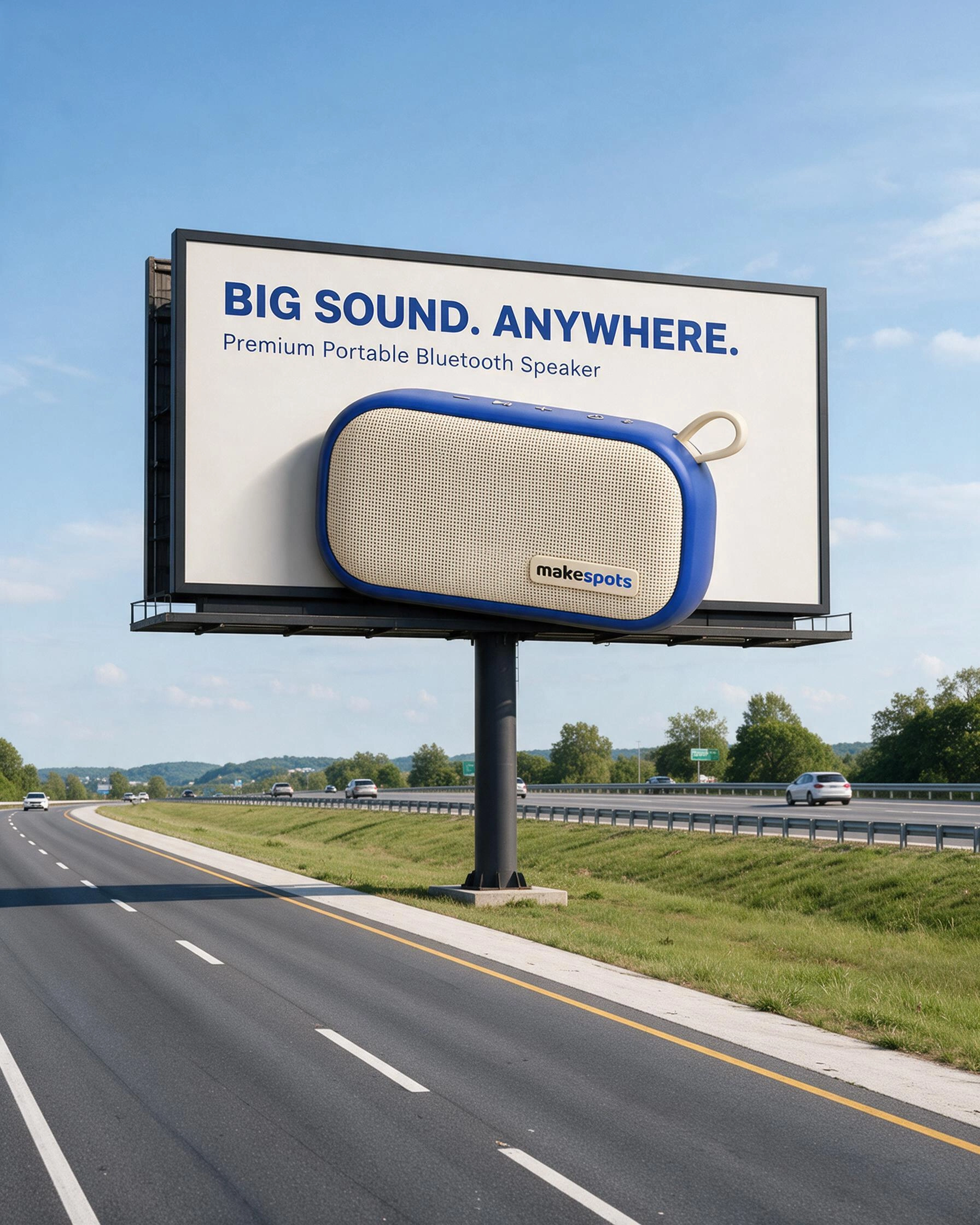
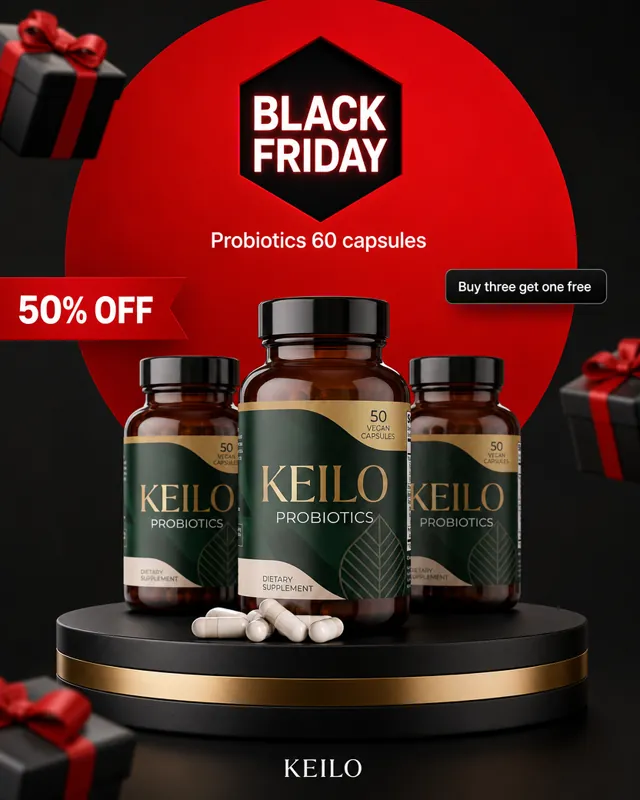
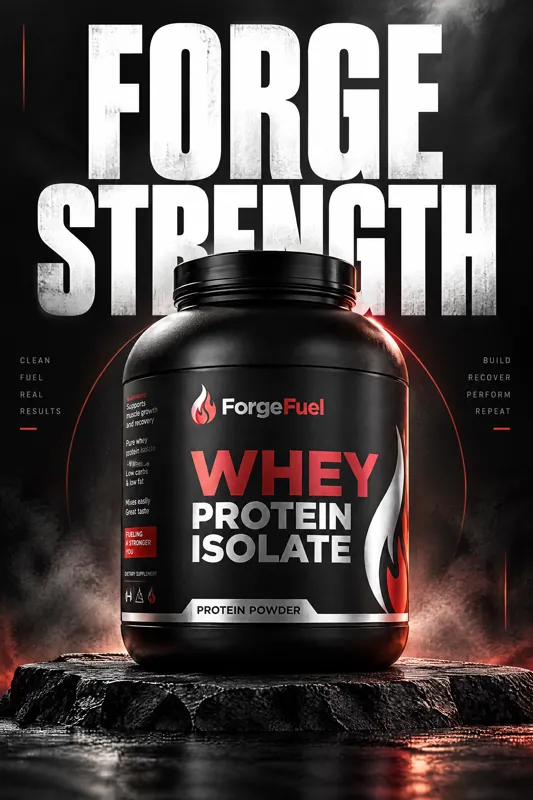
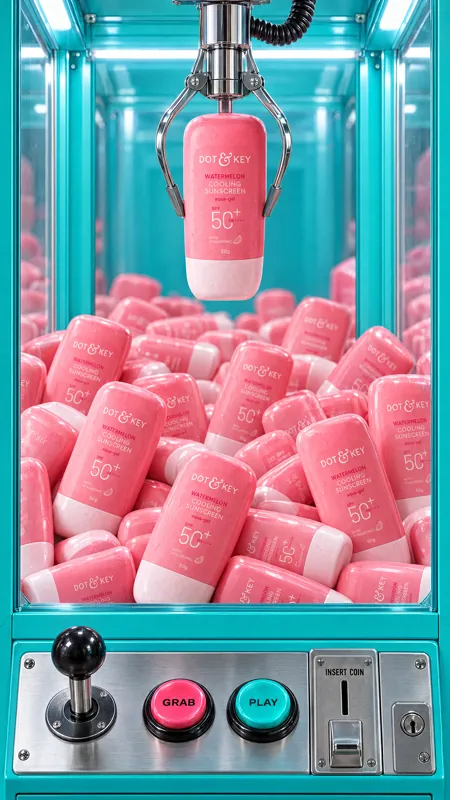
3D Inflatable Balloon Style Poster
Create a 3D inflatable balloon-style poster for product ads with bold bubble typography and a dreamy sky backdrop.
The 3D Inflatable Balloon Style Poster is a single-image ad format built around exaggerated depth and a glossy, inflated visual language. The composition places a product inside a bright blue sky filled with soft clouds, while oversized bubble-letter typography floats above it. Multiple copies of the product appear at tilted angles, surrounded by matching balloon elements that echo the product's materials, ingredients, or character. The result is a surreal, Y2K-influenced commercial render that feels playful and tactile rather than flat or corporate. This template is useful when a brand wants to break away from standard product shots and create a scroll-stopping social asset. It works especially well for food, beverage, beauty, and lifestyle products that benefit from a refreshing, high-energy presentation. Because the poster is image-based, it can be dropped directly into feed ads, story placements, or promotional landing sections without additional motion work.
What this template creates
Product extraction and clean background
The workflow begins by isolating the uploaded product from its original background and rebuilding it as a clean, white-background asset. This step gives the image generator a clear reference for shape, texture, and packaging details, so the final scene can feature the product without distracting source clutter.
Scene-aware balloon element generation
A dedicated analysis step reads the product image and proposes balloon elements that fit its identity. For a chocolate milk carton, that might mean cocoa pods, milk splashes, or a monkey character. These suggestions are then woven into the final prompt as glossy, inflated objects floating around the product.
Editable headline, CTA, and contact block
The template includes mapped fields for the main title, call-to-action text, and contact information. Each can be replaced with your own copy, or set to a no-text state so the corresponding UI disappears. The bottom frosted-glass button and clean contact line are treated as separate, controllable elements.
When to use this format
Beverage and snack launches
A new chocolate milk or juice product fits this format naturally. The inflated cartons, water droplets, and complementary balloon shapes communicate freshness and indulgence in a single bright frame, making it suitable for a launch announcement or limited-time flavor drop.
Seasonal or summer promotions
The sky backdrop, condensation details, and glossy textures evoke a warm-weather mood. Brands running summer refresher campaigns or outdoor product pushes can use this poster to align their visual tone with the season without redesigning the entire ad system.
Social-first brand awareness
The exaggerated 3D depth and bubble typography are designed to catch attention in fast-moving feeds. A brand that wants to introduce itself or re-engage followers can use this format for a high-impact visual that pairs a clear product shot with bold, readable messaging.
What you’ll need
- Contact InfoOptional
- Input a text to replace the website information on the image.
- Main TitleOptional
- Input a piece of copy to replace the Slogan in the image.
- Product ImageRequired
- Choose a clear image from Assets or upload your own.
- CTAOptional
- Input a call to action text to replace the“BUY NOW” on the image.
How to use 3D Inflatable Balloon Style Poster
- 1
Inspect the template structure
Open the template in makespots and review the preview framing and mapped fields. Note that the product image is required, while the main title, CTA, and contact info are optional. Understanding which elements are fixed and which are editable helps you plan your inputs before generating.
- 2
Prepare your product image and copy
Upload a clear product shot with visible packaging details. Write a short headline that fits the inflated bubble-letter style, a CTA that matches your campaign goal, and contact information if you want it displayed. If you prefer a cleaner poster, leave any text field empty to hide that element.
- 3
Direct the existing workflow
The workflow includes a product extraction step, a product analysis node, and a prompt-building script. Review the generated prompt direction in Canvas to confirm the balloon elements and color palette feel appropriate. Adjust the mapped fields or Canvas references if the suggested direction misses your product's identity.
- 4
Review and export
Once generation is available, check the result for product readability, text accuracy, and overall composition. Look for distorted packaging, missing CTA text, or balloon elements that overwhelm the product. Make targeted edits in Canvas, then export the final poster for your campaign.
Make the creative yours
Headline text and tone
The main title field accepts your own copy and converts it into uppercase bubble-letter styling. A short, punchy phrase works best because the inflated typography needs room to breathe. Longer sentences may crowd the upper portion of the frame and compete with the floating product elements.
Call-to-action and contact block
The CTA field controls the frosted-glass button text, while the contact field places a single line of white sans-serif text below it. You can set either to a no-text state to remove that UI element entirely, which is useful for awareness campaigns that do not need a direct response prompt.
Balloon element direction
The product analysis node extracts fitting balloon elements from your uploaded image. If the suggested elements do not match your brand voice, you can adjust the prompt direction in Canvas to emphasize different shapes, materials, or decorative objects that better reflect your product's story.
Tips for your version
- Use a product image where the front label faces the camera directly. The extraction step relies on readable packaging details, and angled or obstructed shots make it harder to preserve brand text and structure.
- Keep the main title under five words. The bubble-letter treatment is designed for short, high-impact phrases, and longer headlines risk visual clutter or awkward line breaks in the final composition.
- Check the CTA and contact text carefully after generation. Because these are rendered as part of the image, small spelling or spacing errors can appear. Review the bottom UI block before exporting.
Before you generate
Explore first. Sign in to create.
Browse the preview and read this guide without an account. Sign in to upload your product, save a project, and start generation. Your input form stays beside the preview; Canvas is there when you want to edit the workflow.
Review the credit cost before starting
Choose Generate to see the outputs, total credit cost, and your available balance before confirming. The total depends on the workflow and generation settings. See plans and generation credits for the current options.
Check your result before publishing
The preview shows the creative direction. AI results can vary, so inspect product shape, branding, and any generated text before downloading your ad. The format gives you a starting point; audience response depends on your product, message, and campaign.
Frequently asked questions
What kind of product works best with this template?
Products with distinct packaging and a recognizable color palette work best. Beverages, snacks, beauty items, and lifestyle goods all fit the inflated, glossy aesthetic. The product analysis step extracts colors and suggests balloon elements, so a clear product shot with visible branding helps the workflow produce a more coherent scene.
Can I remove the CTA or contact information from the poster?
Yes. The CTA and contact fields are optional. If you leave them empty or set them to a no-text state, the corresponding UI elements will not be generated. This gives you the option of a cleaner poster for awareness campaigns or a more direct response format for conversion-focused ads.
How do I control the balloon elements around my product?
The workflow analyzes your product image and proposes balloon elements based on its type, ingredients, or visual identity. You can review these suggestions in Canvas and adjust the prompt direction if you want different shapes or decorative objects. The final composition is guided by that prompt, so refining it before generation is the main control point.
Will the product text and packaging stay accurate in the final image?
The workflow is designed to preserve product readability and avoid heavy distortion, but image generation is not deterministic. Check the final result for brand text, label details, and packaging structure. If the product appears obscured or altered, adjust the prompt or regenerate with a clearer reference image.
About the preview
450 × 800 px image example. This is the template preview; your generation settings determine the final output.
You can explore this template and its Canvas without an account. Sign in to save a project and upload your assets.