Real-Life to Floating Product Shot
Template guide
Real-Life to Floating Product Shot is a video template that takes a single product image and moves it through two distinct visual worlds. The sequence opens with the product placed in an everyday, documentary-style setting, then transitions into a clean commercial composition where the item appears suspended in mid-air with related elements floating around it. The contrast between the natural first frame and the polished second frame gives the product a sense of lift, focus, and intentional styling without requiring a physical studio setup. For marketers and creators who need short product-focused video content, this format provides a repeatable way to show an item in context and then isolate it for visual emphasis. The workflow separates the product from its original background, builds both scenes, and connects them into a reveal that works well for social feeds, product launches, or quick campaign tests.
What this template creates
Product Extraction with Clean Background
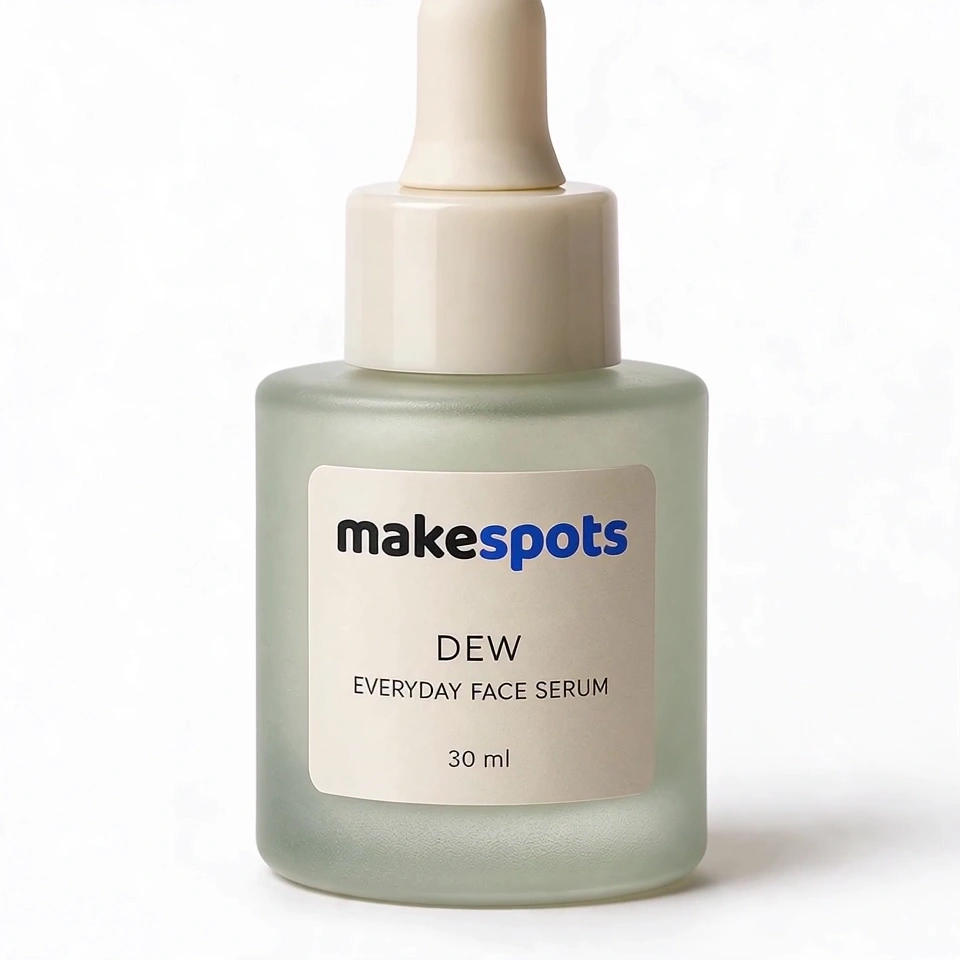
The first image generation step isolates the main product from the uploaded photo and places it on a solid white background. The intent is to preserve the original shape, texture, and details while removing reflections, hotspots, and accessories. This extracted version becomes the consistent reference for both the real-life scene and the floating studio composition.
Dual-Scene Visual Structure
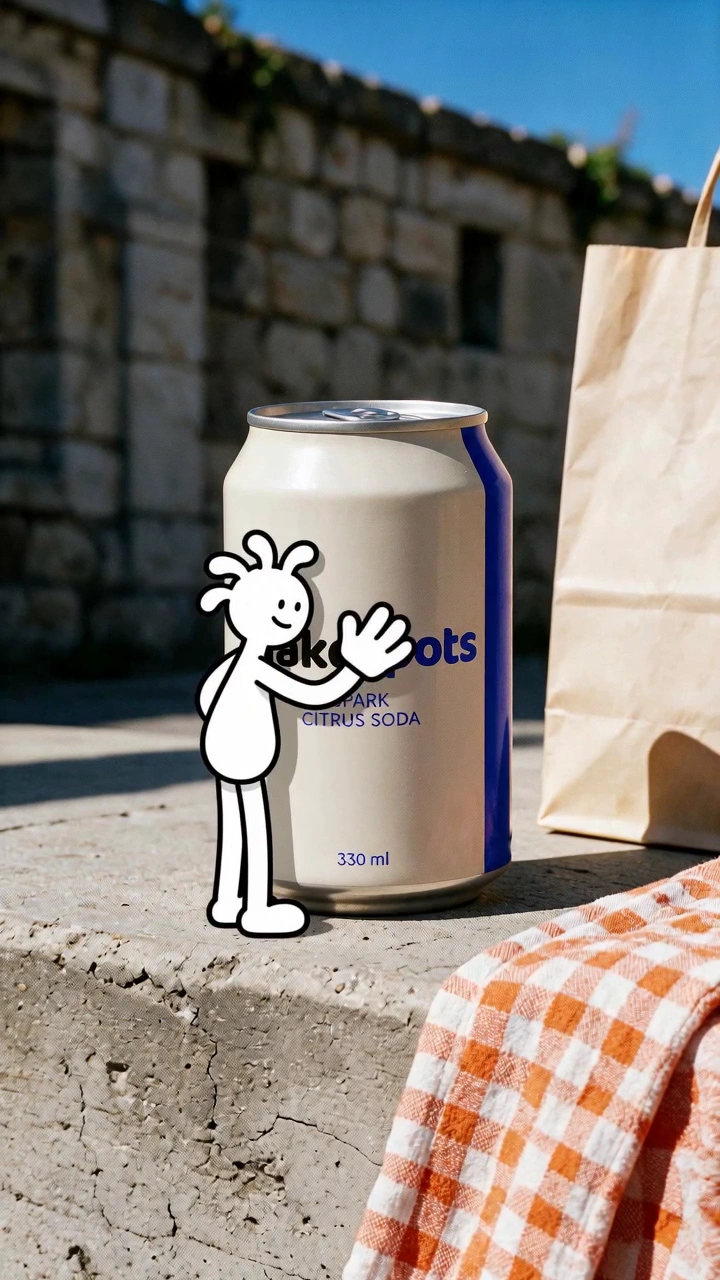
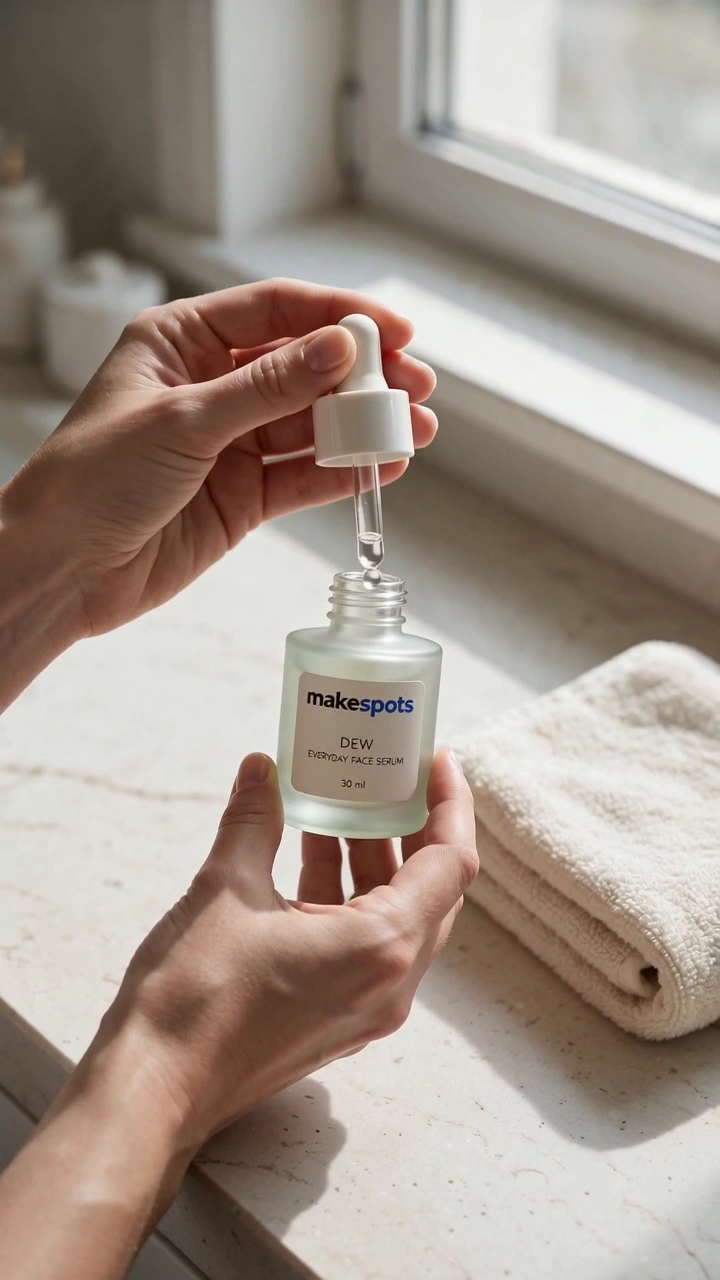
The template builds two separate image directions. One renders the product in a raw, mobile-photography-style everyday setting with natural lighting. The other creates a commercial mid-air shot with a colored background and product-related elements. The video step then connects these into a sequence where the product appears to lift and transition between the two worlds.
Text-Guided Motion Description
A text content node holds a runtime description of the intended movement: the product levitates into mid-air during the opening, then related elements emerge behind and around it. This node is editable, so the motion direction can be adjusted to match the product category or the energy level of the campaign.
When to use this format
Social Media Product Teaser
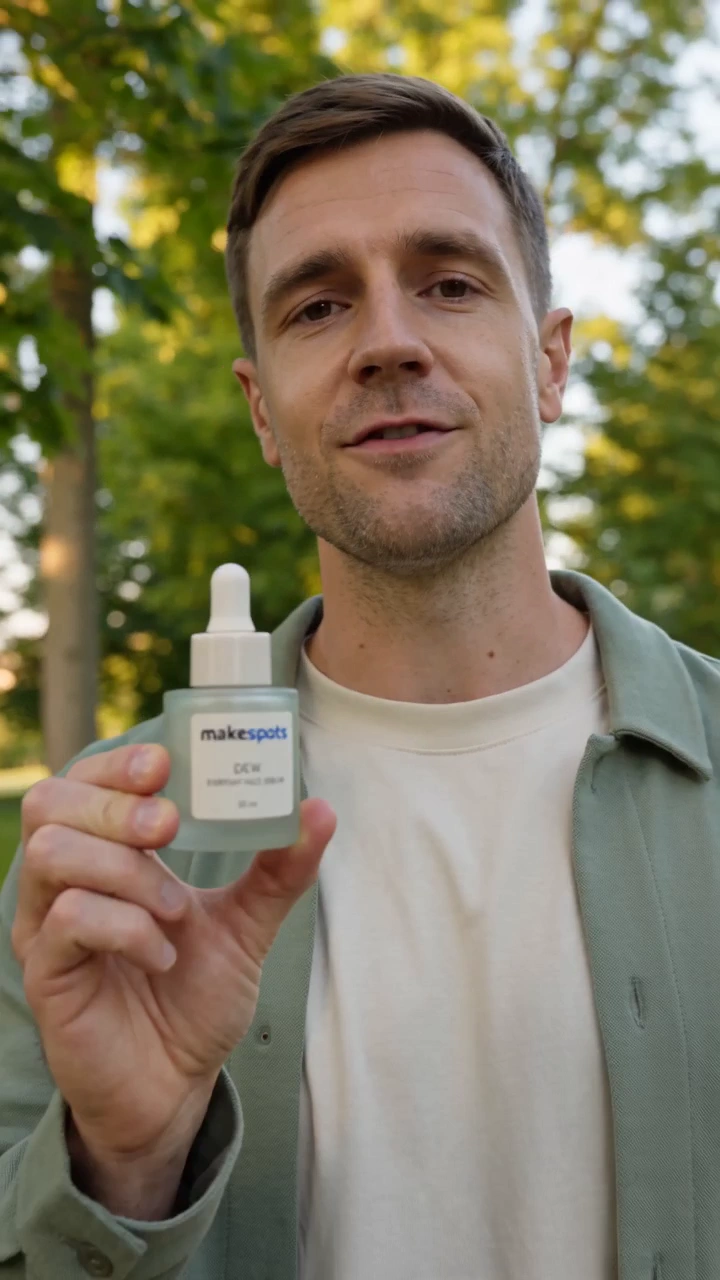
A short vertical-format video that starts with a familiar, unpolished moment and then snaps into a stylized floating shot. The contrast works well for feed content where the first second needs to feel native and the payoff needs to feel designed.
E-commerce Listing Visual Refresh
For a product page or marketplace listing that already has clean photography, this template adds motion and context. The real-life opening can suggest usage, while the floating composition provides a consistent, branded look for the main visual.
New Product Launch Announcement
When introducing a new item, the sequence can imply a shift from ordinary reality into a focused product moment. The floating elements around the product can be chosen to reinforce flavor, material, or category cues without building a full 3D scene.
What you’ll need
- Product ImageRequired
- Choose a clear image from Assets or upload your own.
How to use Real-Life to Floating Product Shot
- 1
Inspect the Node Sequence
Open the template and review the six nodes. The workflow extracts the product, generates the real-life scene, generates the mid-air commercial photo, and then produces the final video with a text node describing the motion. Understanding this order helps you know where your input matters.
- 2
Prepare a Clean Product Image
Upload a product image where the item is clearly visible with minimal clutter. The extraction step works best when the product has defined edges and no heavy reflections. Avoid accessories or multiple items in the frame so the isolated result stays close to the original.
- 3
Adjust Scene Directions in Canvas
Use the editable prompts to guide the real-life setting and the floating composition. Describe the everyday environment that suits the product, and choose the background color and related elements for the mid-air shot. The text node can be edited to change the described motion timing and element behavior.
- 4
Review the Generated Video
Once generation is available, check whether the product remains recognizable across the transition, whether the floating elements support rather than distract, and whether the pacing feels right for the intended placement. Export when the sequence matches your direction.
Make the creative yours
Product Image Replacement
The mapped input field accepts any product image. Swapping in a different item reroutes the entire workflow, so the extraction, scene generation, and final video all derive from the new reference. This makes the template reusable across a product line.
Real-Life Scene Direction
The real-life scene prompt can be edited to place the product in a setting that fits the brand: a kitchen counter, a desk, a bathroom shelf, or an outdoor surface. The style notes emphasize natural lighting and mobile photography aesthetics, which you can adjust for tone.
Floating Composition Elements
The mid-air commercial photo prompt supports choosing the background color and the product-related elements that surround the item. For a beverage, that might be fruit or ice; for a skincare product, botanical shapes or water droplets. These choices shape the final visual identity.
Tips for your version
- Use a product image with a simple or neutral original background so the extraction step has less to remove and fewer chances to alter the product edges.
- Keep the floating elements visually related to the product's actual ingredients or materials. Unrelated props can make the composition feel generic or confusing.
- Check the transition moment carefully. The product should remain the same recognizable object from the real-life frame to the floating frame, even if lighting and background change dramatically.
Frequently asked questions
What kind of product image works best for this template?
A single product with clear edges and minimal reflections works best. The extraction step aims to remove the background and hotspots, so busy scenes, multiple items, or glossy surfaces with strong highlights can produce a less accurate isolated result. Simple, well-lit product photography gives the workflow the best starting point.
Can I change the real-life setting shown in the opening?
Yes. The real-life scene node contains an editable prompt that describes the setting and photography style. You can direct it toward a kitchen, office desk, bathroom, or any environment that makes sense for the product. The default direction uses a raw mobile-photo aesthetic, but you can adjust the tone.
How do I control what floats around the product?
The mid-air commercial photo prompt includes a direction for product-related elements around the item. Edit this part of the prompt to specify ingredients, materials, or category cues that fit your product. The text content node also describes how those elements appear and levitate during the video.
Will the product look exactly like my uploaded image in the final video?
The workflow is designed to preserve the product's shape, texture, and details, but generation can introduce subtle variations. Review the extracted product image and the final video to confirm the item remains recognizable. If details drift, adjusting the upload or refining the extraction prompt can help.
About the preview
720 × 1280 px video example. This is the template preview; your generation settings determine the final output.
You can explore this template and its Canvas without an account. Sign in to save a project and upload your assets.