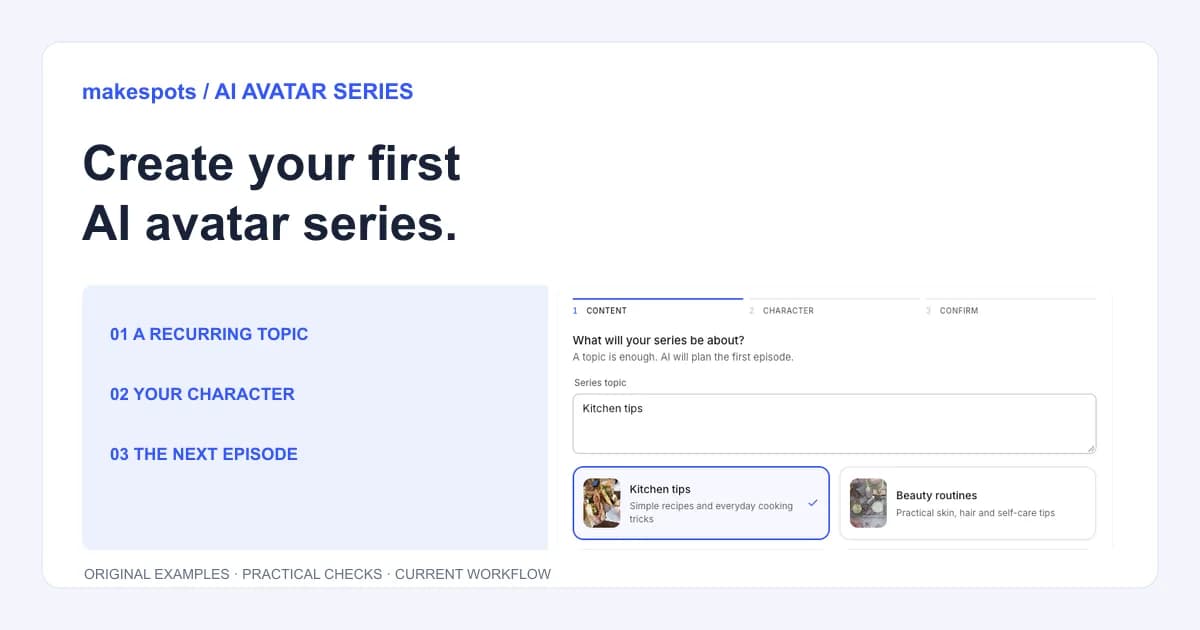
Choose a topic, select a character and confirm the setup. Then prepare the character, review the spoken script, generate the video and inspect the export. Save the series for the next episode. Generation uses credits after a quote; publishing is a separate, manual step.
1. Choose a promise that can support several episodes
Start with the small job a viewer will come back for. 'Useful desk ideas for people working in a small room' gives each episode a purpose. 'Make viral content about everything' leaves the subject, audience and result undecided. A recurring face helps recognition, but the series still needs something useful to say.
Write three possible episodes before generating anything. They should share an audience while answering different questions. For a desk series, one episode could organize charging cables, another could clear a notebook space, and a third could create an end-of-day reset. If all three repeat the same tip, narrow the format or broaden the subject.
2. Enter the topic without writing a production manual
Open Create your series and begin with Content. A short topic is enough to start. Topic suggestions are optional, and you do not need to supply episode titles before saving the series. Add an audience or recurring structure only when it changes the kind of video you want.
Keep lasting instructions separate from the first episode. The series brief describes what returns each time; an episode direction describes today's specific situation. You can begin with the brief below, then choose the charging-cable idea when you work on Episode 1.
Make practical desk-organizing videos for people working in one small room. A friendly fictional host shows one manageable improvement per episode using ordinary desk items. Open with a recognizable inconvenience, explain one change and finish with a visible result. Keep the tone relaxed. Avoid shopping lists, exaggerated productivity promises and repeating a tip from an earlier episode. Each video should make sense on its own.
3. Pick a character and a setting you can reuse
At Character, choose a preset or a saved character. A voice direction and filming scene are supplied with the starting point. You can change the scene or describe an original character, but neither requires you to fill a long portrait questionnaire before continuing. Select a character because they fit the delivery, not because every detail looks impressive in isolation.
For the desk example, use an approachable adult presenter at a plain home desk. A visible face, simple clothing and soft room light make later comparisons easier. Keep the mouth unobstructed. Complicated jewelry, tiny shirt lettering and several objects held in both hands add details that need checking in every shot.
During production, you can use a portrait you have the right to use or generate a fictional character. Review that starting image before making an episode. A shared reference helps guide later shots; it does not remove the need to check face shape, clothing and performance in the generated clips.
4. Confirm the settings and understand the estimate
The confirmation step brings the topic, character, scene, language and video settings together. Expand video settings when you want to change duration, aspect ratio or quality. Advanced settings hold details such as the series name, audience, closing line, captions and music. Leave a field alone when its default already suits the example.
Check the credit estimate before creating the series. It is planning information, not an automatic charge or a fixed price for every future episode. The generation action shows its actual quote before you approve it. A new portrait, a longer episode or a regenerated clip can change the total work you pay for.
| Setting | Useful starting choice | When to change it |
|---|---|---|
| Format | Vertical for a vertical destination | When the place you will publish needs another layout |
| Duration | Enough time for one complete idea | When the spoken example cannot fit comfortably |
| Scene | One uncluttered recurring desk | When a new action genuinely needs another location |
| Captions | A readable, restrained style | After checking the video on a phone |
| Quality | A tier suited to your intended output | After reviewing its quote and your source material |
5. Review the full spoken thought before generating video
After setup, the production path is Character, Script, Video, then Edit & export. The script stage can suggest ideas and choose a specific topic from the series brief. You may add a direction, pick another idea or supply your own script. Read the complete speech before studying individual segments.
For this example, the point is keeping a charging cable from disappearing behind a desk. The speech should explain the problem and a modest fix. Avoid adding three unrelated organizing tips just to use the available duration. Read it aloud at the character's intended pace, and trim any sentence that sounds like a slogan.
The example below is original copy you can adapt. Supply it in the script area when you want these exact spoken words, rather than adding it to the recurring series topic. Check the proposed segment lengths and actions, edit as needed, then approve the script before continuing.
Every time I unplug this cable, it disappears behind the desk. So I'm giving the loose end one place to stay. I leave enough slack to reach the laptop, then keep the end beside the charging spot. It is a tiny change, but tomorrow I won't need to crawl under the desk to find it. The useful part is choosing a home for the cable, not buying a whole new desk setup.
6. Generate the episode and review the parts that matter
Once the character and approved script are ready, the video action can prepare the scene frames, talking clips, captions and assembled episode. Inspect the quote and confirm when you want to run it. Individual clip controls remain available when you need to correct one part of the result.
Watch the finished preview with sound. A convincing portrait does not prove that the hands, cable or spoken line stayed correct in motion. If one clip fails your check, identify the actual problem before regenerating it. Changing the entire creative direction makes it harder to tell what fixed the result.
- The host remains recognizable when the shot changes.
- The mouth movement and audible words belong together.
- The cable and desk objects behave plausibly.
- Every sentence finishes, and the caption agrees with the speech.
7. Edit, export and publish the reviewed file
Use Edit & export to watch the finished episode, open its timeline when an edit is needed and download the MP4. Opening the editor lets you work with the selected episode material. A new AI generation is a separate action with its own quote. Keep the finished result you like while you decide whether another render is useful.
Play the downloaded file as well as the workspace preview. Check captions at phone size and listen across the joins. Then upload through your normal publishing process. Posting rhythm in a series is a planning setting; it does not connect a social account or automatically publish an episode. Review the destination's current synthetic-media disclosure rules before posting a realistic AI presenter.
8. Make Episode 2 from the same series
Return to the series and add the next episode or choose a saved idea. Keep the character and useful series settings, then change the single episode's subject. For Episode 2, show a notebook landing space rather than finding another way to explain the cable tip. The recurring format supplies continuity; the new observation supplies a reason to watch.
Compare the first and second previews side by side. Recheck voice, face, wardrobe and scene instead of assuming that reuse guarantees a match. Keep a short list of covered topics. When you change the series brief, ask whether the new rule belongs to every future episode or only this one.
Common questions
Do I need a finished script before creating a series?
No. You can begin with a topic and character, then let the script stage suggest a specific episode. An existing script is useful when exact wording matters. Review and approve the spoken words before video generation, whether they came from you or from an AI draft.
Can I reuse the character in the next episode?
Yes. A series keeps its selected character and creative settings available for further episodes. That reference guides the next production. Review each output for drift in face, clothing, voice and scene; reuse does not guarantee an identical performance or a locked voice identity.
Does creating the series start paid generation?
Saving the setup and running a generation are separate actions. Review the estimate during setup, then check the actual credit quote before approving a generation. Creating another portrait, generating an episode and regenerating successful material can each require credits. Check the current pricing details for your account.
Can the same episode go to several platforms?
You can download the finished MP4 and use it through your normal publishing tools. Check the destination's format, music rights, disclosure settings and caption placement before uploading. This workflow does not connect your channels or automatically schedule and publish a file to them.
What should I fix before paying for another version?
Name the smallest problem first: an incorrect line, a mismatched face, an implausible action or an unreadable caption. Edit text and timing where possible, then use the relevant production control if new media is needed. Review its quote; another successful generation is a new paid run.
Sources and further reading
Product steps reflect the current Avatar Series workflow. The planning examples are original examples to adapt. Review the current workspace settings and quote before generating.
- AI Avatar Series product workflow
- Current credits and pricing
- YouTube: disclosing use of GenAI content
Read the current credit and plan details before budgeting a series.